Manage Rules
The Manage Rules page lets you create and manage validation rules (edit checks) for the study. Rules run automatically during data entry to enforce data quality — flagging errors, setting default values, or triggering other logic.
Path: Home → Study Name → Build → Manage Rules
Overview
Rules are automated validations and logic that execute during data entry to:
- Enforce Data Quality — Validate ranges, formats, and relationships
- Set Default Values — Automatically populate fields based on conditions
- Calculate Derived Values — Compute fields based on other data
- Hide/Show Fields — Control field visibility based on conditions
- Trigger Alerts — Notify users of data anomalies
Rules can be applied at the study level (affecting all CRFs) or at the CRF level (affecting specific forms).
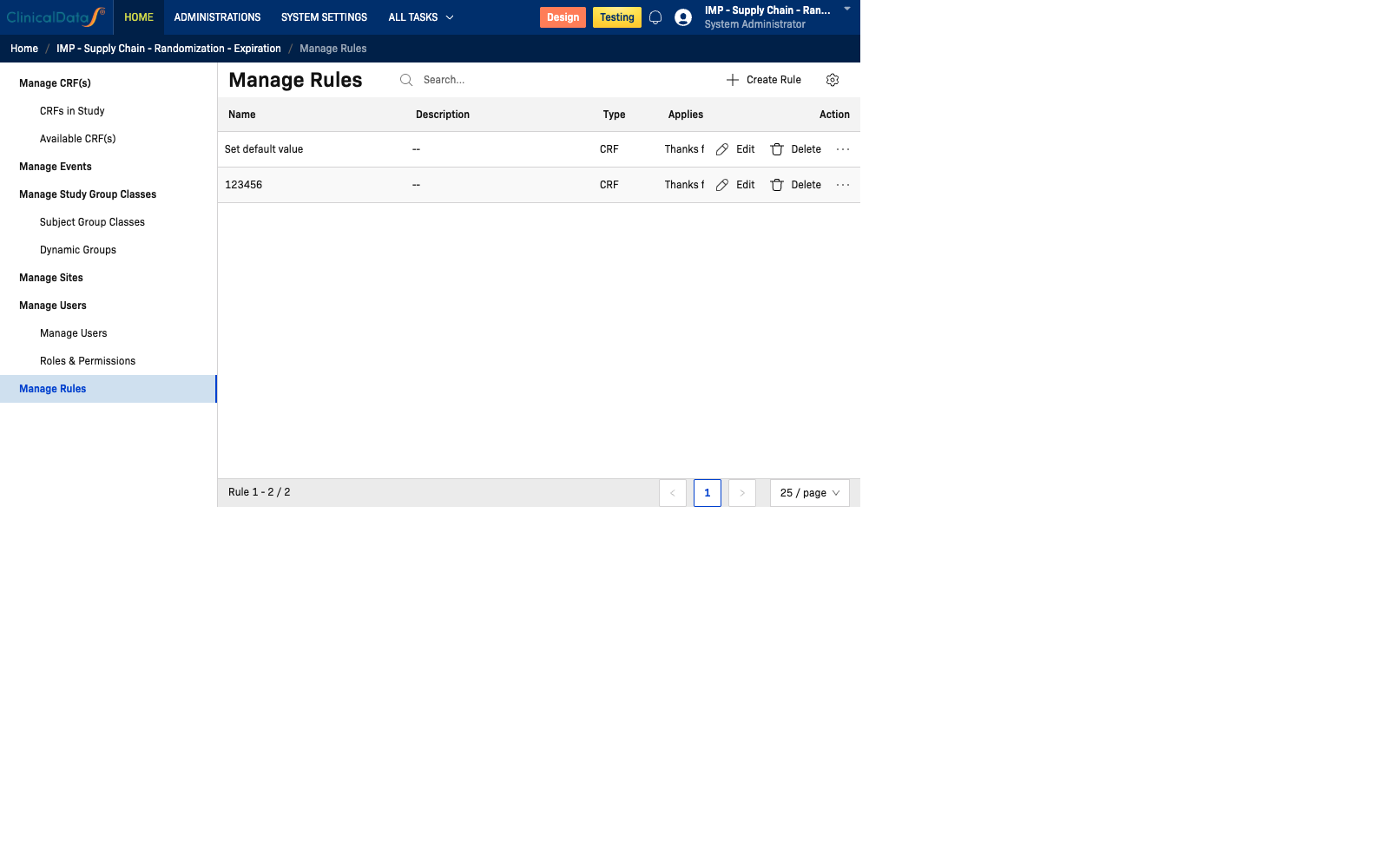
Rules Table
| Column | Description |
|---|---|
| Name | The name of the rule |
| Description | Optional description of what the rule does |
| Type | Scope: Study (applies study-wide) or CRF (applies to a specific CRF) |
| Applies To | The study name or CRF name the rule targets |
| Created By | The user who created the rule |
| Enabled | Current state: Enabled or Disabled |
| Stop Other Rules | Whether this rule stops other rules from executing (checkbox) |
| Action | Edit and Delete actions |
Example
| Name | Type | Applies To | Created By | Enabled |
|---|---|---|---|---|
| Calculate BMI | CRF | Demographics | Alexandra Chen | Enabled |
| Calculate Age at Consent | CRF | Demographics | Alexandra Chen | Enabled |
| Vital Signs Range Check | CRF | Vital Signs | Alexandra Chen | Enabled |
Total: 3 rules
Row Actions
| Action | Description |
|---|---|
| Edit | Opens the rule editor to modify the rule's conditions and actions |
| Delete | Permanently removes the rule from the study |
Page Actions
| Action | Description |
|---|---|
| Create Rule | Opens the Rule Studio to define a new rule |
| Search | Filter rules by name |
Creating a Rule
Click Create Rule to open the rule creation interface (powered by Rule Studio). You can define:
- Rule Name — A descriptive label
- Description — Optional explanation of the rule's purpose
- Type — Study-level or CRF-level
- Conditions — Trigger conditions (e.g., when a field value is blank, out of range, or fails a logical check)
- Actions — What happens when conditions are met (e.g., show error, set default value, skip to field)
- Enabled — Whether the rule is active immediately
- Stop Other Rules — If checked, this rule prevents other rules from running after it
Tip: Use the Rule Studio app for advanced rule authoring with a visual editor.
Expression Syntax
Expressions are used in rule actions to compute or validate values. Use the Item[OID] notation to reference CRF fields:
Item[FIELD_OID]
Full form (when referencing an item outside the current CRF):
Event[@oid=EVENT_OID].Crf[@oid=CRF_OID].Item[ITEM_OID]
Examples
| Rule | Expression |
|---|---|
| Calculate BMI | round(10000 * Item[WEIGHT_KG] / Item[HEIGHT_CM] / Item[HEIGHT_CM]) |
| Calculate Age at Consent | getYear(CURRENT_DATE) - getYear(Item[DATE_OF_BIRTH]) |
BMI note: Use multiplication by 10000 rather than dividing height by 100 first. The expression engine evaluates left to right, so
10000 * W / H / Hcorrectly equalsW × 10000 / H².
Built-in Constants
| Constant | Value |
|---|---|
CURRENT_DATE | Today's date |
CURRENT_DATETIME | Current date/time |
For a full function and operator reference, see Rule Studio Overview.
Rule Types
| Type | Description |
|---|---|
| Study | Applies across the entire study, regardless of CRF |
| CRF | Applies only when a specific CRF is being completed |