Overview
CDS Surveys is the study-level workspace for managing participant-reported outcomes and survey delivery. The workspace is accessible from within your study and provides two main areas:
- Surveys (
/apps/surveys/participant-surveys) — the participant survey worklist, tracking every survey sent to or completed by a participant - Configuration — two sub-sections for setting up delivery infrastructure:
- Participant Group (
/apps/surveys/configuration/participant-groups) — manage groups of participants to invite - Survey Package (
/apps/surveys/configuration/survey-packages) — define the surveys, email content, and sending schedule
- Participant Group (
Direct URL patterns:
https://[instance]/study/[studyId]/apps/surveys/participant-surveys
https://[instance]/study/[studyId]/apps/surveys/configuration/participant-groups
https://[instance]/study/[studyId]/apps/surveys/configuration/survey-packages
Replace [instance] with your environment host (for example, test-2025.clinicaldatas.net) and [studyId] with the study identifier.
Who uses this screen
Users who monitor survey compliance, send surveys to participants, or administer the survey delivery setup. Access depends on the user's study role and app permissions. Contact your study administrator if the Surveys app is missing or read-only.
Typical workflow
- Open the study and go to Surveys in the top navigation.
- The Surveys tab displays the participant survey worklist — review sent and completed surveys.
- To set up survey delivery, open Configuration → Participant Group and create groups of study subjects to invite.
- Open Configuration → Survey Package to define which surveys are included, configure the notification emails, and set the sending schedule.
- Once configured, survey invitations are sent to participants and tracked in the Surveys worklist.
Participant Surveys layout (observed)
The Surveys landing page shows a table of participant survey records for the study.
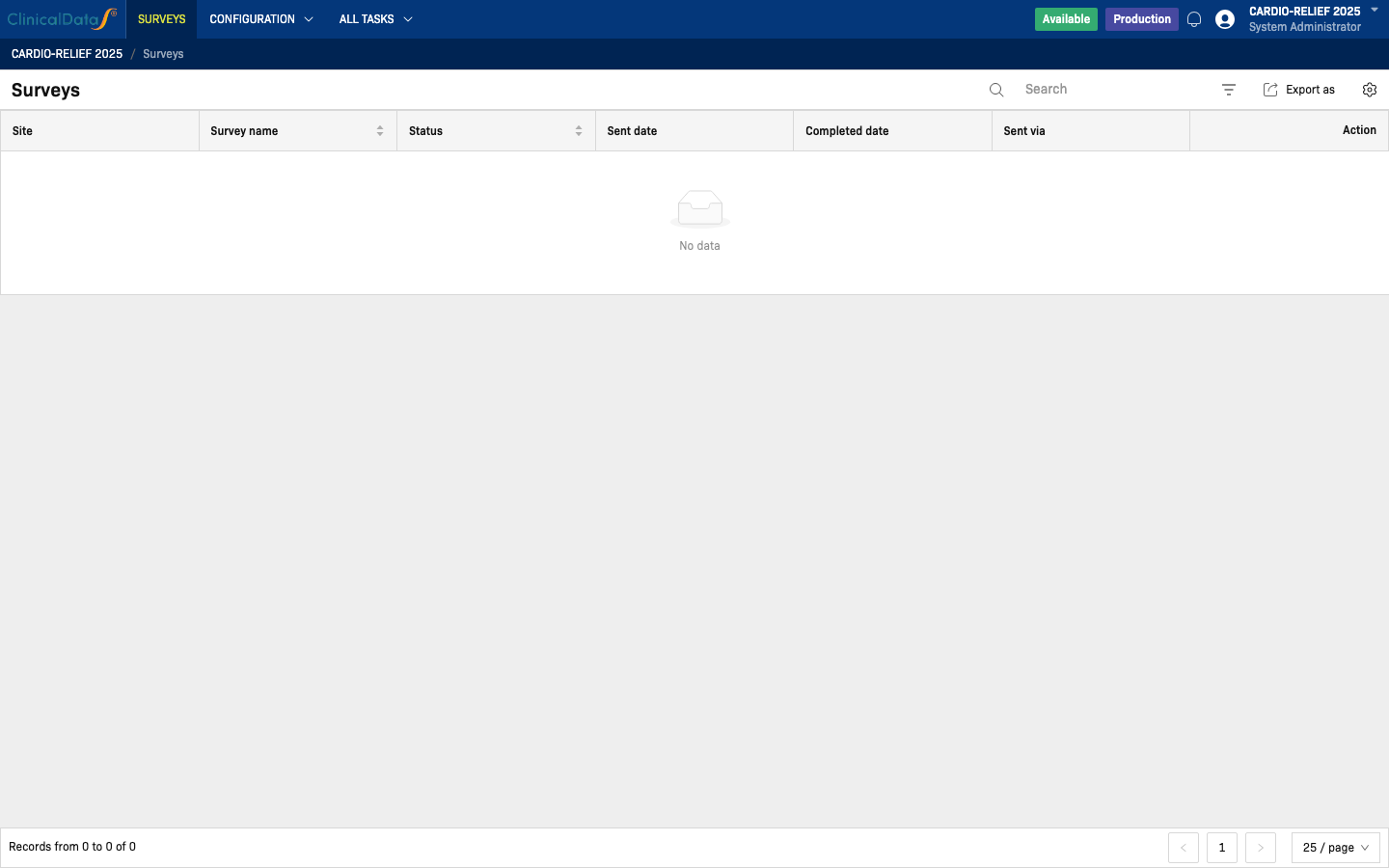
Top-level controls visible on the screen:
- Search — filter surveys by keyword
- Filter icon — additional column filters
- Export as — download the list
- Settings icon — column visibility
Table columns:
| Column | Description |
|---|---|
| Site | The site associated with the participant |
| Survey name | Name of the survey sent to the participant |
| Status | Delivery/completion status (for example, Sent, Completed) |
| Sent date | Date the survey was sent |
| Completed date | Date the participant completed the survey |
| Sent via | Delivery channel used (for example, email, mobile app) |
| Action | Available actions for the survey record |
Pagination appears at the bottom: Records from X to Y of Z, with Previous / Next page controls and a page size selector (default 25 / page).
In the observed study, the list shows 0 records (No data state). Record count depends on whether survey packages have been configured and sent.
Navigation — Configuration menu (observed)
The CONFIGURATION button in the top navigation bar expands a dropdown with two sub-sections:
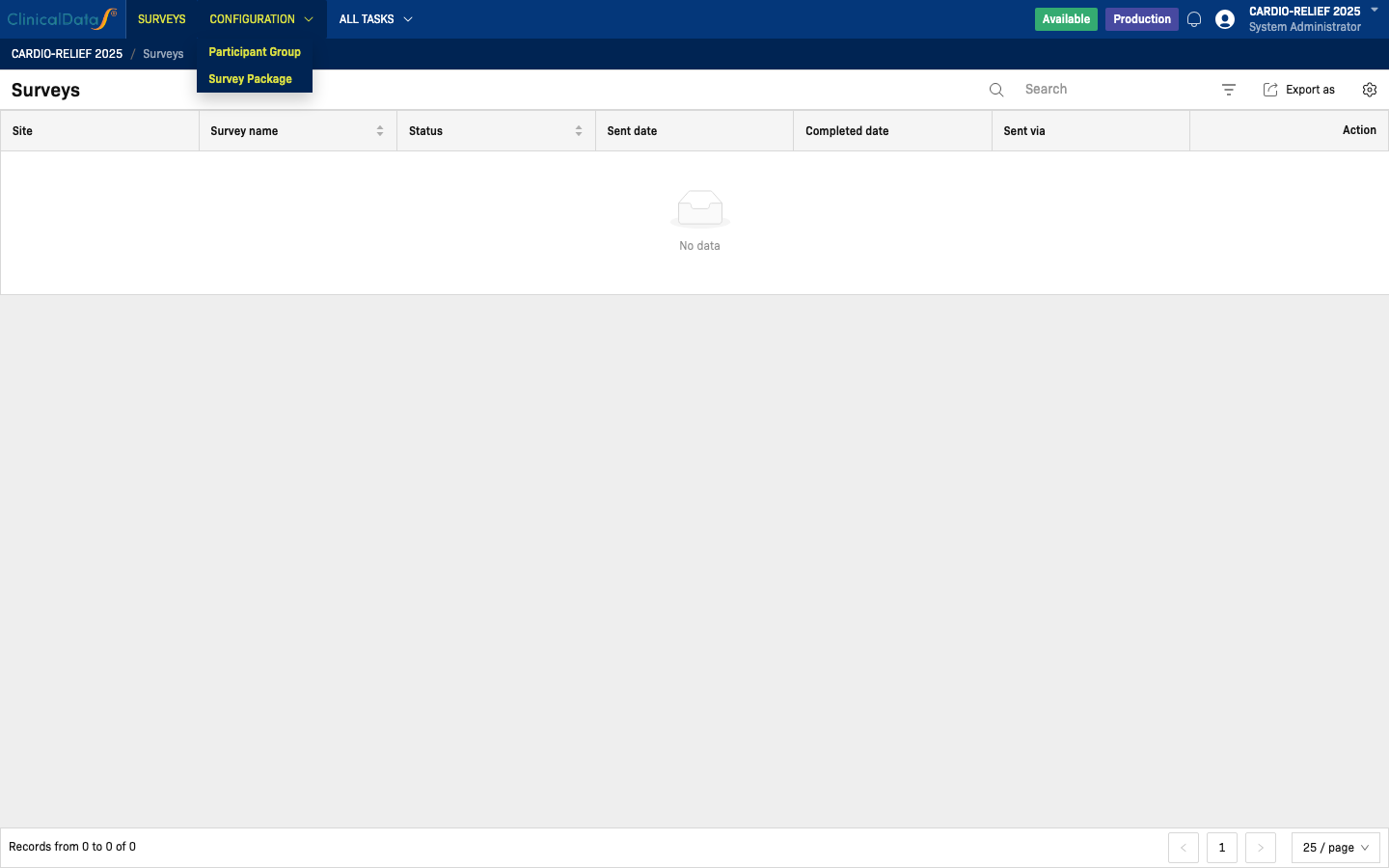
- Participant Group — create and manage groups of study subjects for survey invitation
- Survey Package — define surveys, email templates, and sending schedules
Participant Group layout (observed)
Participant Group (Configuration → Participant Group) lists all participant groups created for the study.
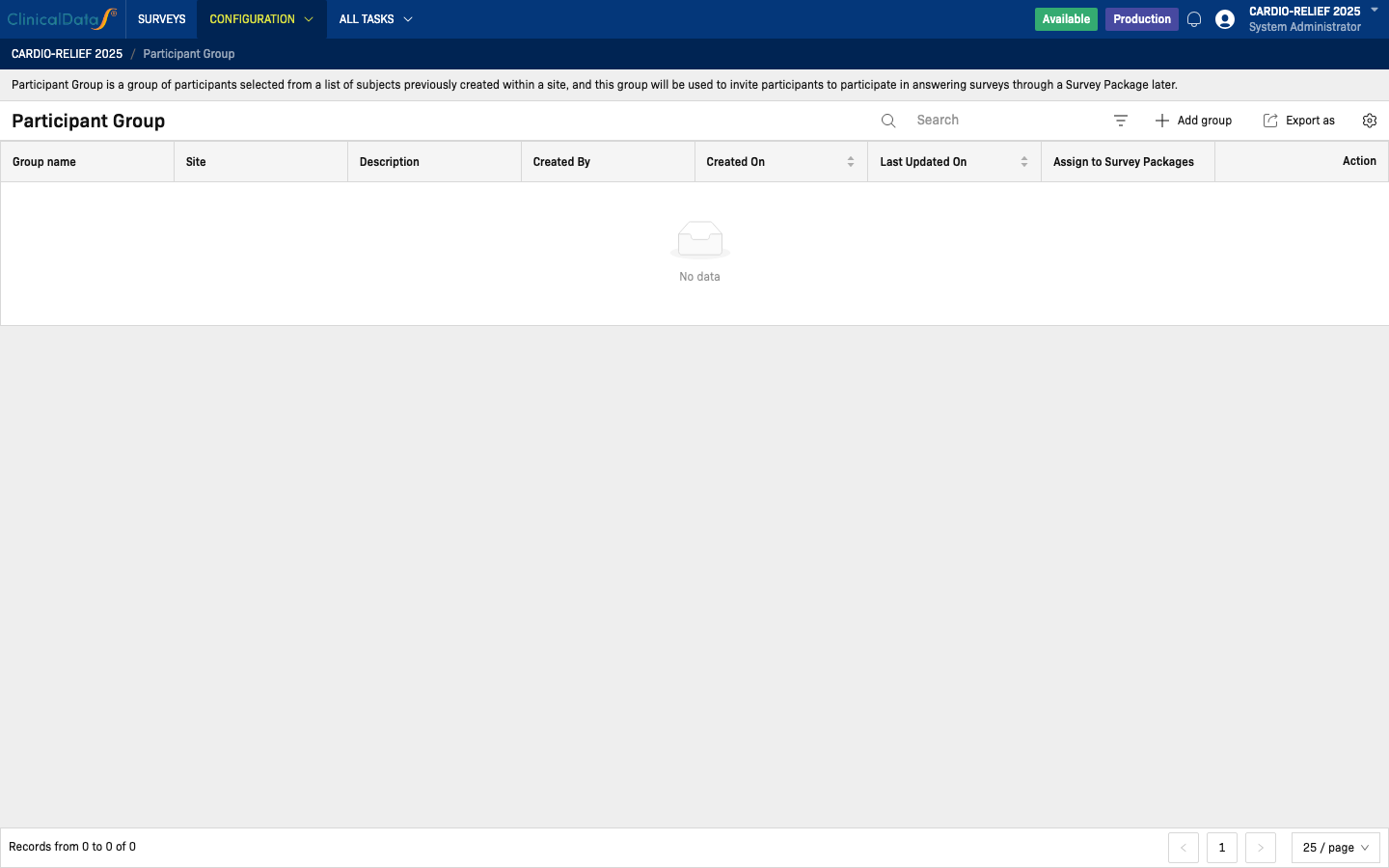
Participant Group is a group of participants selected from a list of subjects previously created within a site. This group is used to invite participants to answer surveys through a Survey Package.
Table columns:
| Column | Description |
|---|---|
| Group name | Name of the participant group |
| Site | Site the group belongs to |
| Description | Optional description |
| Created By | User who created the group |
| Created On | Creation date |
| Last Updated On | Date of the most recent change |
| Assign to Survey Packages | Survey packages this group is linked to |
| Action | Edit or delete options |
Actions available from the toolbar: + Add group, Export as.
Survey Package layout (observed)
Survey Package (Configuration → Survey Package) manages the packages that bundle surveys with delivery rules.
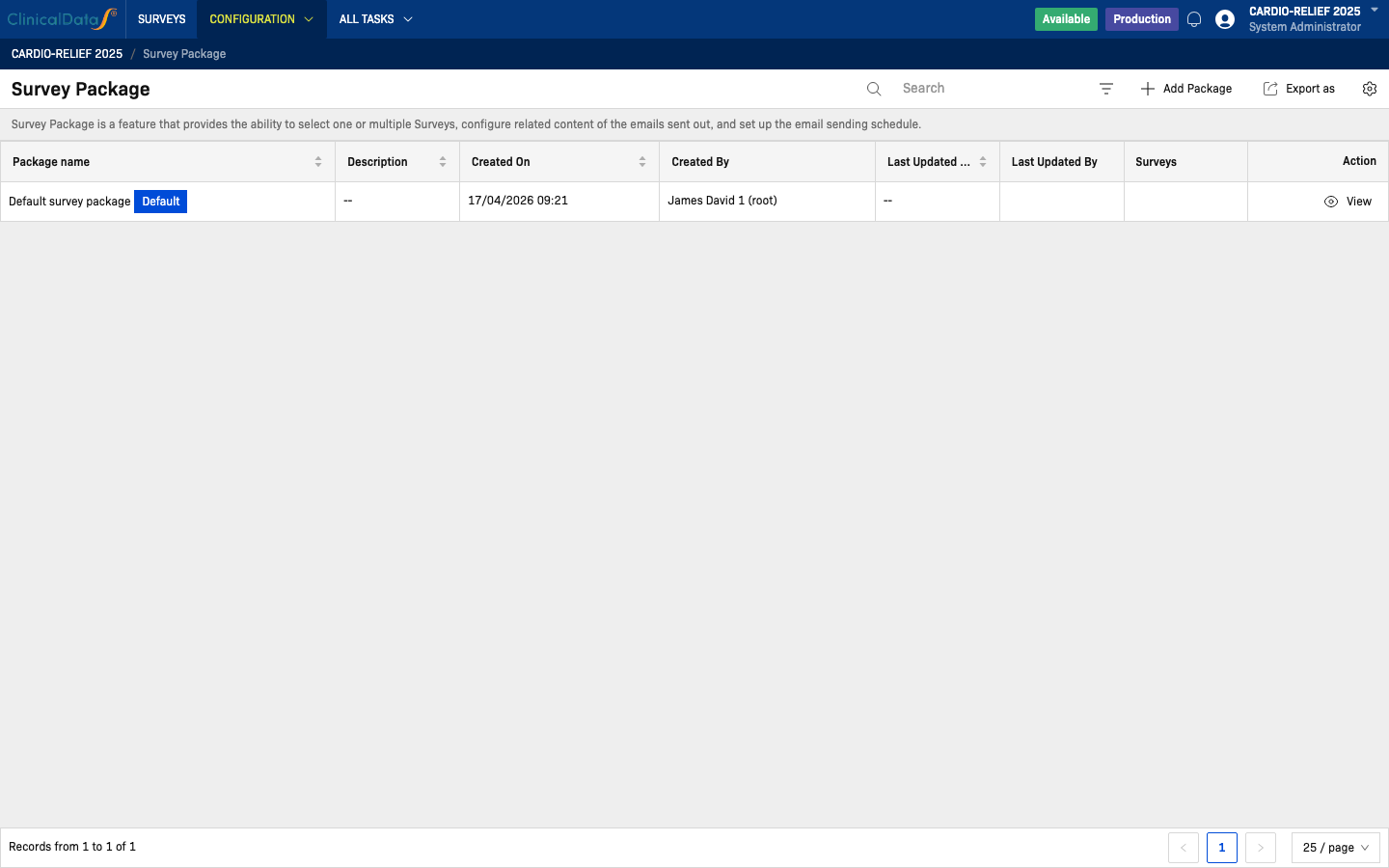
Survey Package is a feature that provides the ability to select one or multiple surveys, configure the email content sent out, and set up the email sending schedule.
Table columns:
| Column | Description |
|---|---|
| Package name | Name of the survey package (a Default badge marks the system default) |
| Description | Optional description |
| Created On | Creation date |
| Created By | User who created the package |
| Last Updated On | Date of the most recent change |
| Last Updated By | User who last modified the package |
| Surveys | Number of surveys included in this package |
| Action | View to inspect or edit the package |
Actions from the toolbar: + Add Package, Export as.
In the observed study, one record exists: Default survey package (tagged Default), created on 17/04/2026 by James David 1 (root).
Relationship to configuration
Survey records appearing in the Surveys worklist are driven by Survey Packages and Participant Groups set up under Configuration. If no surveys are listed, verify that at least one Survey Package has been created and a Participant Group has been assigned and triggered. See Configuration for full setup details.
Related topics
- Configuration — Survey library, event mapping, participant group, and survey package setup
- CDS Mobile App — Participants can also complete surveys via the ClinicalDataS mobile app