Overview
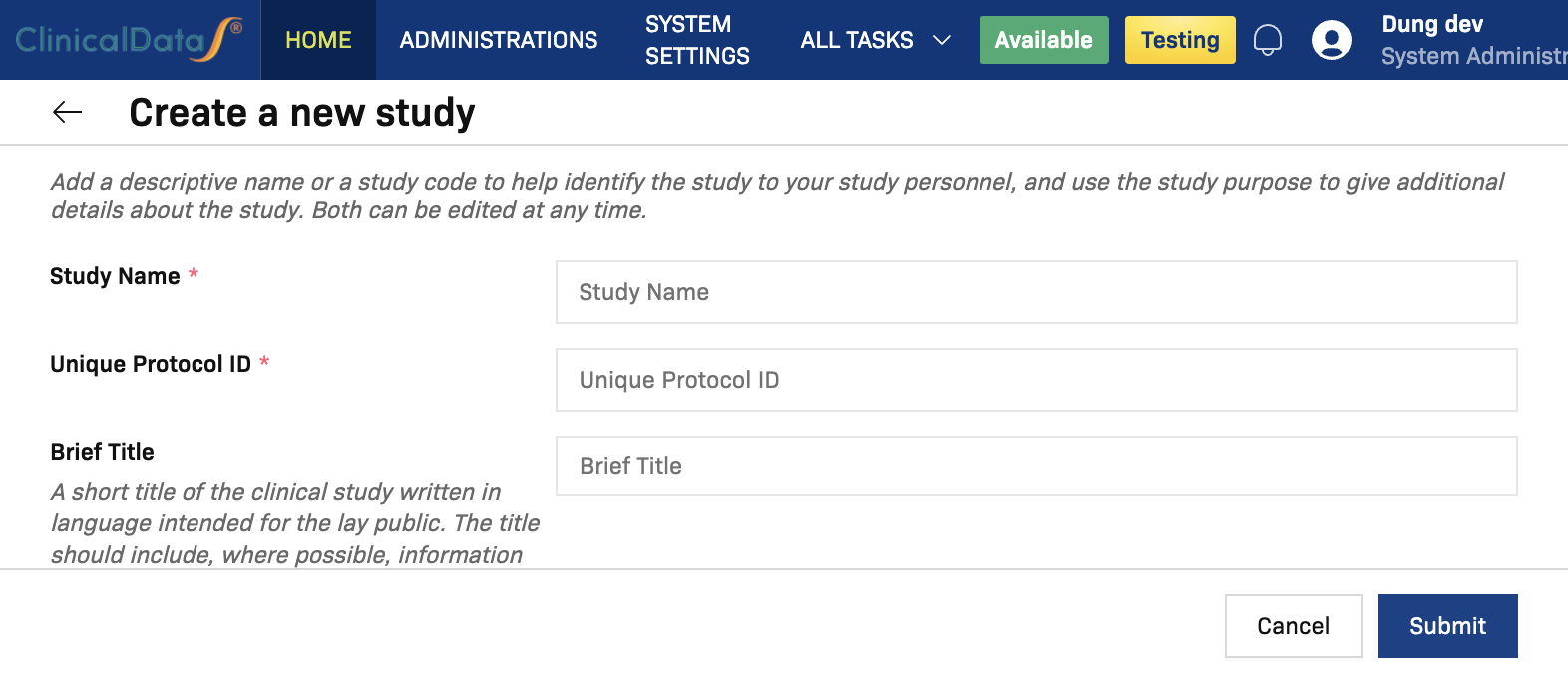
Use the Create a new study page to define core protocol information before configuring study setup and apps.
The page guidance states:
Add a descriptive name or a study code to help identify the study to your study personnel, and use the study purpose to give additional details about the study. Both can be edited at any time.
Fields marked with * are required.
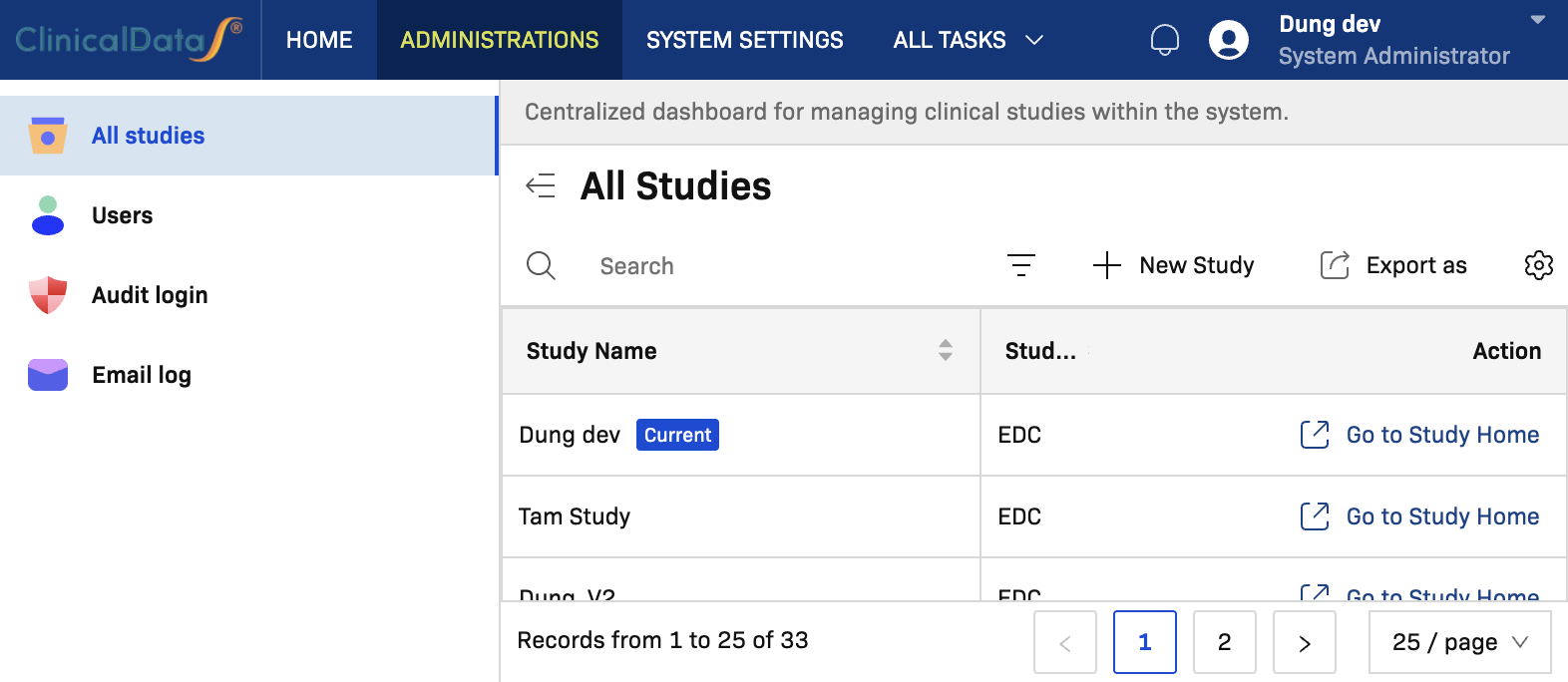
Open the Create a new study page
- Go to Administrations.
- Open All studies.
- Select New Study.
You are redirected to: https://[instance]/home/create-study
Complete required fields
Fill in these required fields before submitting:
Study Name*Unique Protocol ID*Brief Summary*Sponsor*Principal Investigator*Protocol Type*Study Type*Expected total enrollment*Study Start Date*
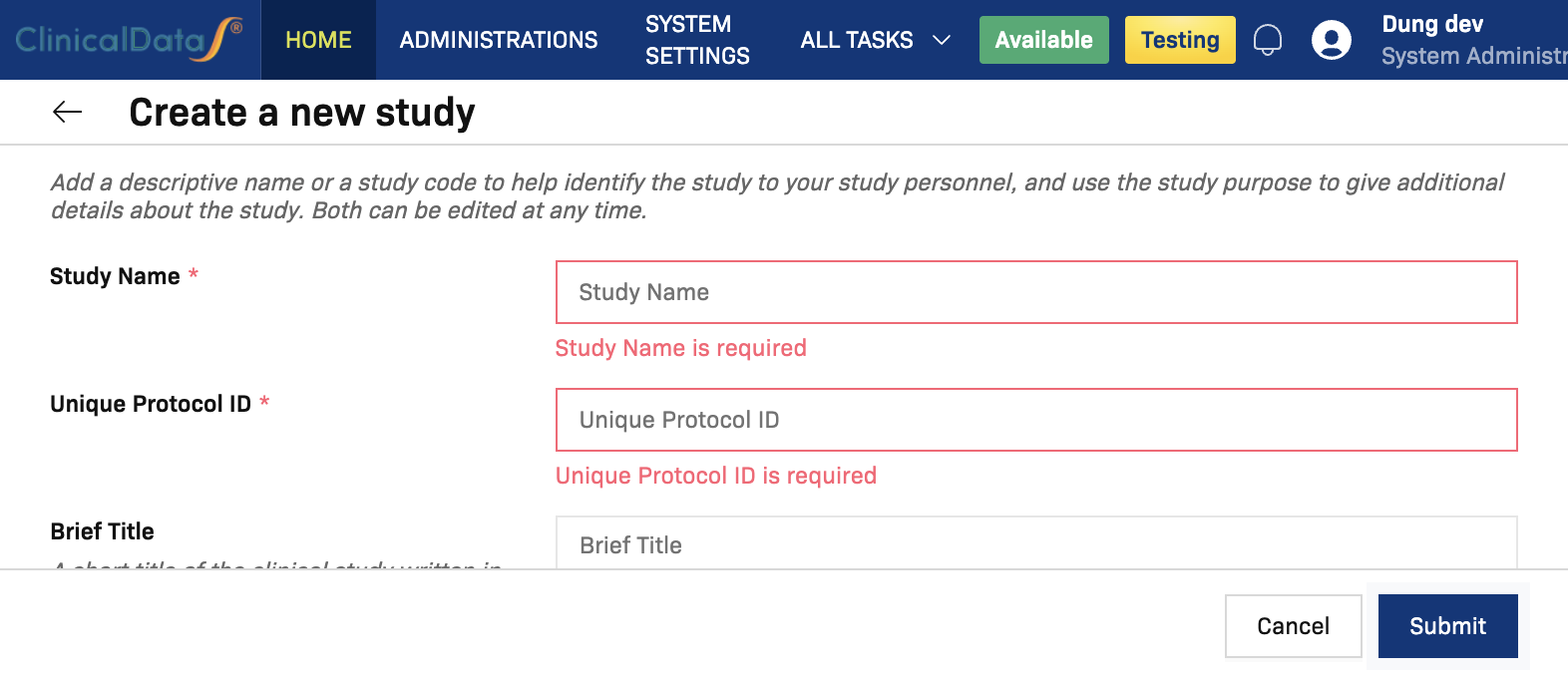
If you select Submit with missing required values, inline validation messages appear (for example, Study Name is required).
Protocol information
Complete the descriptive protocol fields:
Brief Title: A short title intended for the lay public, ideally including participants, condition, and intervention(s).Official Title: The protocol title used for the clinical study.Brief Summary*: A short summary and hypothesis in language intended for the lay public.Detailed Description: Extended protocol information. Avoid duplicating details already captured elsewhere.Sponsor*: The entity (for example, corporation or agency) that initiates the study.Principal investigator*: The individual designated as responsible party by the sponsor.Protocol Type*: Study protocol category selected from a dropdown list.Study Type*: Study phase/category selected from a dropdown list.
Enrollment and dates
Set the operational planning values:
Expected total enrollment*: Target or actual participant count.Study Start Date*: Estimated recruitment start date or the actual date the first participant was enrolled.Study Completion Date: Date of final participant completion for primary/secondary outcomes and adverse events collection.Protocol Verification/IRB Approval Date: Date of protocol verification or IRB approval.
For date fields, you can use the calendar picker or Now (where available).
Finish creating the study
Use the bottom actions:
Cancelto discard changes.Submitto create the study.
After successful creation, the study appears in All studies.
After creation: continue study configuration
After the study is created, continue with the Update Study workflow for advanced setup:
- Study Description updates (metadata and protocol details)
- Required attached files
- Default Facility Information
- Study Parameter Configuration
- Event Parameter Configuration
Continue here: