Overview
The IMP module manages investigational medicinal products and trial supply. Configure it from Home → select your study → IMP.
Configuration URL: https://[instance]/home/study/[studyId]/apps/imp
IMP & Supply Chain Configuration
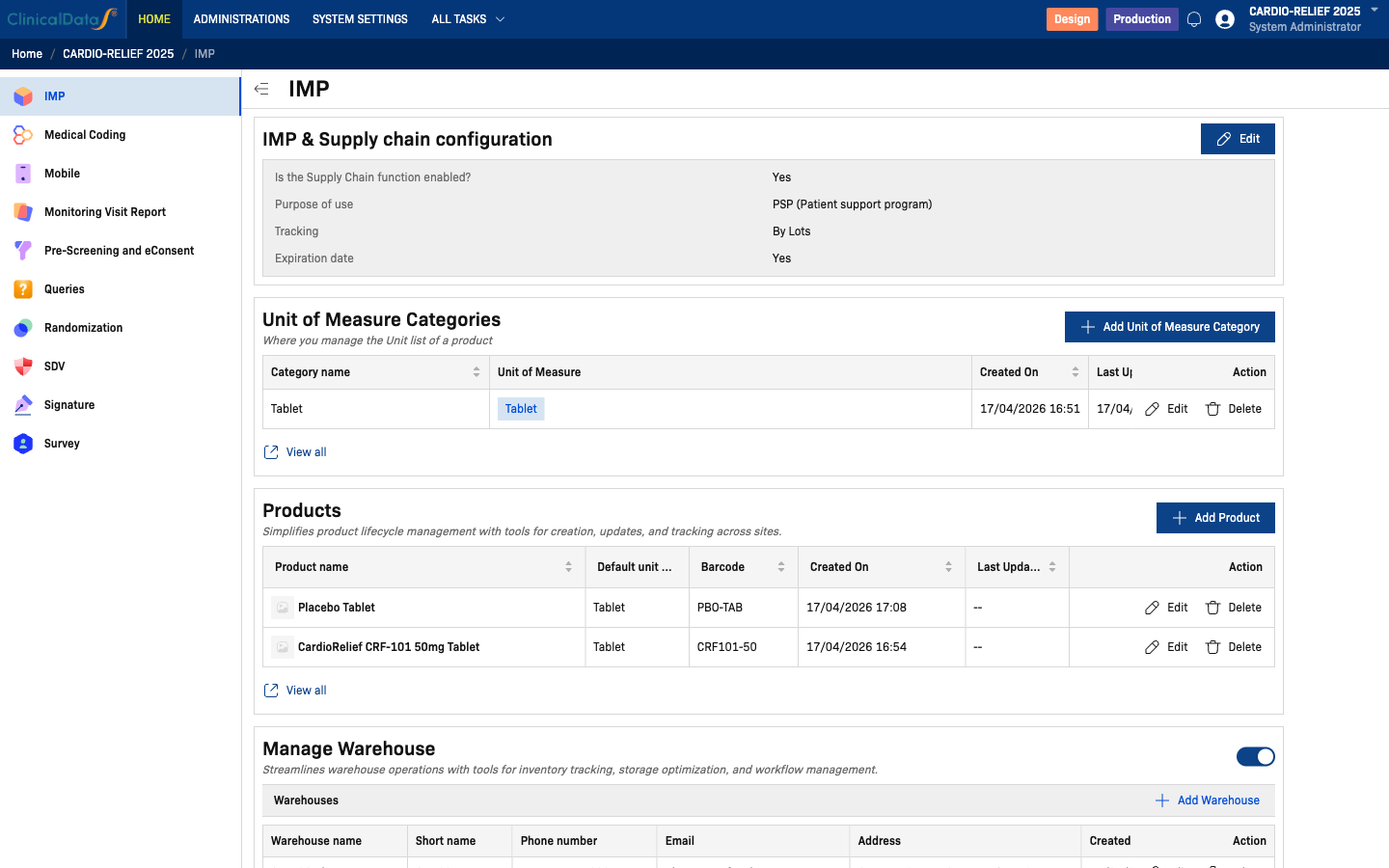
Click Edit to configure the core supply chain settings:
| Field | Options | Description |
|---|---|---|
| Is the Supply Chain function enabled? | Yes / No | Enables the supply chain module for this study |
| Purpose of use | Randomization, PSP (Patient support program) | Determines which IMP workflows are available |
| Tracking | By Lots | How product inventory is tracked |
| Expiration date | Yes / No | Whether expiration dates are collected for lots |
If you set Purpose to Randomization, the Randomization module must be fully configured before you can add products. Additionally, Randomization mode supports only one (1) investigational product per study. Use PSP (Patient support program) for non-randomization dispensing workflows or for studies requiring multiple products.
Unit of Measure Categories
Define measurement categories and their units (e.g., Tablet → Tablet, Vial → mL). Click Add Unit of Measure Category to create a new category.
| Column | Description |
|---|---|
| Category name | Name of the measurement category (e.g., Tablet) |
| Unit of Measure | Unit within the category (e.g., Tablet) |
| Created On / Last Updated On | Timestamps |
Click View all to manage the full list.
Products
Manage investigational products used in the study. Click Add Product to register a new product.
When Purpose of use is set to Randomization, CDS supports only one (1) investigational product per study. Attempting to configure more than one product is not supported in this mode. For multi-product studies, set Purpose to PSP (Patient support program).
| Column | Description |
|---|---|
| Product name | Name of the investigational product (with optional thumbnail) |
| Default unit of measure | Unit used for this product (from Unit of Measure Categories) |
| Barcode | Barcode or scan code for the product |
| Created On / Last Updated On | Timestamps |
Click View all to manage the full product list.
Manage Warehouse
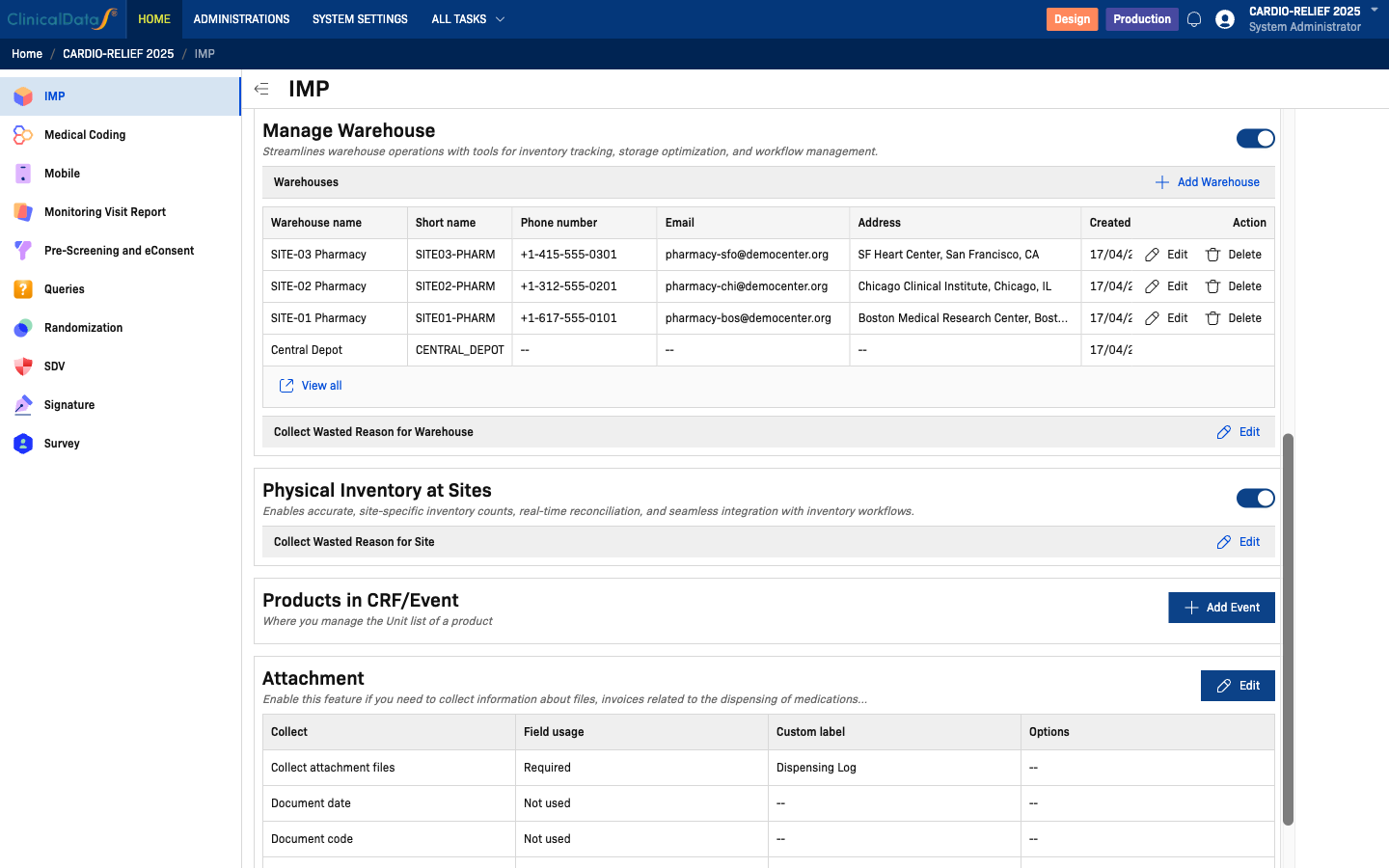
Enable the Manage Warehouse toggle to activate warehouse functionality. Click Add Warehouse to register a new warehouse.
- Manage Warehouse On — 3-tier flow: Central Depot → Warehouse → Site Pharmacy. An intermediate Receipts step is required before IP codes can be delivered to sites.
- Manage Warehouse Off — 2-tier flow: Central Depot → Site Pharmacy directly. No intermediate receipt step.
| Field | Description |
|---|---|
| Warehouse name | Full name of the warehouse (e.g., SITE-01 Pharmacy) |
| Short name | Abbreviated identifier (e.g., SITE01-PHARM) |
| Phone number | Contact phone for the warehouse |
| Contact email address | |
| Address | Physical address of the warehouse |
A Central Depot warehouse is automatically created when the IMP module is first enabled for a study. It cannot be deleted and serves as the top-level distribution point.
Click Edit next to Collect Wasted Reason for Warehouse to configure whether and how waste reasons are recorded at the warehouse level.
Click View all to manage the full warehouse list.
Physical Inventory at Sites
Enable the Physical Inventory at Sites toggle to allow site-level inventory tracking and reconciliation.
When enabled, an additional Collect Wasted Reason for Site option appears. Click Edit to configure waste reason collection at site level.
Products in CRF/Event
Link products to CRF events so that dispensing is recorded within eCRF forms. Click Add Event to associate an event with dispensing of specific products.
In PSP (Patient support program) mode, this section is labeled Products in CRF/Event.
In Randomization mode, this section is labeled Dispensing Medication for Randomization.
Attachment
Enable this section to collect files (invoices, dispensing logs, etc.) alongside medication dispensing records. Click Edit to configure.
Each attachment field can be set to Required, Optional, or Not used. A custom label can be provided when the field is enabled.
| Field | Description |
|---|---|
| Collect attachment files | Main toggle for file uploads; set custom label (e.g., Dispensing Log) |
| Document date | Date of the attached document |
| Document code | Reference or document code |
| Document note | Free-text notes about the document |
| Document type | Classification of document type |