IP Codes
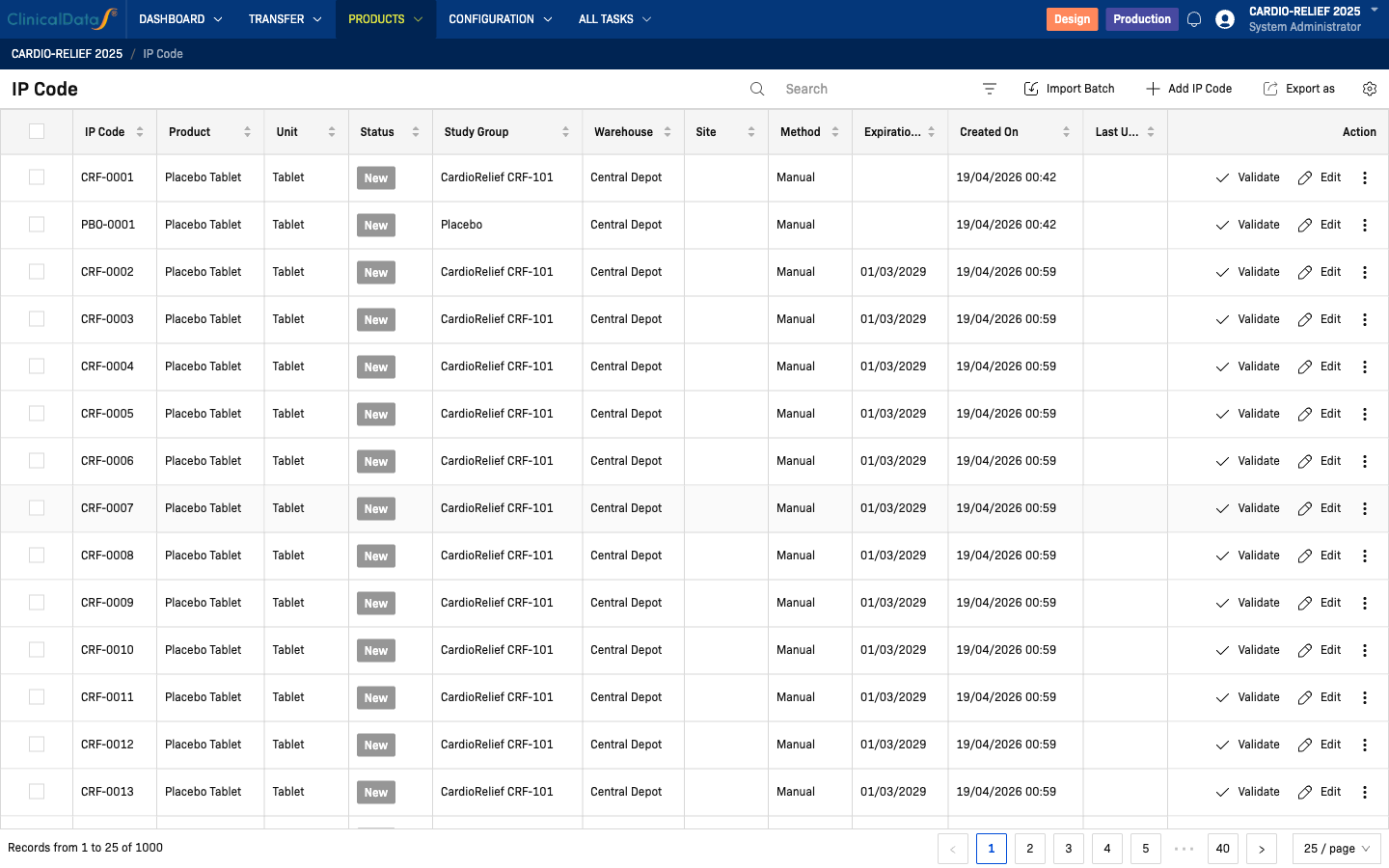
IP codes are the individual tracking units for investigational product. Each code is assigned to a Study Group (treatment arm) at creation.
Navigate: IMP → Products → IP Code
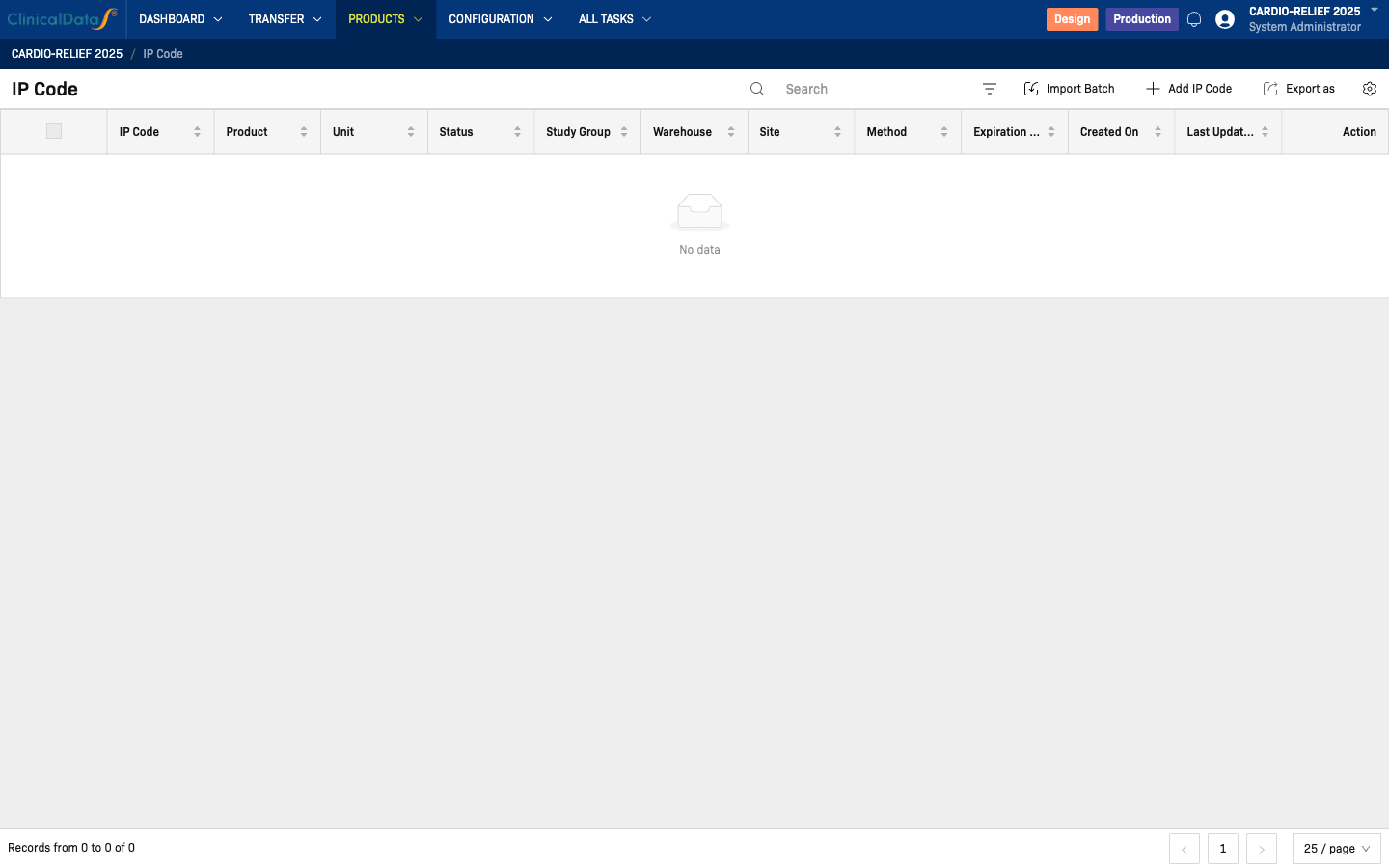
IP Code table columns
| Column | Description |
|---|---|
| IP Code | Unique code identifier (e.g., CRF-0001) |
| Product | Product name associated with this code |
| Unit | Unit of measure (e.g., Tablet) |
| Status | Current status (Available, Dispensed, Returned, …) |
| Study Group | Treatment arm this code is assigned to |
| Warehouse | Current warehouse holding the code |
| Site | Site that received the code (if delivered) |
| Method | Dispensing method |
| Expiration Date | IP expiration date |
| Created On | Date the code was added |
| Last Updated On | Date of last status change |
| Action | Edit / Delete |
Add IP Code (manual)
Click + Add IP Code to open the add dialog.
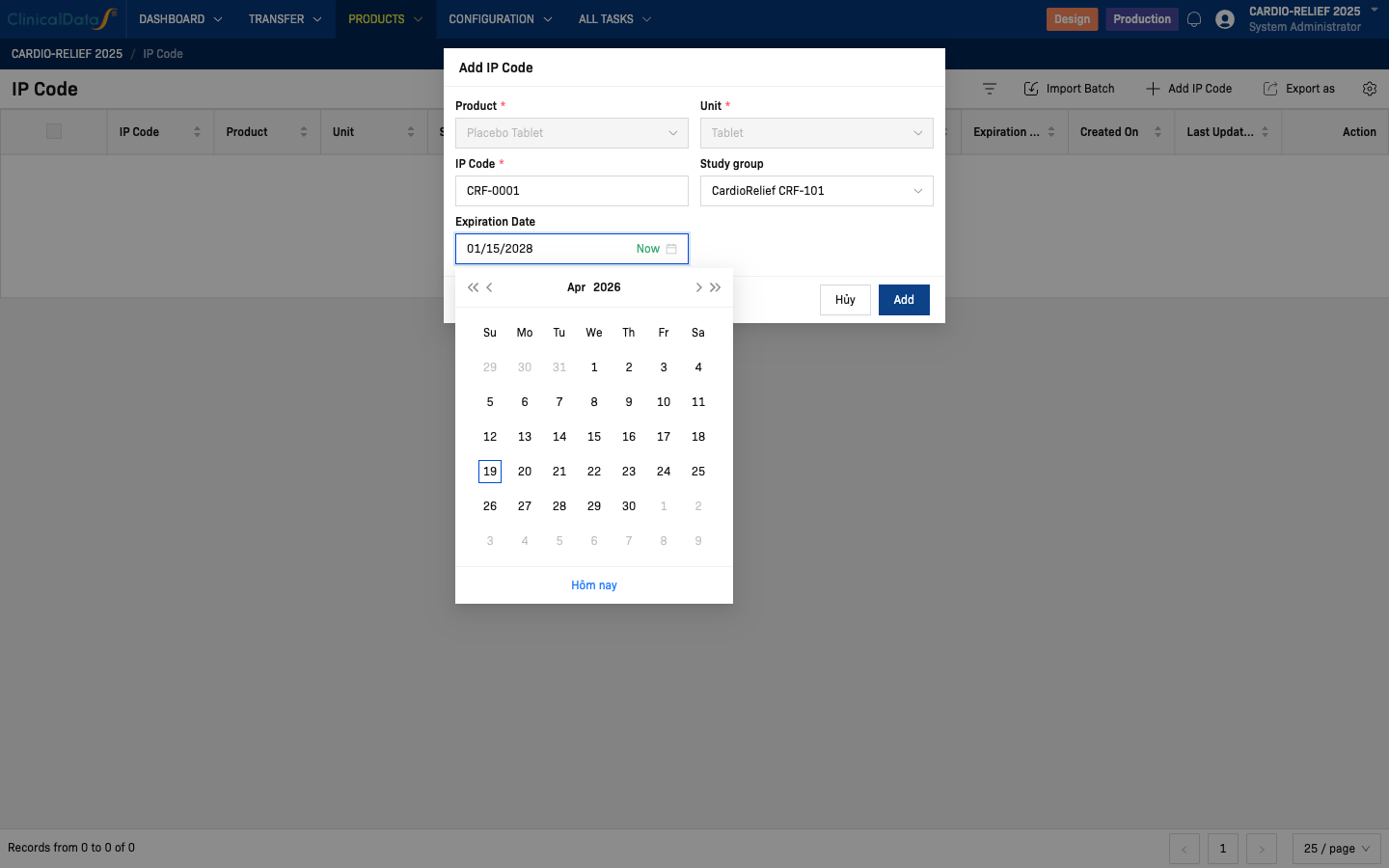
| Field | Behavior |
|---|---|
| Product | Pre-set; cannot be changed from this form |
| Unit | Pre-set; cannot be changed from this form |
| IP Code | Required. Enter the unique code (e.g., CRF-0001) |
| Study group | Dropdown. Select the treatment arm for this code |
| Expiration Date | Optional. Enter or pick the IP expiration date |
The Study group field reveals which treatment arm an IP code belongs to. This is unblinded information. Only users with the Unblinded Supply Manager role (or equivalent) should add or view IP codes with study group assignments.
Study group options (example: CARDIO-RELIEF 2025)
| Study Group | Arm |
|---|---|
| CardioRelief CRF-101 | Active treatment |
| Placebo | Placebo arm |
Click Add to save the code.
Import Batch (bulk)
For large numbers of codes, use Import Batch to upload a CSV or Excel file.
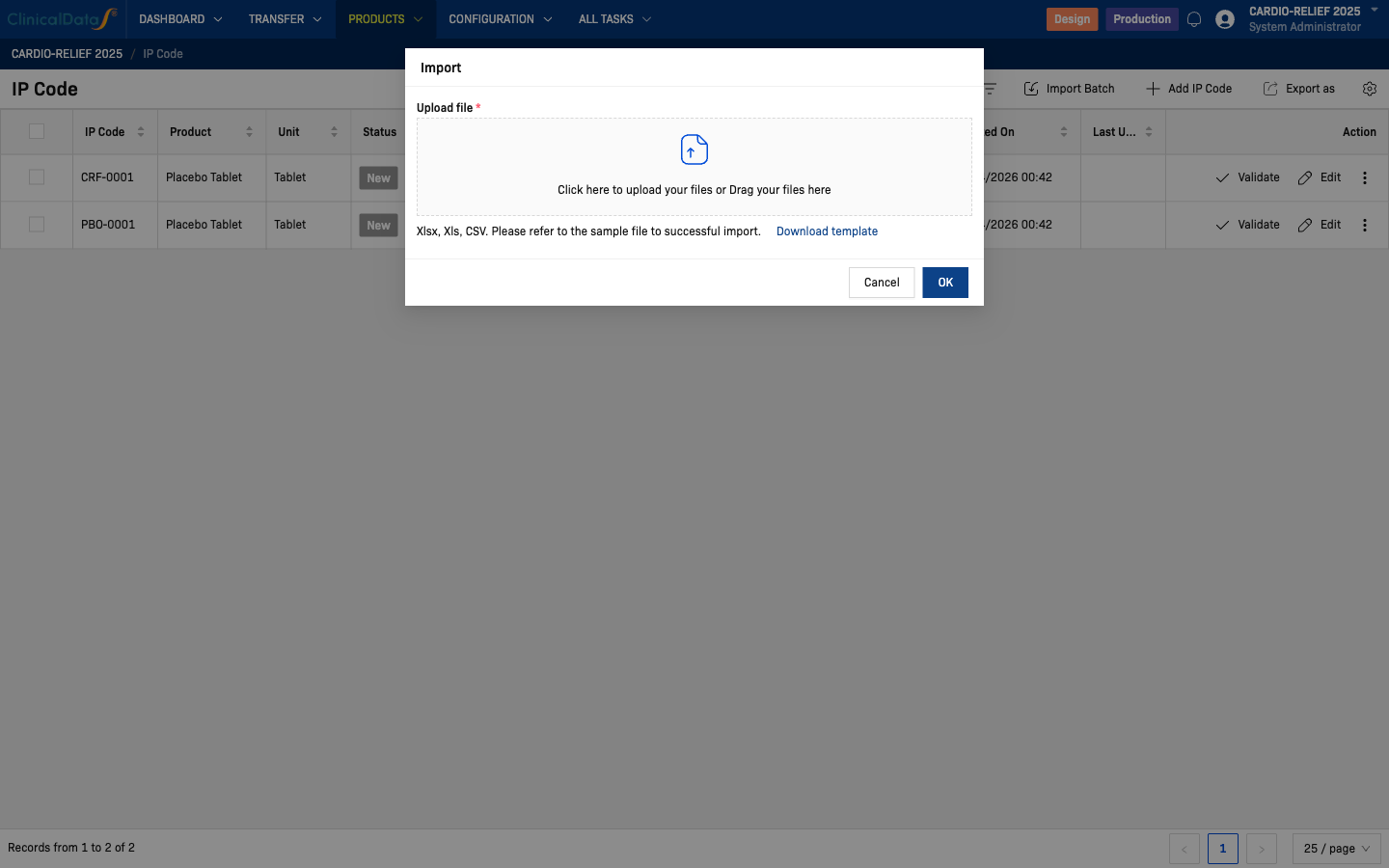
- Click Import Batch
- In the dialog, click Download template to get the required column format
- Fill the template with your IP codes (one per row)
- Upload the filled file using the file selector
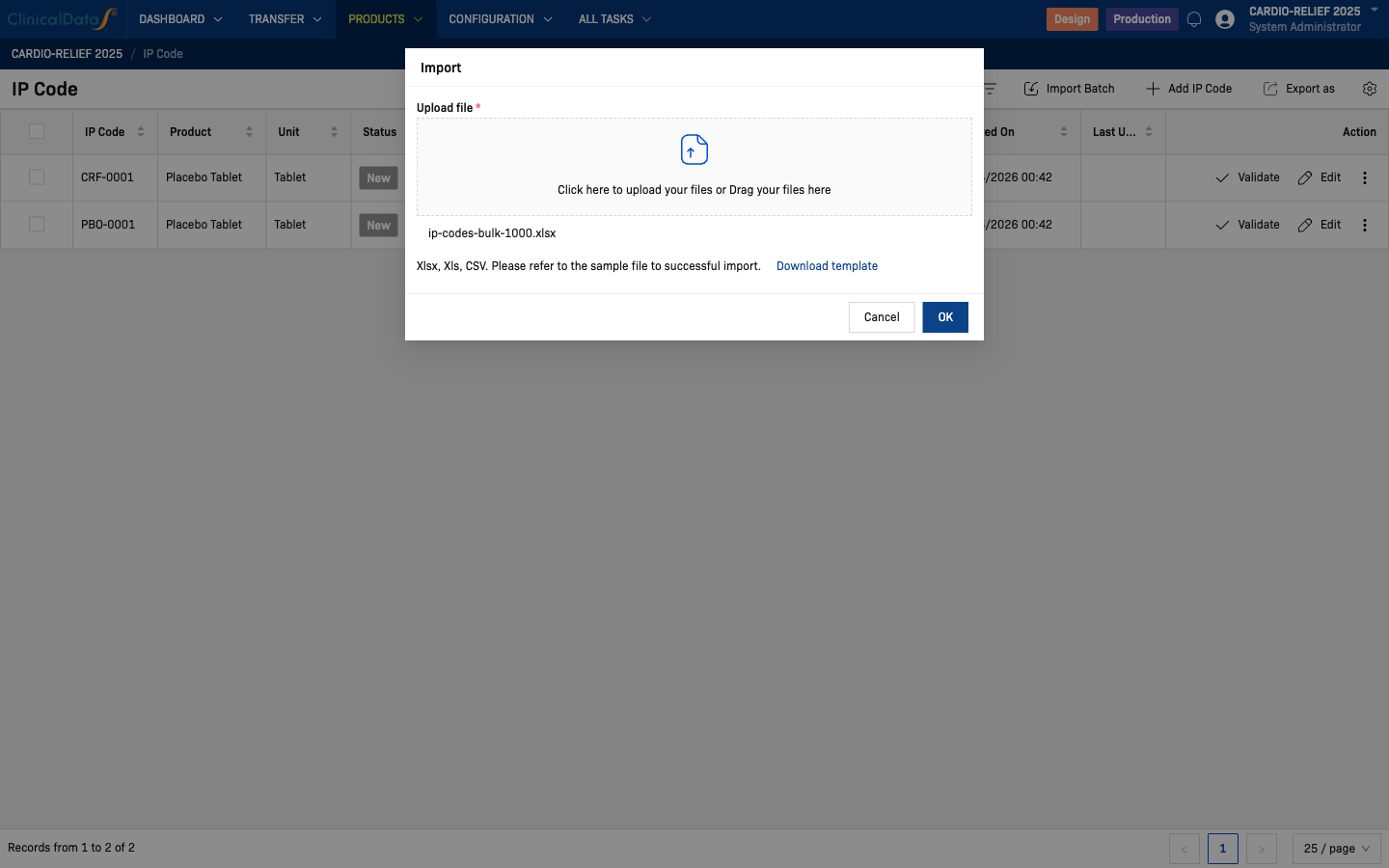
- Click OK to import — a success notification confirms the batch was accepted
After import, the IP Code list updates immediately with all new codes.
CSV / Excel template columns
| Column | Required | Example value |
|---|---|---|
IP Code | Yes | CRF-0003 |
Study Group | Yes | CardioRelief CRF-101 |
Expiration Date | No | 01/15/2028 |
For a double-blind study with 500 codes per arm, prepare two sets of rows in one file or import separately:
- 500 rows with Study Group =
CardioRelief CRF-101(CRF-0001 → CRF-0500) - 500 rows with Study Group =
Placebo(PBO-0001 → PBO-0500)
The system will reject the entire batch if any IP Code already exists, so ensure codes are unique before importing.
Export
Click Export as to download the current IP code list as CSV or Excel for audit or verification.