Overview
The Roles & Permission section explains what each role can do in ClinicalDataS.
Use this section to:
- Understand responsibilities by role
- Identify which users can access each workflow area
- Align permissions with study and system governance
How Permissions Work
Permissions are assigned by role and can differ by context:
- System-level permissions for platform-wide administration
- Study-level permissions for activities inside a specific study
Always verify permissions before starting setup, data entry, monitoring, or approval workflows.
Built-In CDS Roles
ClinicalDataS provides a set of standard built-in roles.
Use these built-in roles as your baseline access model, then apply study-specific overrides only when needed by protocol or operations.
To see the full standard role list and app-level permission matrix, open:
https://test-2025.clinicaldatas.net/home/system-settings/roles-permissions
You can also see the system-level documentation page here:
Default Permission Check (System Level)
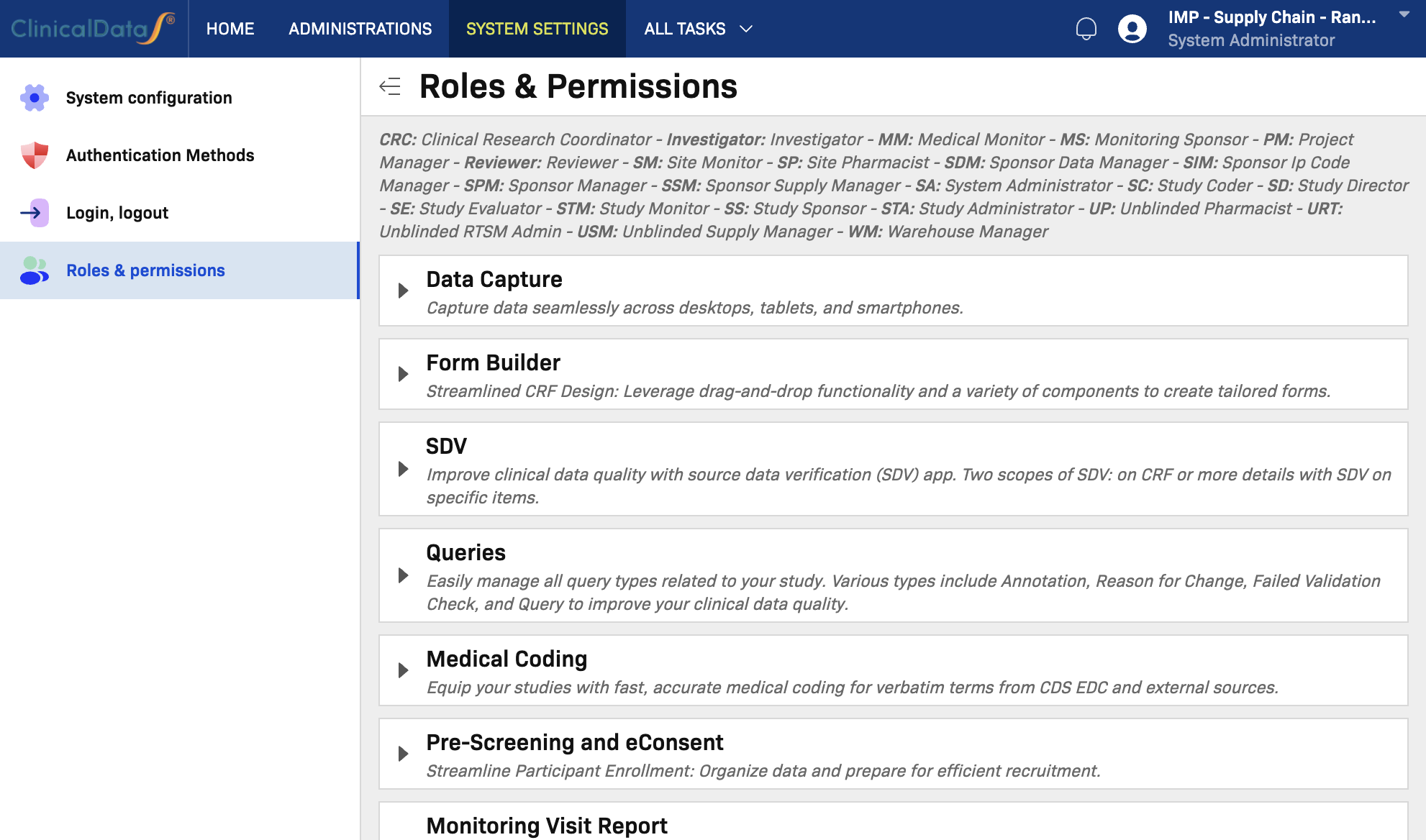
At system level, Roles & permissions is the source of truth for what a role can do by default across applications.
Path:
- Open System Settings
- Select Roles & permissions
- Review permissions by role and application
Study-Level Override
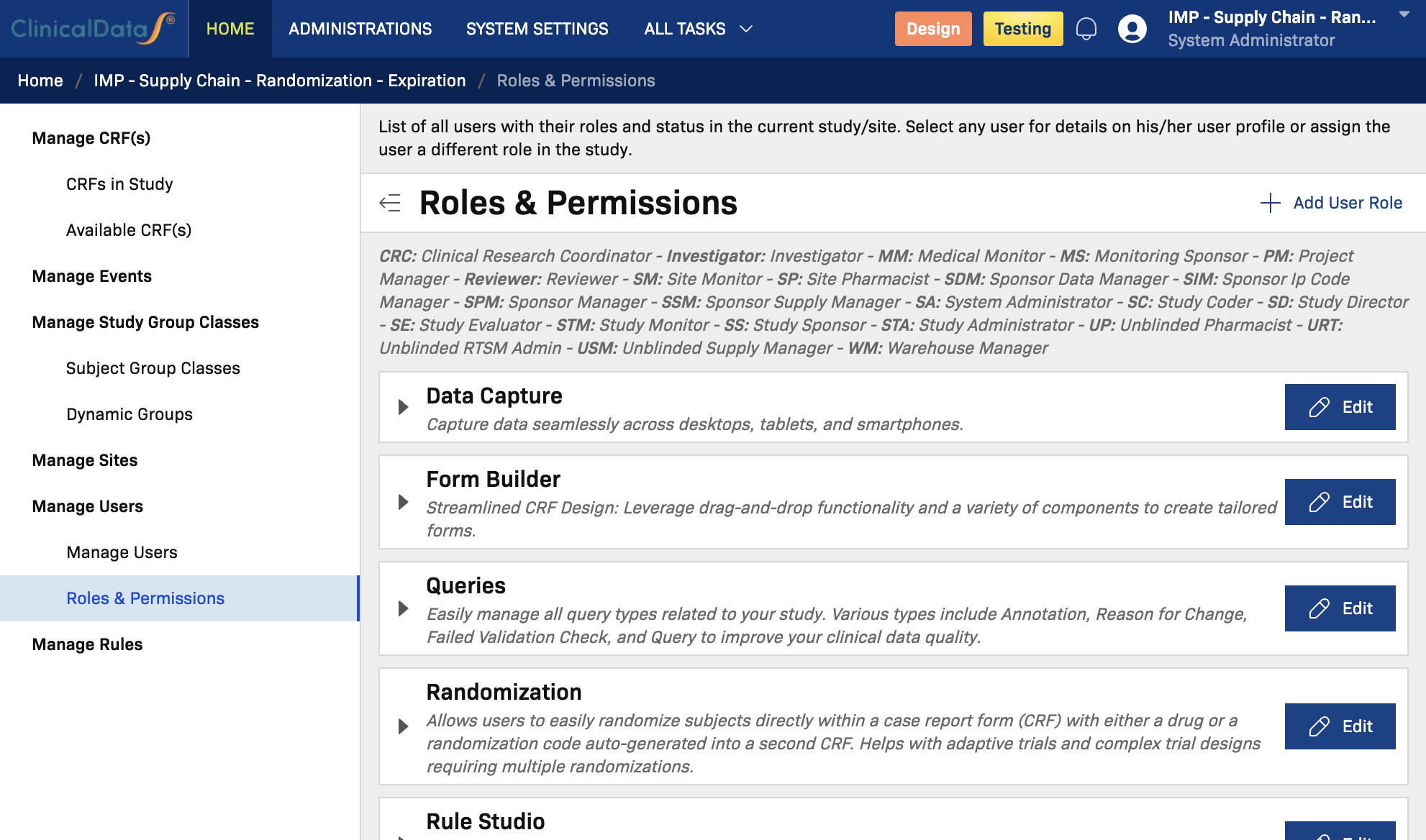
To override default permissions inside a specific study:
- Open the target study in study design.
- Change study status to Design (if not already in Design).
- Open Manage roles & permissions.
- Apply and save role permission changes for that study.
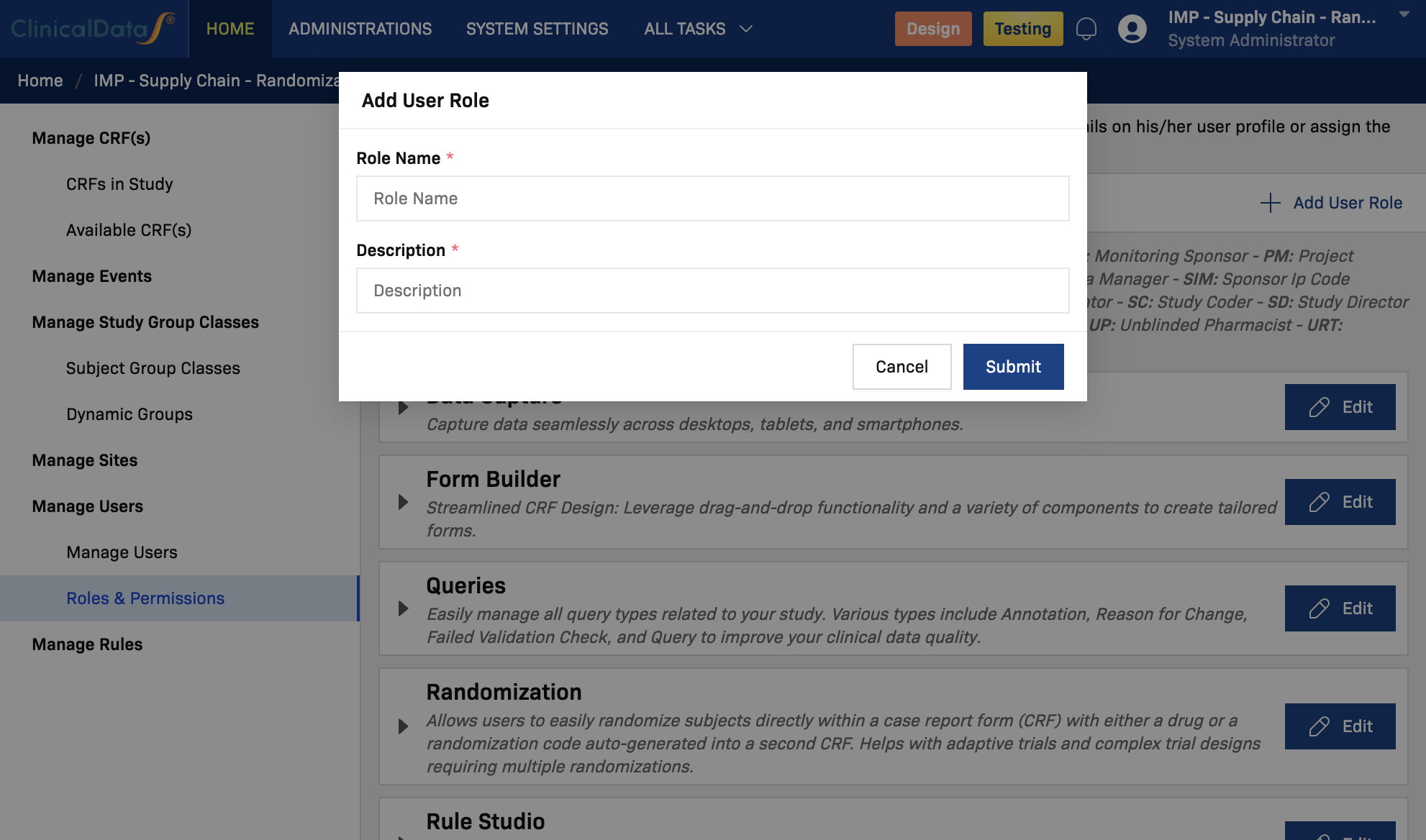
At study level, you can also define a new role to fit client-specific needs by using Add User Role, then providing role name and description.
Example study-level URL:
https://test-2025.clinicaldatas.net/home/study/S_6IqmI4UzZ9vRtidwFp/build/roles-permissions
Use study-level overrides carefully so they remain aligned with protocol requirements and governance rules.
Available Role Guides
- System Administrator
- Study Administrator
- Investigator / CRC
- Monitor / CRA
- Sponsor / Sponsor Data Manager
- Supply Manager / Warehouse Manager
- Medical Monitor / Safety
- Participant / Patient
Recommendation
Start with the role that matches your account, then review adjacent roles that collaborate with your process.