Manage CRFs
The Manage CRFs section provides two integrated views for managing Case Report Forms (CRFs) in your study:
- CRFs in Study — Displays all active CRFs currently assigned to the study
- Available CRFs — Shows all CRFs in the database that can be reused or used to create new ones
CRFs are the data entry forms filled in for each subject at each event. They are created in the Form Builder and then assigned to events.
CRFs in Study
Overview
The CRFs in Study tab shows all Case Report Forms currently active in your study. This view provides an overview of the assigned CRFs and allows you to preview, edit, or manage their assignments.
Path: Home → Study Name → Build → Manage CRFs → CRFs in Study
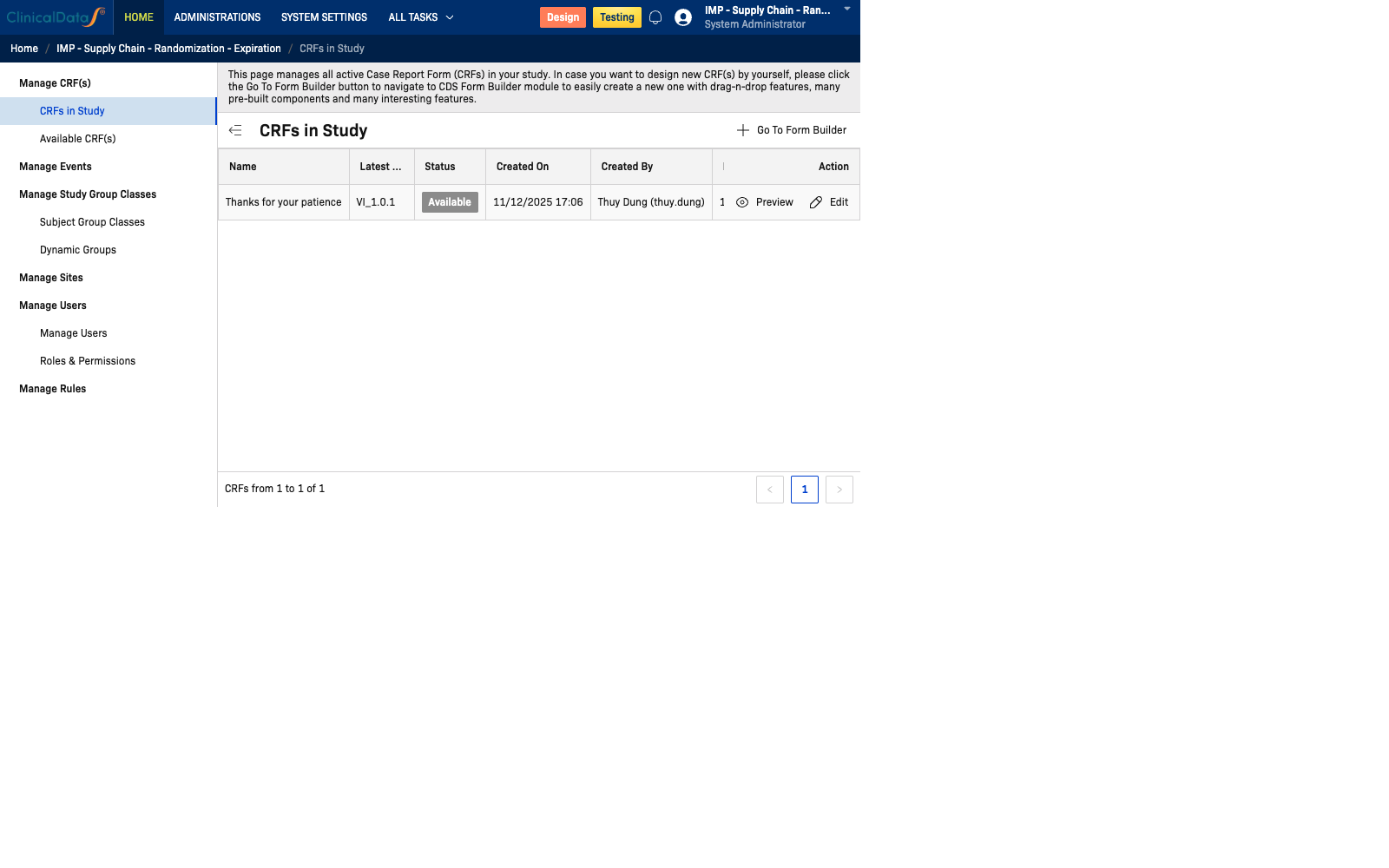
CRFs Table
| Column | Description |
|---|---|
| Name | The display name of the CRF |
| Latest Version | The current active version identifier |
| Status | Current status: Available, Draft, or Locked |
| Created On | Date and time the CRF was first created |
| Created By | The user who created the CRF |
| Last Updated On | Date and time the CRF was last modified |
| Description | Optional description of the CRF's purpose |
| Action | Preview and Edit actions |
Example
| Name | Latest Version | Status | Created On | Created By | Last Updated On |
|---|---|---|---|---|---|
| Thanks for your patience | VI_1.0.1 | Available | 11/12/2025 17:06 | Thuy Dung (thuy.dung) | 13/04/2026 16:48 |
| Thông tin cá nhân | V.1.0 | Available | 19/01/2026 10:36 | James David 1 (root) | 12/03/2026 15:14 |
| Test AI | V.1.0 | Available | 24/02/2026 09:38 | James David 1 (root) | 05/03/2026 17:22 |
| MC | V.1.0 | Available | 11/03/2026 15:52 | James David 1 (root) | 30/03/2026 15:40 |
| CRF Test | V.1.0 | Available | 27/03/2026 09:36 | James David 1 (root) | 30/03/2026 15:42 |
| Signature | V.1.0 | Available | 07/04/2026 17:13 | James David 1 (root) | 09/04/2026 15:05 |
Row Actions
| Action | Description |
|---|---|
| Preview | Opens a read-only preview of the CRF layout and fields |
| Edit | Opens the CRF in Form Builder to modify its structure and content |
CRF Versioning
CRFs support versioning. When a published CRF is updated, a new version is created. The Latest Version column shows the current active version. Previous versions remain available for reference and may still be in use by subjects enrolled under an older version.
Assigning CRFs to Events
CRFs are assigned to events from the Manage Events page. A CRF must have Available status before it can be assigned.
Tip: Use descriptive CRF names that reflect their clinical purpose (e.g., "Vital Signs", "Adverse Events") to make the Subject Matrix easy to navigate.
Available CRFs
Overview
The Available CRFs tab displays all Case Report Forms available in the database. This section allows you to:
- View all CRFs that have been created in Form Builder
- Reuse existing CRFs from other studies
- Create a new CRF by navigating to Form Builder
Path: Home → Study Name → Build → Manage CRFs → Available CRFs
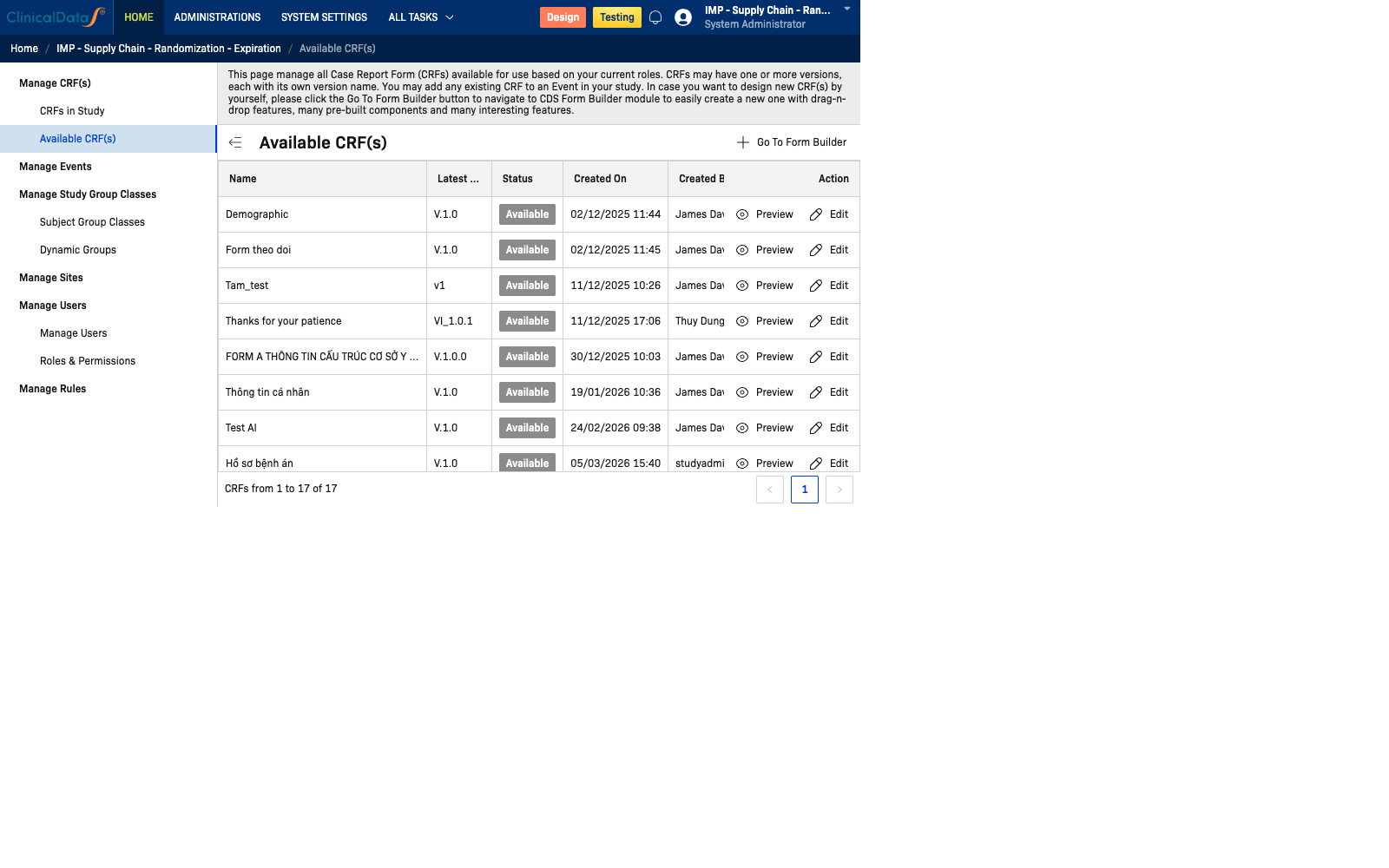
Available CRFs Table
This view displays a comprehensive list of all CRFs in the database organized by:
| Column | Description |
|---|---|
| Name | The display name of the CRF |
| Latest Version | The current version identifier |
| Status | Current status: Available, Draft, or Locked |
| Created On | Date when the CRF was first created |
| Created By | The user who created the CRF |
| Last Updated On | Date when the CRF was last modified |
| Study | The study that originally created or uses this CRF |
| Actions | Options to add CRF to study |
Using Available CRFs
Add an Existing CRF
To add an available CRF to your current study:
- Browse the Available CRFs list
- Locate the desired CRF
- Click the Add or Assign button
- Confirm the action to include it in your study
Create a New CRF
To create a new CRF from scratch:
- Click the Go to Form Builder link/button
- In Form Builder, select Create New CRF
- Use the drag-and-drop interface to add form fields and components:
- Text inputs
- Date/time pickers
- Dropdown menus
- Radio buttons and checkboxes
- Calculated fields
- Signature fields
- Image/file upload fields
- Configure validation rules and visibility settings
- Save and publish the CRF
- Once published, the new CRF will appear in both the Available CRFs list and can be assigned to events
Note: After creating a CRF in Form Builder, return to this page and assign it to the appropriate events in your study.
CRF Management Best Practices
- Naming Convention — Use clear, descriptive names that indicate the CRF's clinical purpose
- Versioning — Plan for CRF updates; document changes in descriptions
- Reusability — Create modular CRFs that can be reused across multiple studies
- Testing — Always preview CRFs before assigning them to events
- Assignment — Ensure all required CRFs are assigned to the appropriate events before study activation