Overview
The Queries app manages data clarification, annotations, reason for change, and failed validation queries. The configuration interface allows you to pre-define common descriptions and reasons that will be available to data entry staff when they update, close, or provide reasons for changes on queries and CRFs.
Path: Home → Study Name → Apps → Queries → Configuration
Configuration URL: https://[instance]/home/study/[studyId]/apps/query
Queries configuration requires the study to be in Design status. If the study is in Available or Frozen status, settings are read-only.
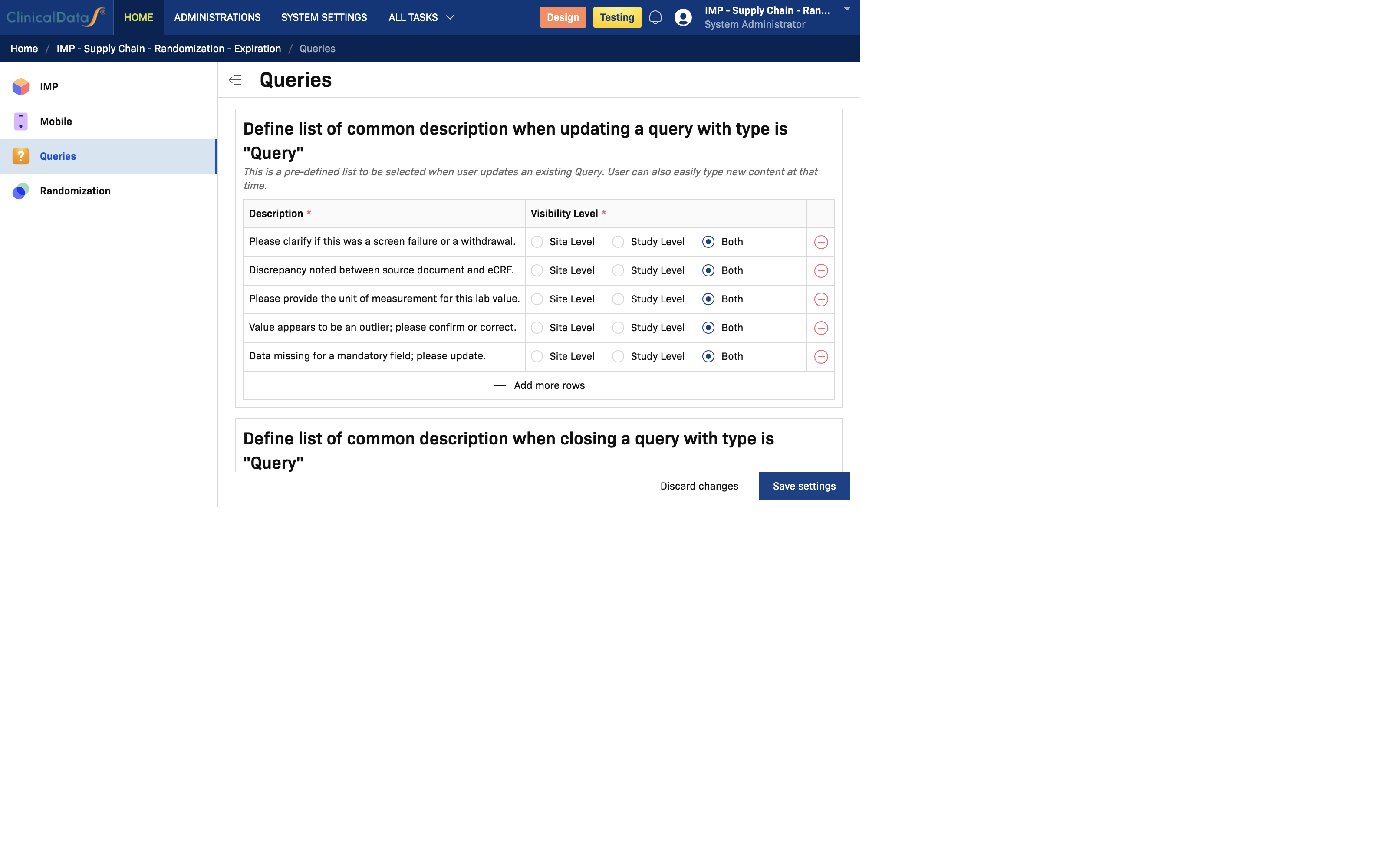
Configuration Access & Status
- Who Can Configure: Study administrators and users with Queries app configuration permissions
- When to Configure: During study setup in Design phase
- Study Status Requirements:
- Edit Allowed: Study in Design status
- Read-Only: Study in Available or Frozen status
Pre-defined Description Lists
Update Query Descriptions
Define a list of common descriptions available when updating a query of type "Query".
Purpose: Provide consistent, standardized response templates when data is questioned or clarified. Data entry staff can select from these pre-defined options or type custom text.
"This is a pre-defined list to be selected when user updates an existing Query. User can also easily type new content at that time."
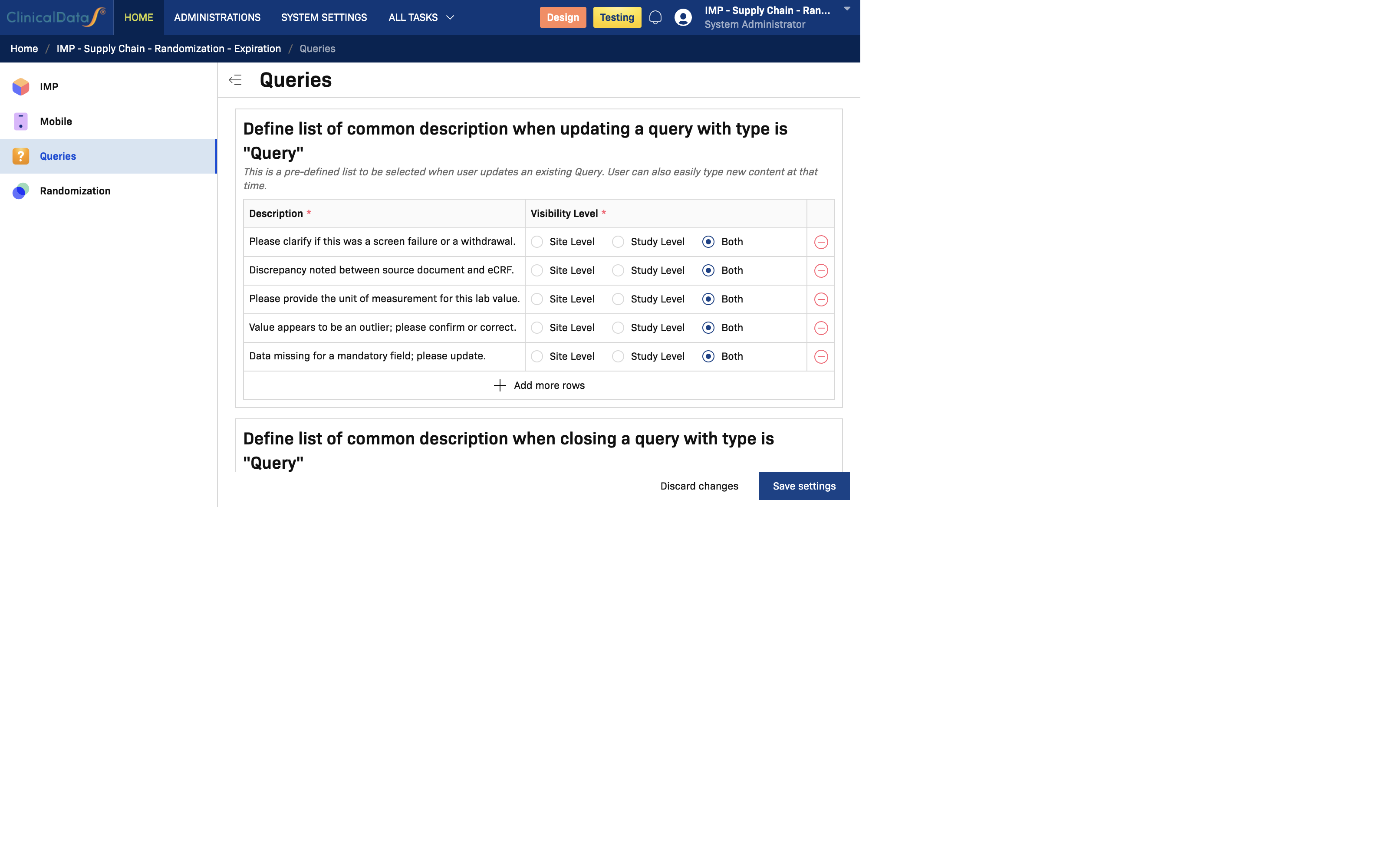
Table Columns
| Column | Description |
|---|---|
| Description | The pre-defined text to appear as a selection option when updating a query |
| Visibility Level | Who can see and use this description: Site Level, Study Level, or Both |
Visibility Levels Explained
- Site Level — Description is visible only to users at a specific site; useful for site-specific issues
- Study Level — Description is visible to all users across all sites in the study
- Both — Description is available at both site and study levels for maximum flexibility
Adding/Editing Update Descriptions
- Click Add or the edit button on an existing row
- Enter the description text (e.g., "Data verified at source", "Subject clarified issue")
- Select the appropriate Visibility Level
- Click Save to confirm
How It Works in the Queries App
When a staff member opens a query and clicks Reply, a form appears with a Description dropdown. The options in that dropdown are exactly the descriptions configured in this section — staff can select one with a single click instead of typing free text every time.
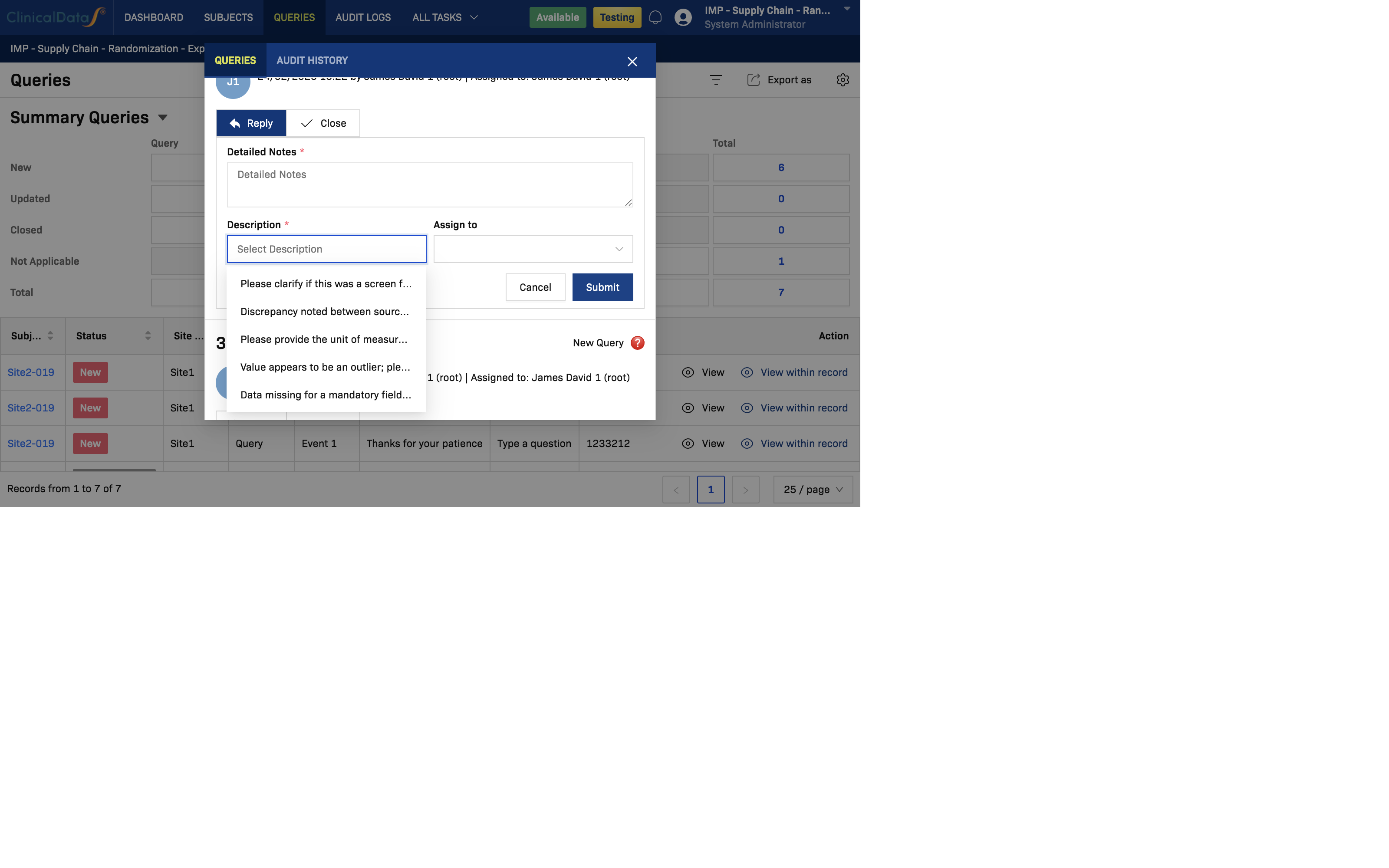
Staff can also type custom text directly into the Description field if none of the pre-defined options fits the situation.
Close Query Descriptions
Define a list of common descriptions available when closing a query of type "Query".
Purpose: Standardize the reasons for closing queries (e.g., data confirmed, data corrected, no action needed). This improves audit trail consistency and data quality documentation.
"This is a pre-defined list to be selected when user closes an existing Query. User can also easily type new content at that time."
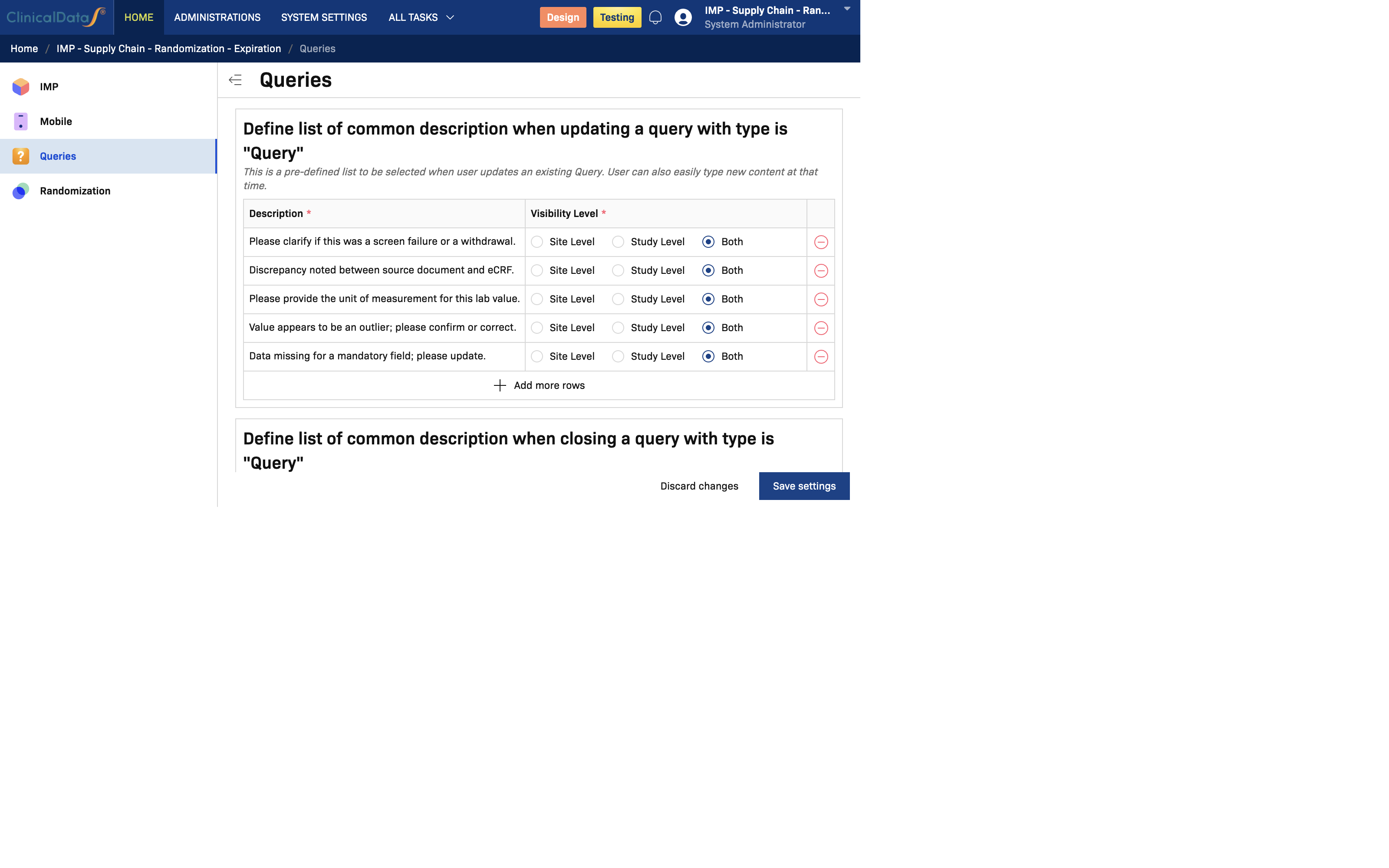
Table Columns
| Column | Description |
|---|---|
| Description | The pre-defined text for the close/resolution reason |
| Visibility Level | Site Level, Study Level, or Both |
Common Close Reasons
Examples of typical close descriptions:
- "Data verified at source"
- "Corrected in CRF"
- "Clarified by subject"
- "No action required"
- "Duplicate query"
- "Query resolved"
Adding/Editing Close Descriptions
- Click Add or edit an existing row
- Enter the closure reason text
- Select Visibility Level (Site Level, Study Level, or Both)
- Click Save
How It Works in the Queries App
When a staff member clicks Close on a query, a similar form appears. The Description dropdown will show the options configured in this section — separate from the Reply descriptions so that closure reasons are clearly distinguished from update responses.
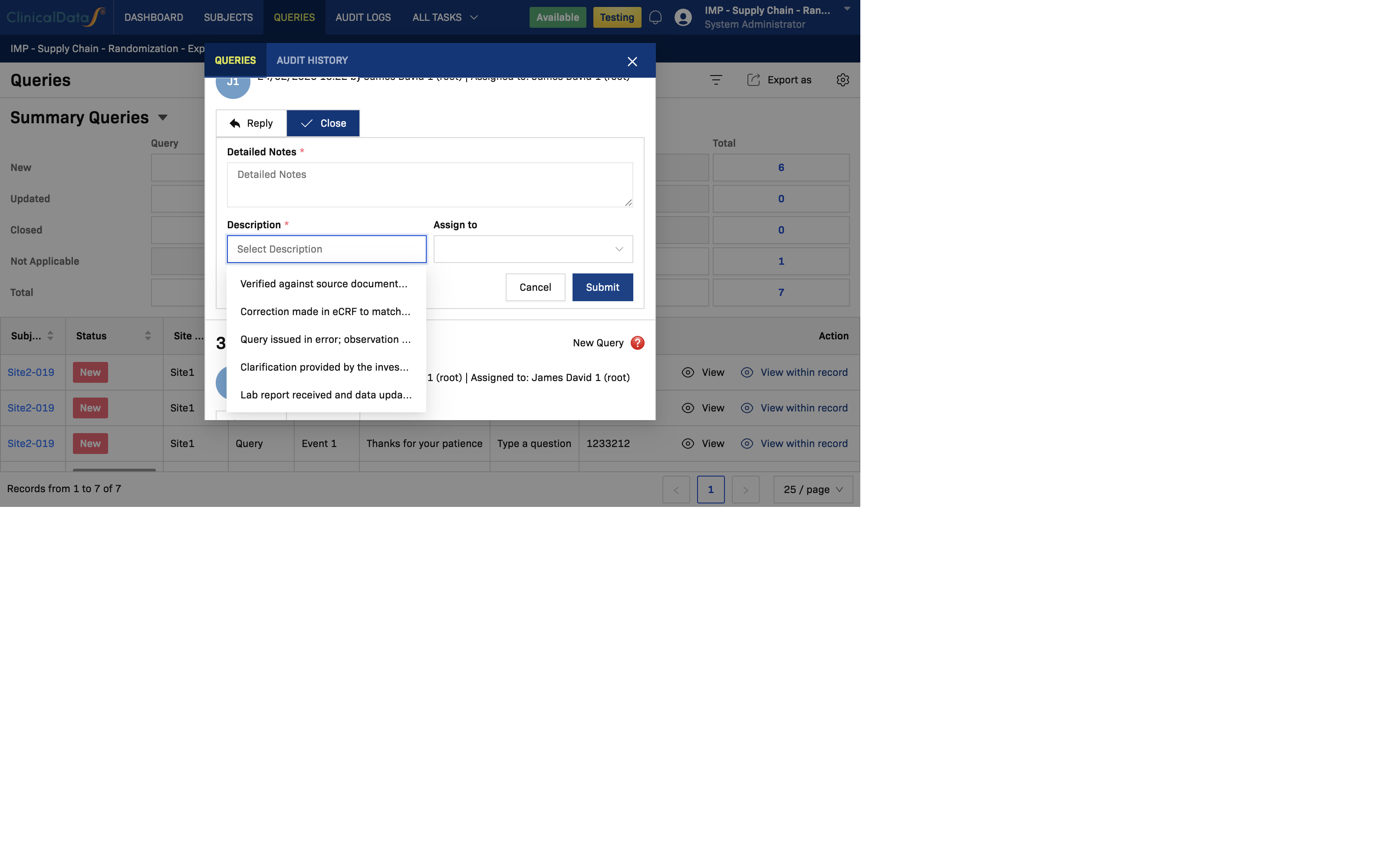
Staff can still type a custom close reason if none of the pre-defined options applies.
Reason for Change Descriptions
Define a list of common descriptions for Reason for Change (RFC) when updating or correcting a completed CRF.
Purpose: Provide standardized reasons for any changes made to verified or locked CRF data. This maintains a clear audit trail and explains data modifications post-completion.
"This is a pre-defined list to be selected when user provides a reason for change in case updating a complete CRF. User can also easily type new content at that time."
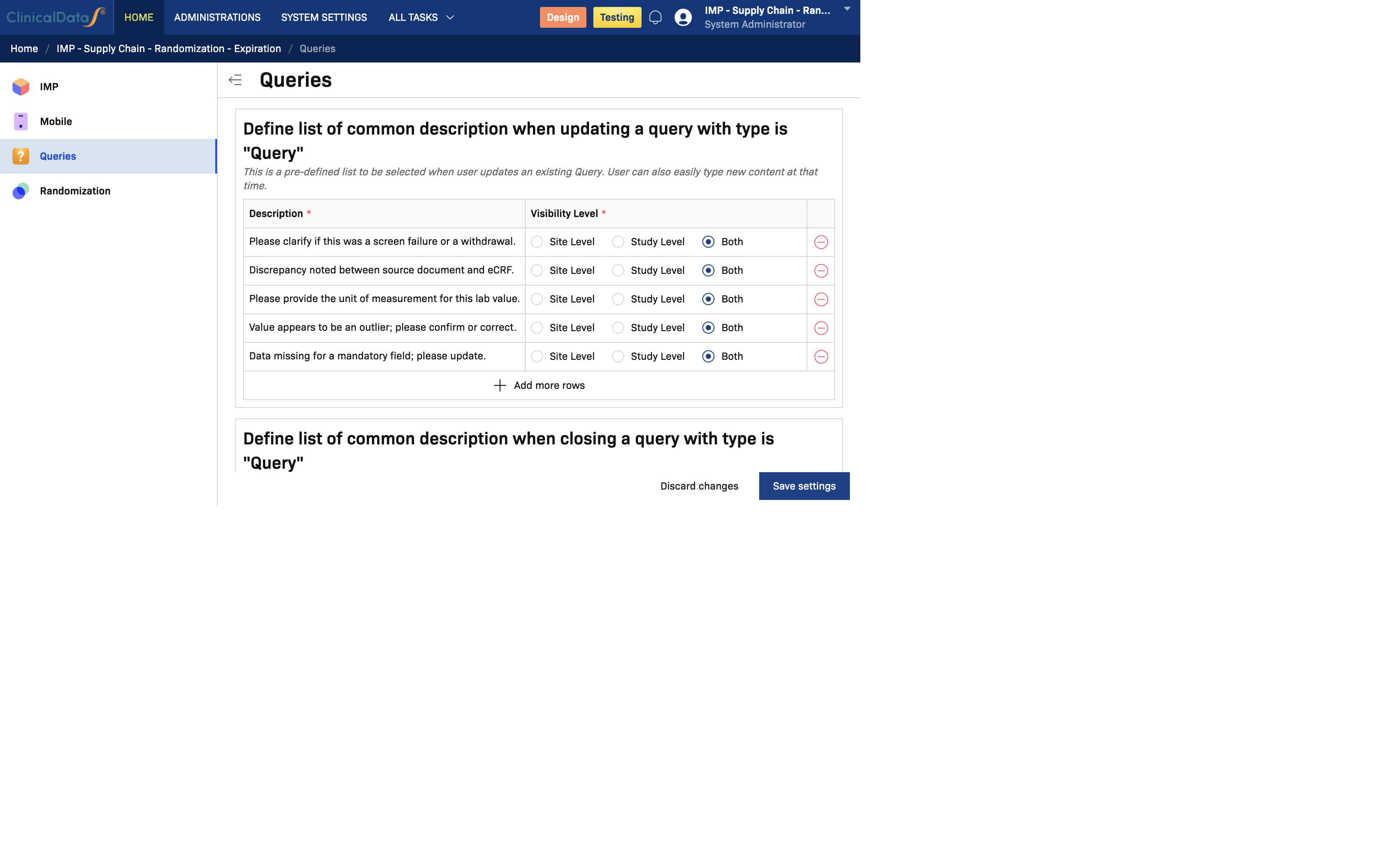
Table Columns
| Column | Description |
|---|---|
| Description | The pre-defined RFC text explaining why data was changed |
| Visibility Level | Site Level, Study Level, or Both |
Common Reason for Change Scenarios
- "Subject clarified value"
- "Data entry error corrected"
- "Source document update"
- "Unit conversion applied"
- "Protocol deviation resolved"
- "Regulatory requirement"
Adding/Editing Reason for Change Descriptions
- Click Add or edit an existing row
- Enter the reason for change text
- Select Visibility Level
- Click Save
How It Works in the Queries App
When a staff member edits data in a completed CRF (i.e., a CRF that has already been saved or signed), the system requires a Reason for Change before the edit can be submitted. A dialog appears with a Description dropdown populated from this section.
Pre-defined RFC descriptions ensure:
- Consistent audit trail language across all data corrections
- Faster data entry for routine corrections
- Regulatory-compliant documentation of data changes
Staff can also type a free-text reason if the situation is not covered by the pre-defined list.
Configuration Workflow
Step-by-Step: Adding a New Description
-
Navigate to Configuration
- Go to your study → Apps → Queries → Configuration
-
Select the Section
- Choose between:
- Update Query Descriptions
- Close Query Descriptions
- Reason for Change Descriptions
- Choose between:
-
Add New Entry
- Click the Add button in your chosen section
- Enter the description text
- Select visibility level (Site Level, Study Level, or Both)
-
Save Configuration
- Click Save settings at the bottom of the page
- Changes take effect immediately
-
Verify Results
- Open the Queries app to confirm descriptions appear in dropdown menus
Saving & Discarding Changes
| Action | Effect |
|---|---|
| Save settings | Applies all configuration changes to the study |
| Discard changes | Reverts any unsaved edits |
Important: Changes must be explicitly saved. Unsaved changes are lost if you navigate away from the configuration page.
Best Practices
- Consistency: Use clear, standardized terminology across all description lists
- Brevity: Keep descriptions concise but descriptive (2-5 words recommended)
- Site-Specific Needs: Use Site Level visibility for site-specific workflows; use Study Level for standardized processes
- Regular Review: Audit your description lists quarterly to remove obsolete entries
- Documentation: Maintain a reference document of your organization's standard descriptions
- Pilot Testing: Test configurations with a small group of data entry staff before full rollout