Overview
Use this guide to add or open any ClinicalDataS app on a study — for example Form Builder, Randomization, Queries, SDV, or IMP.
The same flow applies to every module:
- Confirm the app appears in Installed Apps on Study Home.
- Open the study workspace with Go to Study.
- Launch the app from the workspace navigation.
URL pattern: https://[instance]/home/study/[studyId]
Prerequisites
Before you begin:
- You can open the target study.
- You have permission to manage study applications.
- The target study already exists.
- Your browser can access the ClinicalDataS instance.
Open or install an app from Study Home
Step 1: Open the target study
From your account, open the study landing page (Study Home).
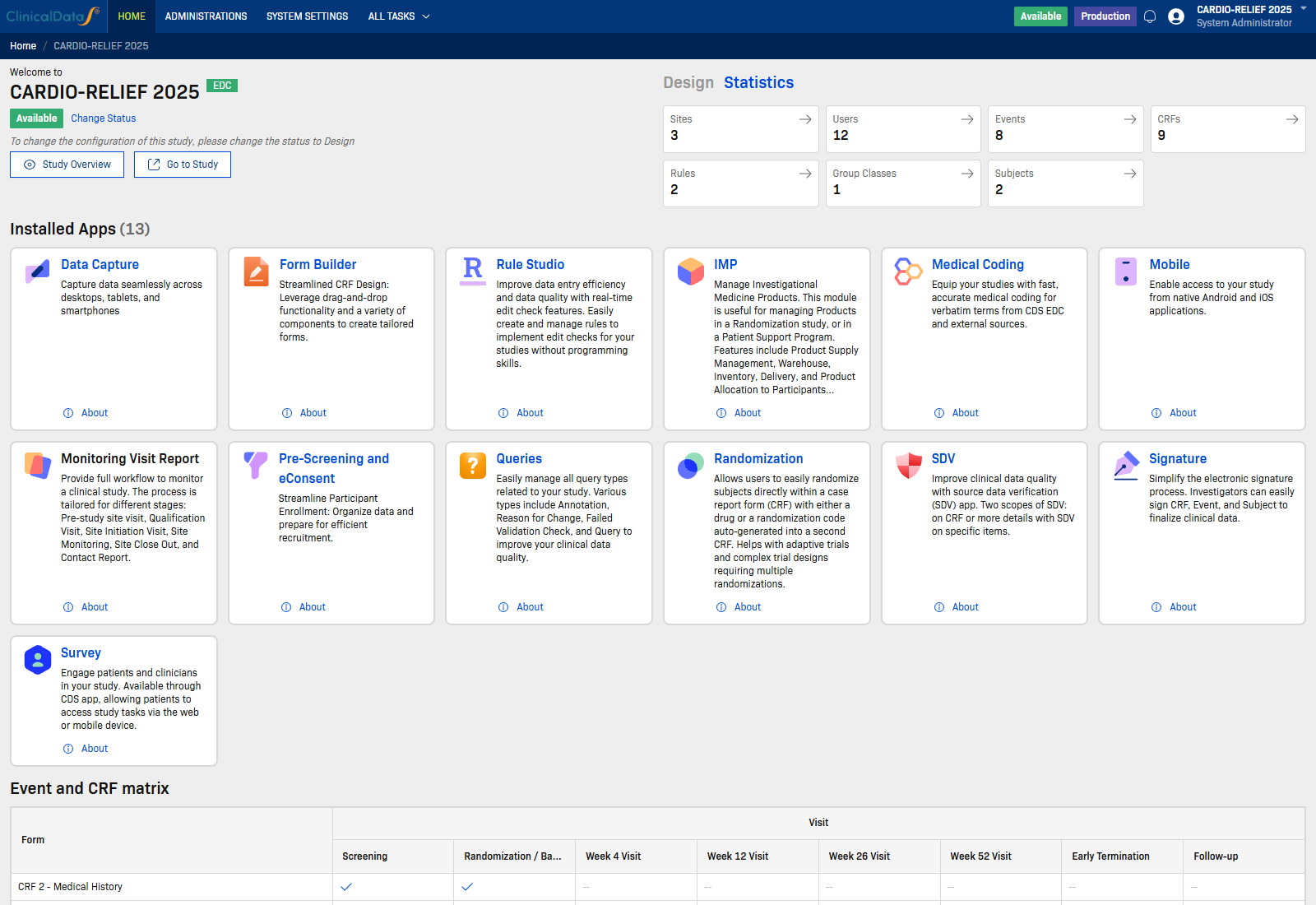
Step 2: Go to Installed Apps
On Study Home, find the Installed Apps section. The heading shows how many apps are enabled for the study (for example, Installed Apps (12)).
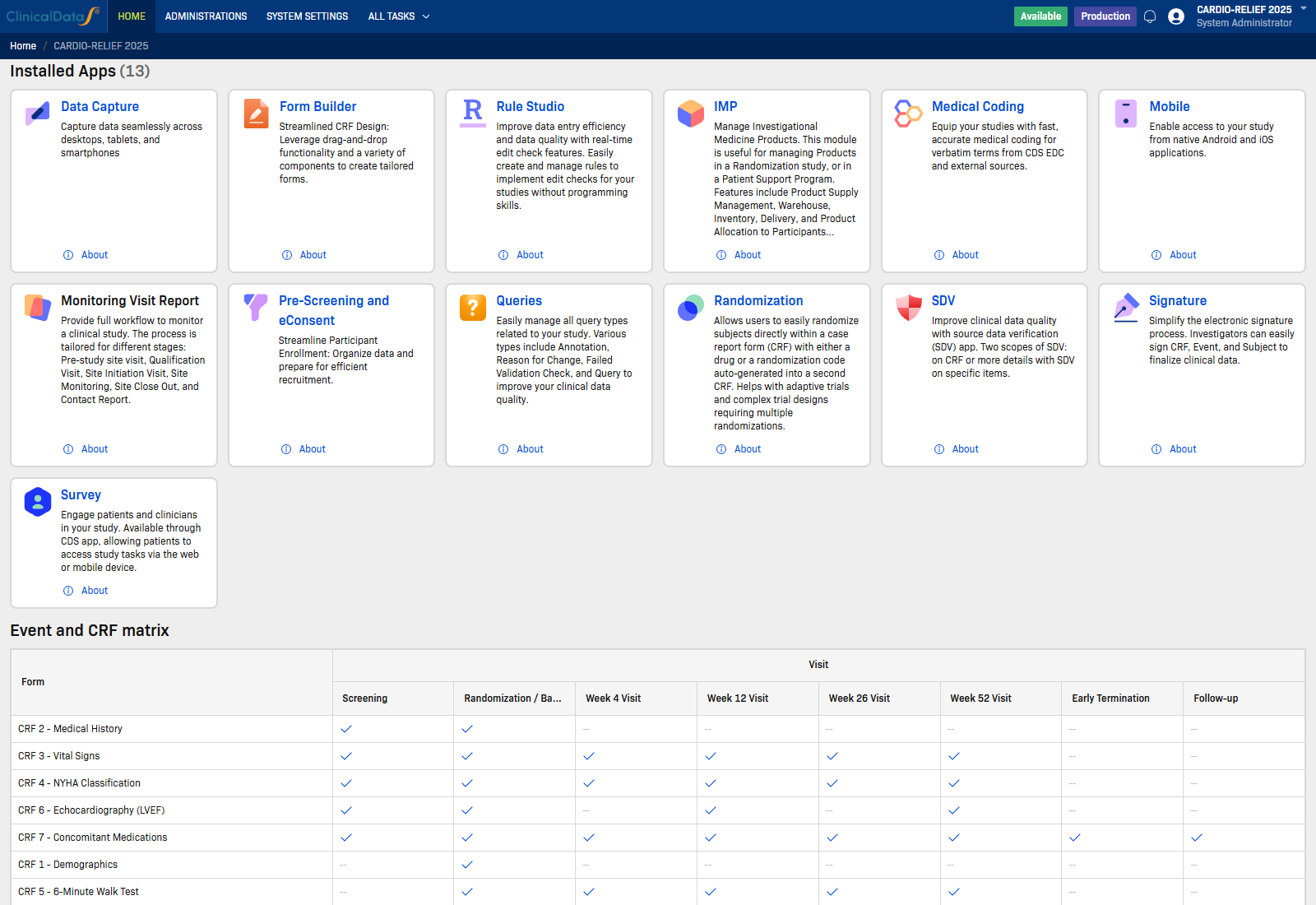
Step 3: Find your app card
Locate the app you need in the list. Each card shows the app icon, name, short description, and an About link.
| App | Typical use |
|---|---|
| Form Builder | Design and version eCRFs |
| Randomization | RTSM / IWRS allocation |
| Queries | Raise and resolve data queries |
| SDV | Source data verification |
| IMP | Investigational product supply |
| Medical Coding | Code verbatim terms |
| Rule Studio | Validation and calculation rules |
| Signature | Electronic signatures |
| Pre-Screening and eConsent | Screening and consent |
| Survey | Patient-reported outcomes |
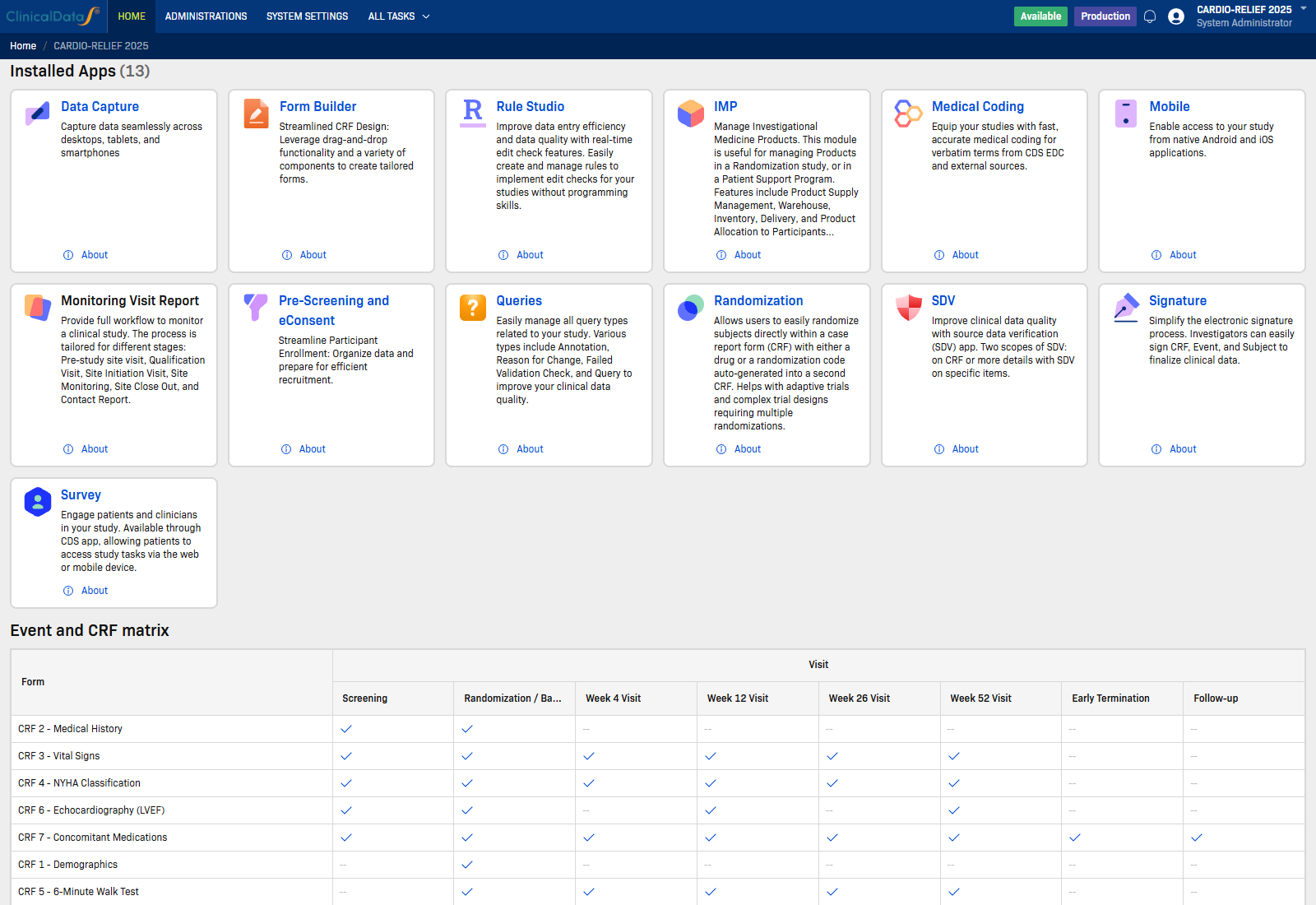
If the app you need is not listed, install or assign it in study setup first. Contact your study administrator if you do not see the app management options.
Start using the app in study workspace
Step 4: Enter study workspace
Select Go to Study to open the live workspace dashboard.
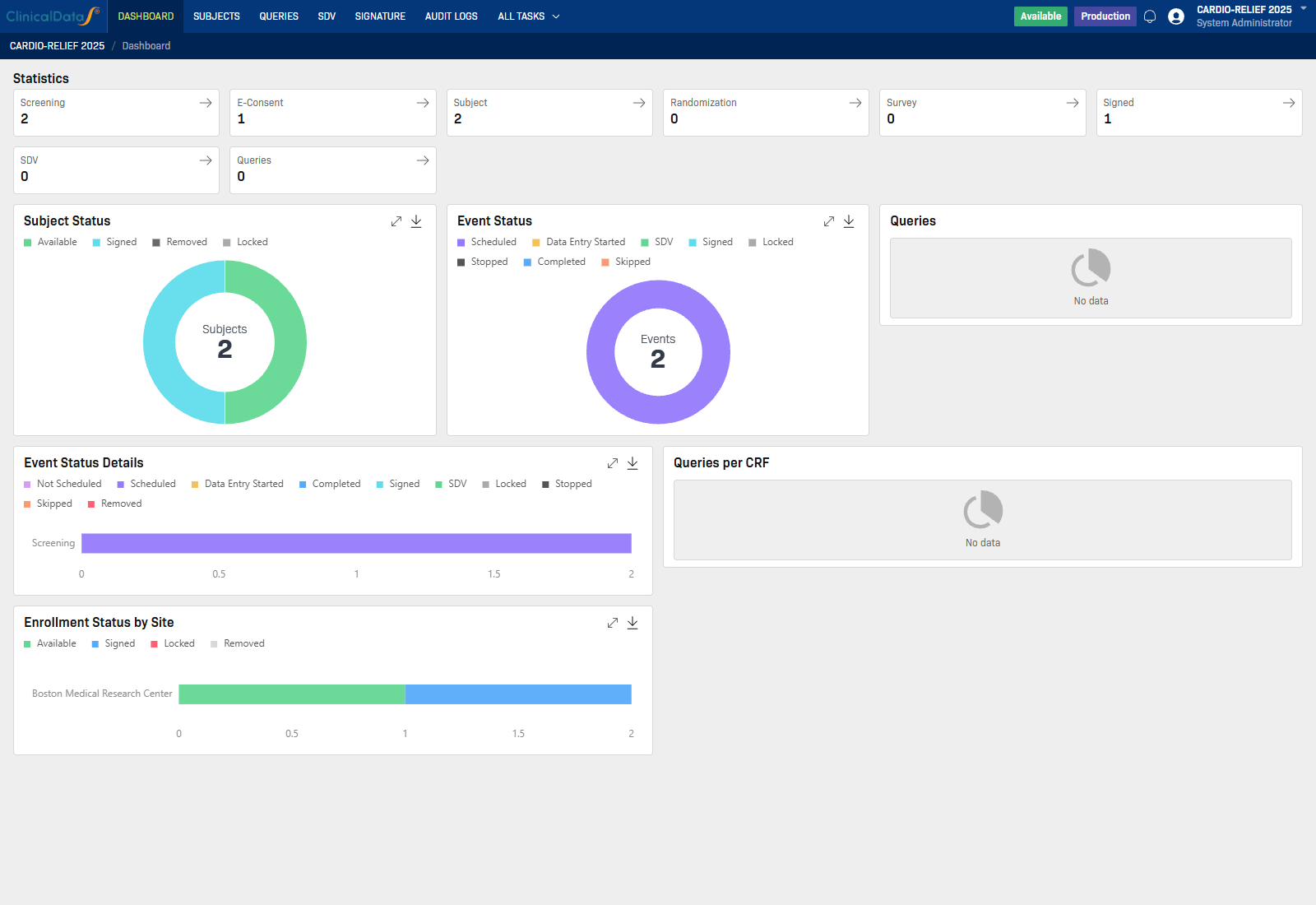
Step 5: Open the app module
In the study workspace navigation, select the app you installed. The left menu lists every module enabled for the study.
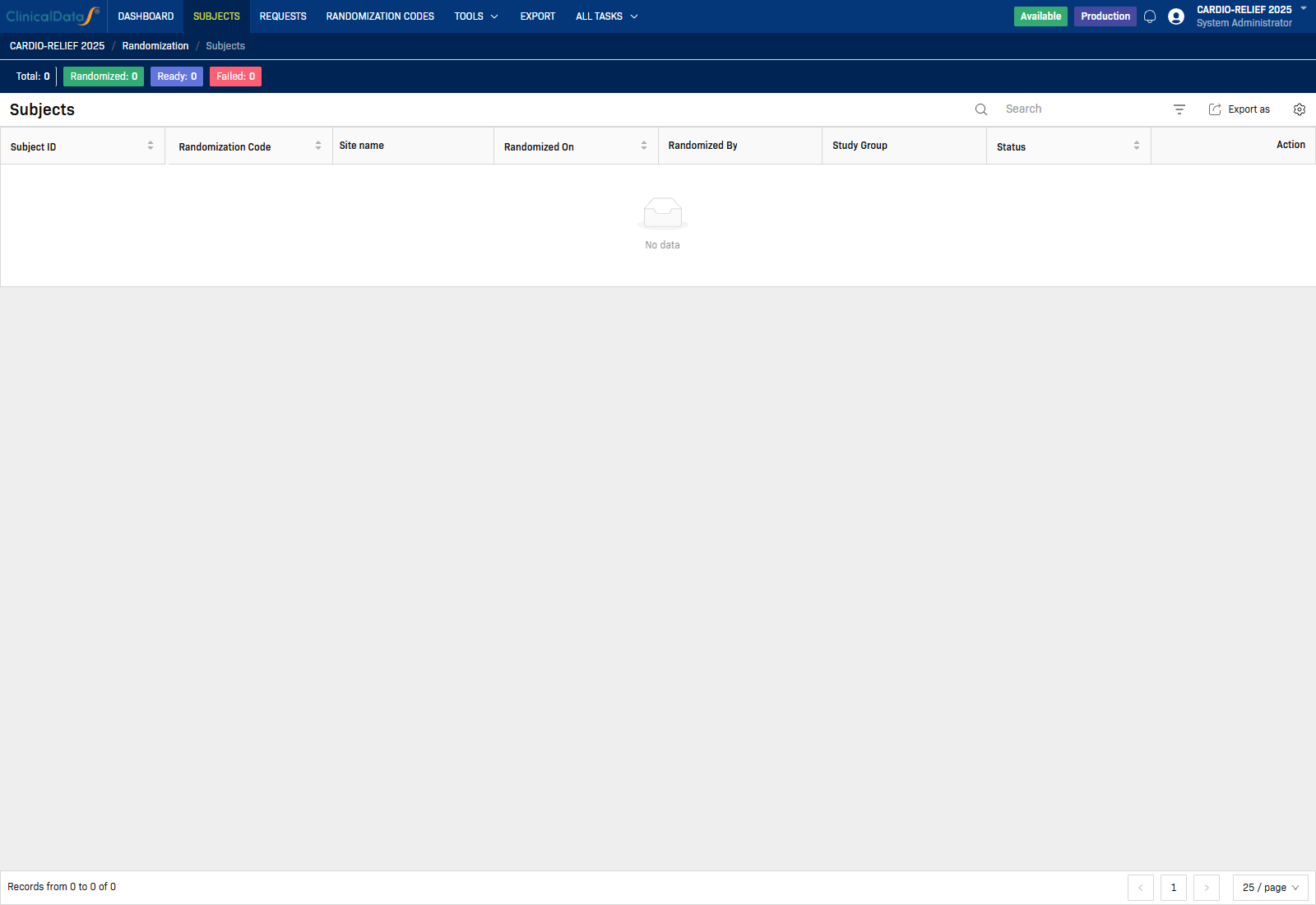
Each app opens its own workspace. For module-specific tabs and tasks, see that app's overview page in Apps.
Configure app settings (optional)
Most apps have a dedicated configuration area under study setup or the app workspace. Examples:
| App | Configuration guide |
|---|---|
| Randomization | Randomization Configuration |
| Form Builder | Form Builder Configuration |
| Queries | Queries Configuration |
| SDV | SDV Configuration |
URL pattern: https://[instance]/home/study/[studyId]/apps/[app-code]
Troubleshooting
- If an app is missing from Installed Apps, verify app assignment in study setup and confirm your role can manage applications.
- If you can open the app but cannot edit settings, check study status (many changes require Design status) and your role permissions.
- If navigation opens the wrong module, return to the study workspace and confirm the breadcrumb shows the expected app name.
Related topics
- Study Home — Installed Apps and study summary widgets
- Create a new study — Set up a study before installing apps
- Get Started Overview — Recommended setup path for new studies
- Randomization Overview — Example app workspace and tabs