- Study status must be Available
- IP kits must have been received into a Site Pharmacy via Receipts before they can be delivered to a site
- The Sponsor or Supply Manager role is required to create a delivery request
Delivery to Site
The Delivery to Site feature allows the Sponsor (or Supply Manager) to create a formal delivery request to transfer IP kits from a Site Pharmacy (acting as the local warehouse) to a Clinical Research Site. The request moves through a 5-step workflow involving the Sponsor, Warehouse Manager, and the receiving site.
Navigate: IMP → Transfer → Delivery to Site
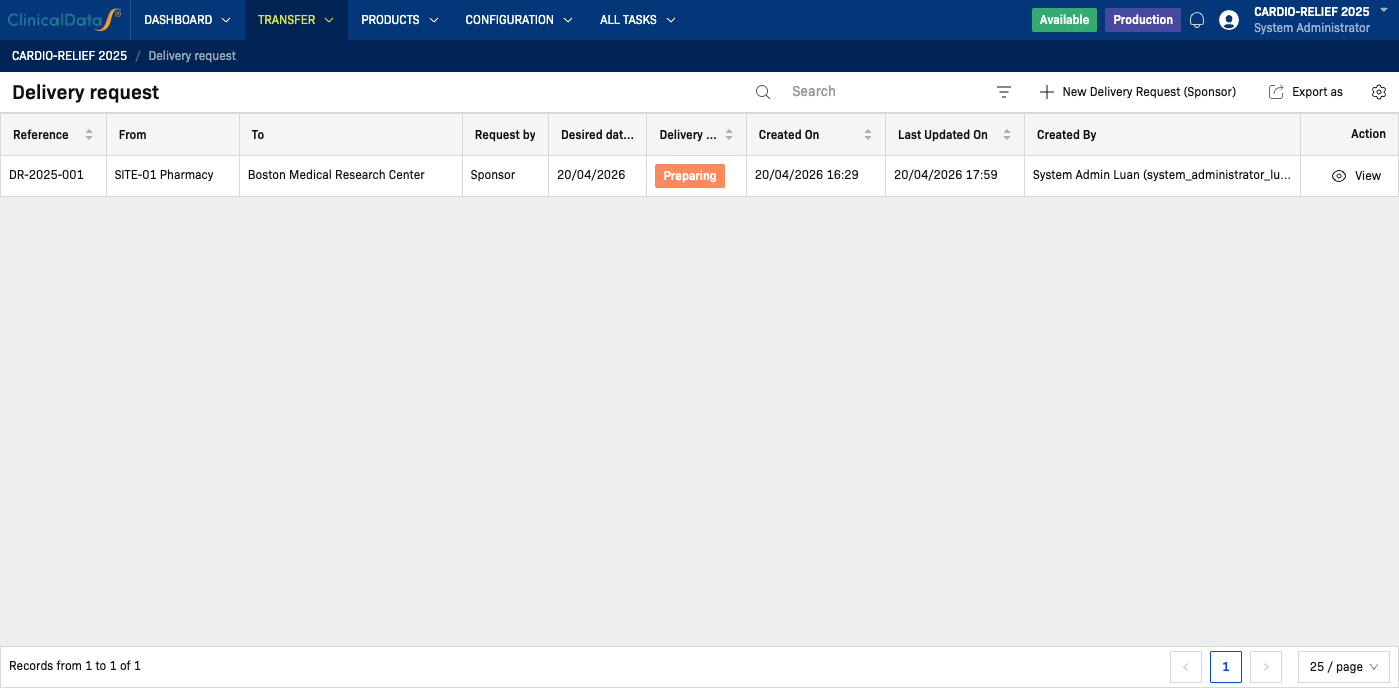
Delivery request list
The list shows all delivery requests for the study with the following columns:
| Column | Description |
|---|---|
| Reference | Delivery request reference number (e.g., DR-2025-001) (sortable) |
| From | Source site pharmacy |
| To | Destination clinical research site |
| Status | Current step in the delivery workflow (sortable) |
| Created On | Date the request was created (sortable) |
| Last Updated On | Date of the most recent update (sortable) |
| Created By | User who created the request |
| Action | Available actions for this record |
Use the Search box to filter by reference or site name. Click Export as to download the list.
Create a new delivery request
Click New Delivery Request (Sponsor) to open the 5-step wizard.
Step 1 — Delivery information
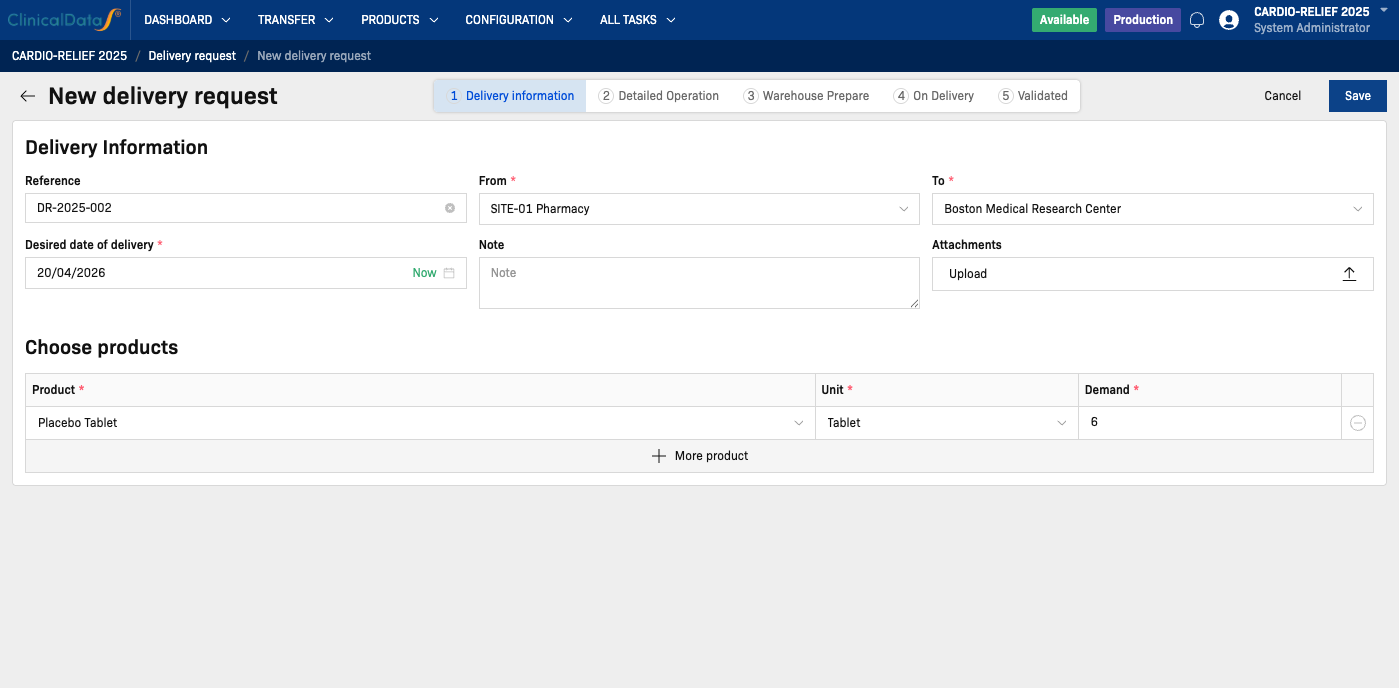
Fill in the delivery request form:
| Field | Description |
|---|---|
| Reference | Enter a unique reference code for this delivery request (e.g., DR-2025-001) |
| From | Select the source Site Pharmacy (e.g., SITE-01 Pharmacy) |
| To | Select the destination Clinical Research Site (e.g., Boston Medical Research Center) |
| Desired date of delivery | Select the expected delivery date. Click Now to use today's date. |
| Note | Optional. Add context about the delivery purpose. |
| Attachments | Optional. Upload supporting documents (e.g., packing lists, shipping orders). |
Products table — Add one or more products to be delivered:
| Column | Description |
|---|---|
| Product | Select the IP product from the study formulary |
| Unit | Auto-populated based on the selected product |
| Demand | Enter the quantity (in units) to request for delivery |
Click Save to save the request in Draft status and proceed to Step 2.
Step 2 — Detailed Operation
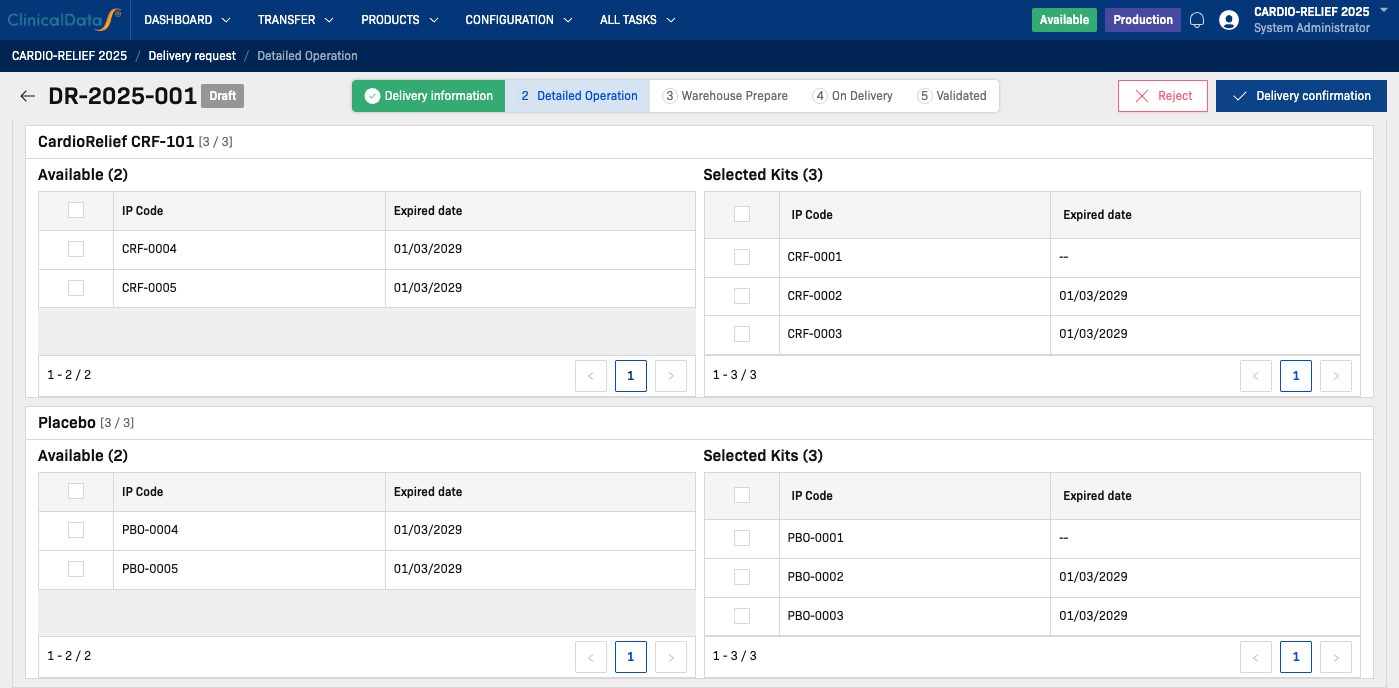
After saving Step 1, the Sponsor must select the specific IP kit codes to include in the delivery. The page is divided into product groups based on the products requested in Step 1.
Understanding the layout
For each product group (e.g., CardioRelief CRF-101, Placebo), two panels are shown side by side:
| Panel | Description |
|---|---|
| Available | All IP kits currently in stock at the source site pharmacy. Columns: IP Code and Expired date. |
| Selected Kits | Kits you have chosen for this delivery. |
At the top of each product group, a counter such as [0 / 3] shows how many kits have been selected out of the number required. The required count per group is derived from the demand entered in Step 1 divided equally across the product groups (e.g., a demand of 6 Tablets shared across 2 groups in a 1:1 ratio requires 3 kits per group).
When a study uses multiple product groups (e.g., Active + Placebo) with a fixed ratio (e.g., 1:1), the demand quantity must be evenly divisible by the number of groups. For example, with 2 groups at 1:1, enter a demand that is a multiple of 2 (2, 4, 6, etc.).
Selecting IP codes
- In the Available panel, review the list of IP codes and their expiry dates.
- Check the checkbox next to each IP code you want to include. Once you have checked one or more kits, a Move to select button appears — click it to move those kits to the Selected Kits panel. The counter updates (e.g.,
[1 / 3]). - Continue selecting until the counter shows the required number (e.g.,
[3 / 3]). - Repeat for every product group on the page.
Check the Select all checkbox in the column header of the Available panel to select all visible kits in one click, then click the Move to select button that appears. This is useful when the available quantity matches the required quantity exactly.
Prioritize kits with the earliest expiry dates to follow FEFO (First Expired, First Out) best practice. Kits with -- in the Expired date column have no expiry recorded.
Deselecting kits
To remove a kit from Selected Kits, uncheck its checkbox in the Available panel. The kit moves back to Available and the counter decreases.
Confirming the selection
Once all product groups show the required count (all counters are filled, e.g., [3 / 3]), click Delivery confirmation. An e-signature dialog will appear — enter your Username (pre-filled) and Password, then click Confirm delivery. The request status changes from Draft to Preparing and the Warehouse Manager is notified to proceed with Step 3.
You cannot click Delivery confirmation until all product groups have the required number of kits selected. Ensure every counter is fulfilled before submitting.
Click Reject to cancel the request at this stage (with an optional reason).
Step 3 — Warehouse Prepare
The Warehouse Manager reviews the delivery request and physically prepares the IP kits for shipment.
| Action | Description |
|---|---|
| Confirm | Confirms that kits have been prepared and are ready to ship |
| Reject | Rejects the delivery request (with reason) |
Once confirmed, the request advances to Step 4 — On Delivery.
Step 4 — On Delivery
The IP kits are in transit to the clinical research site. The Warehouse Manager or Sponsor marks the shipment as dispatched.
Once dispatch is confirmed, the request advances to Step 5 — Validated.
Step 5 — Validated
The receiving site confirms receipt of the IP kits. The delivery request is marked as Validated, and the IP kit inventory is updated at the destination site.
Delivery request statuses
| Status | Description |
|---|---|
| Draft | Request created; Sponsor is selecting IP kits (Step 1–2) |
| Preparing | IP kits have been confirmed by Sponsor; Warehouse Manager is preparing shipment (Step 3) |
| On Delivery | Kits are in transit (Step 4) |
| Validated | Delivery confirmed at destination site (Step 5) |
| Rejected | Request was rejected at one of the review steps |