info
For the business definition of Pre-Screening & eConsent, see Pre-Screening & eConsent in Getting Started.
This page shows how to open the app and review configuration screens. For setup detail, see Configuration; for day-to-day tasks, see User Guide.
Access Path (Live UI)
- Open My Tasks / Current study from My Page.
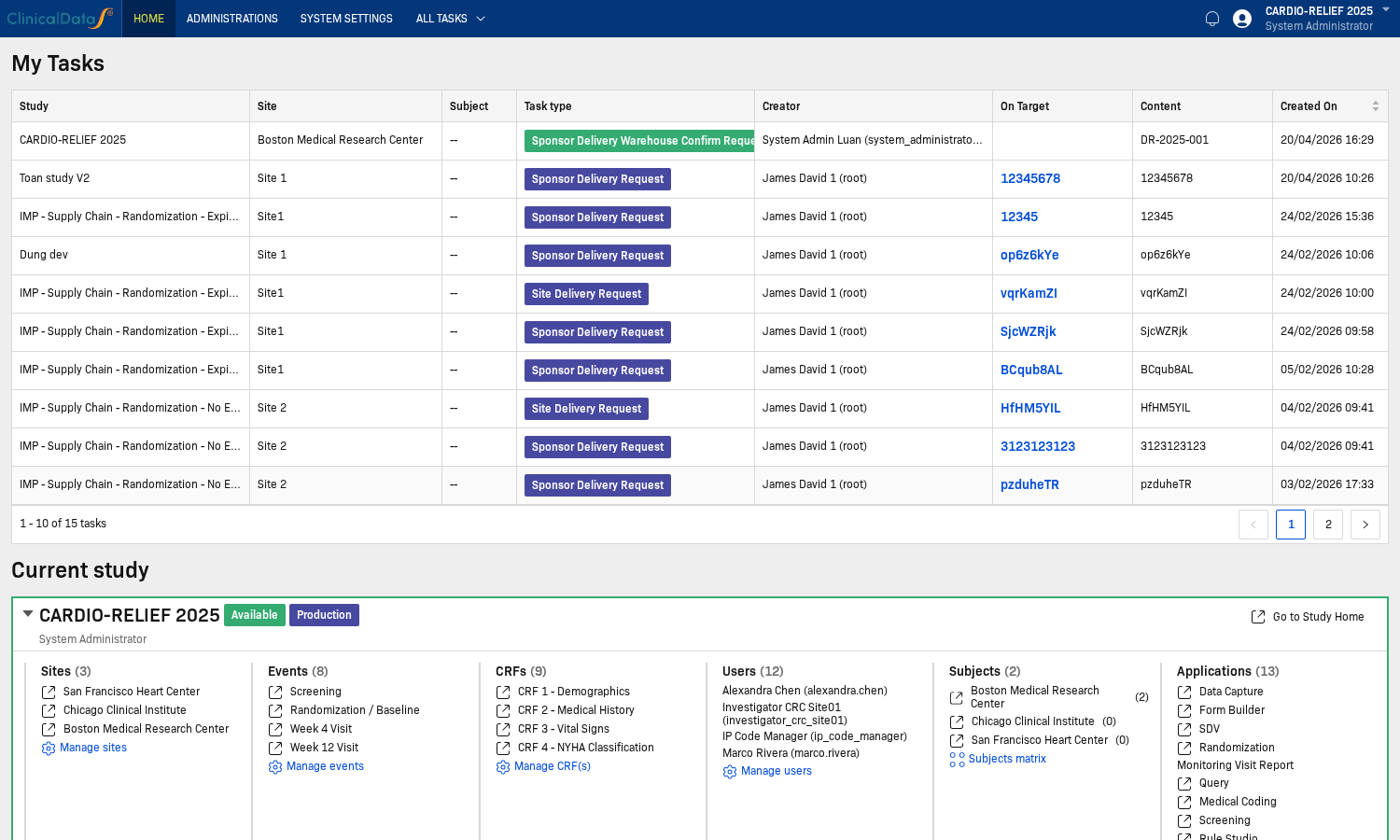
- Open the selected study from Current study.
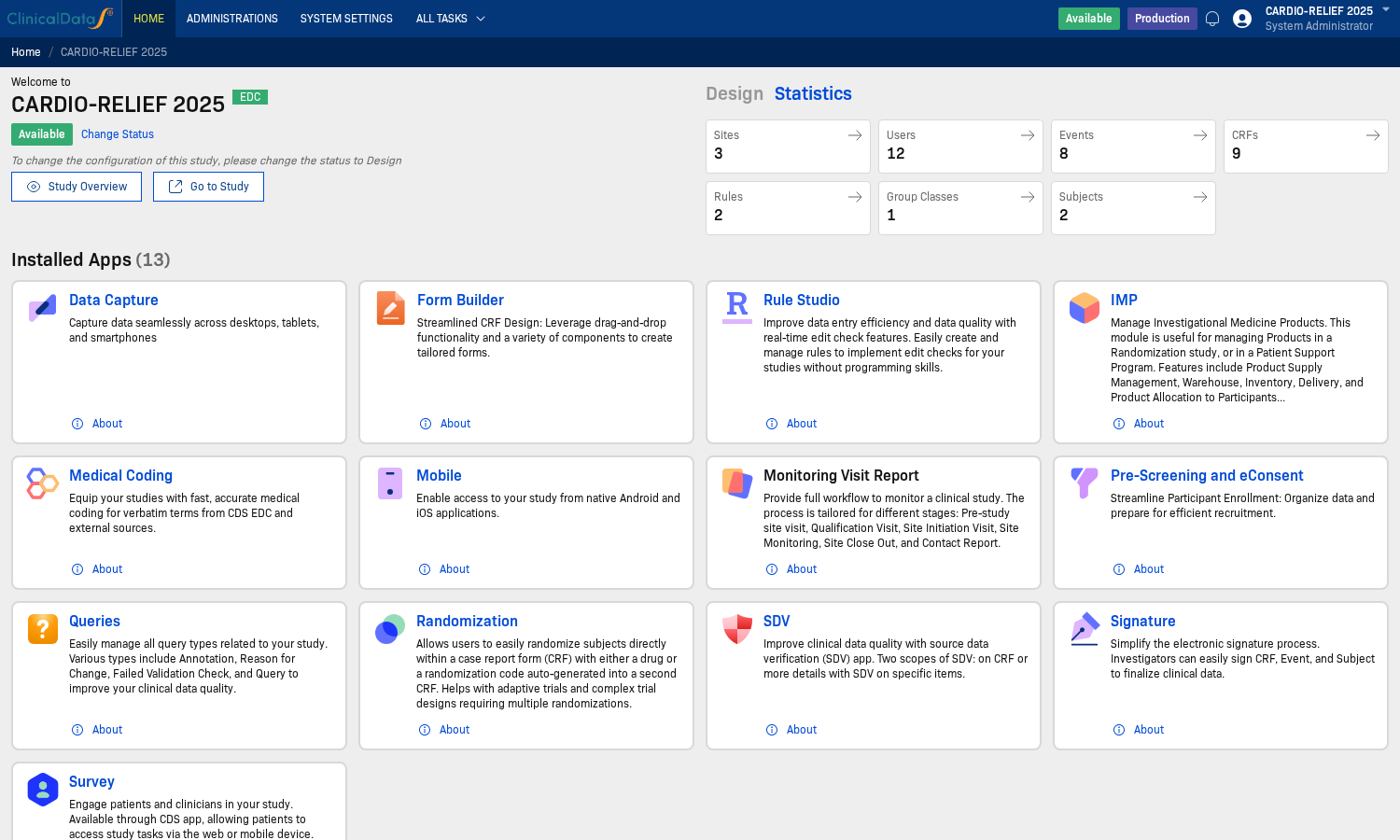
- Go to Pre-Screening and eConsent in the application list.
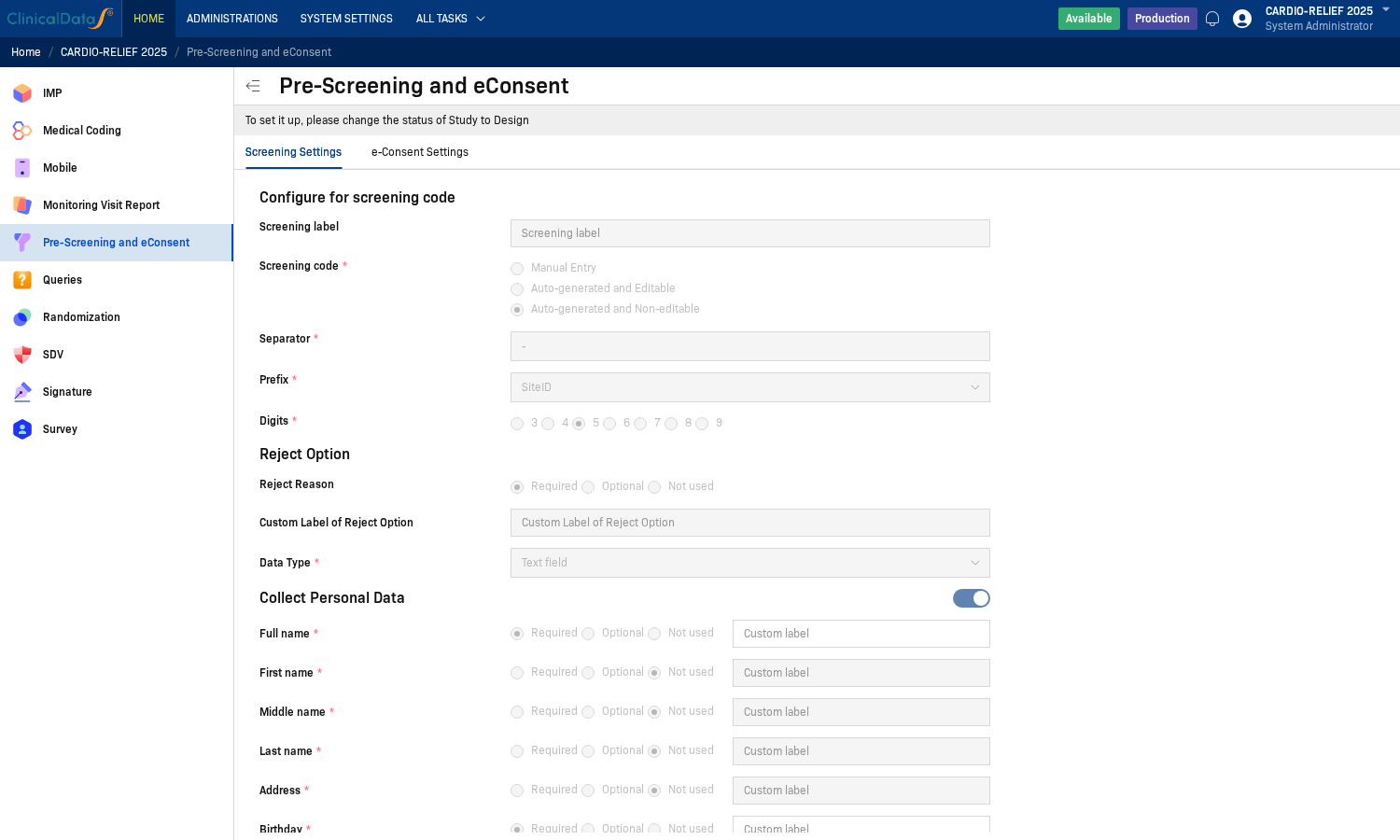
- Review Screening Setup (screening code, personal data, reject option, attachments, CRF collection).
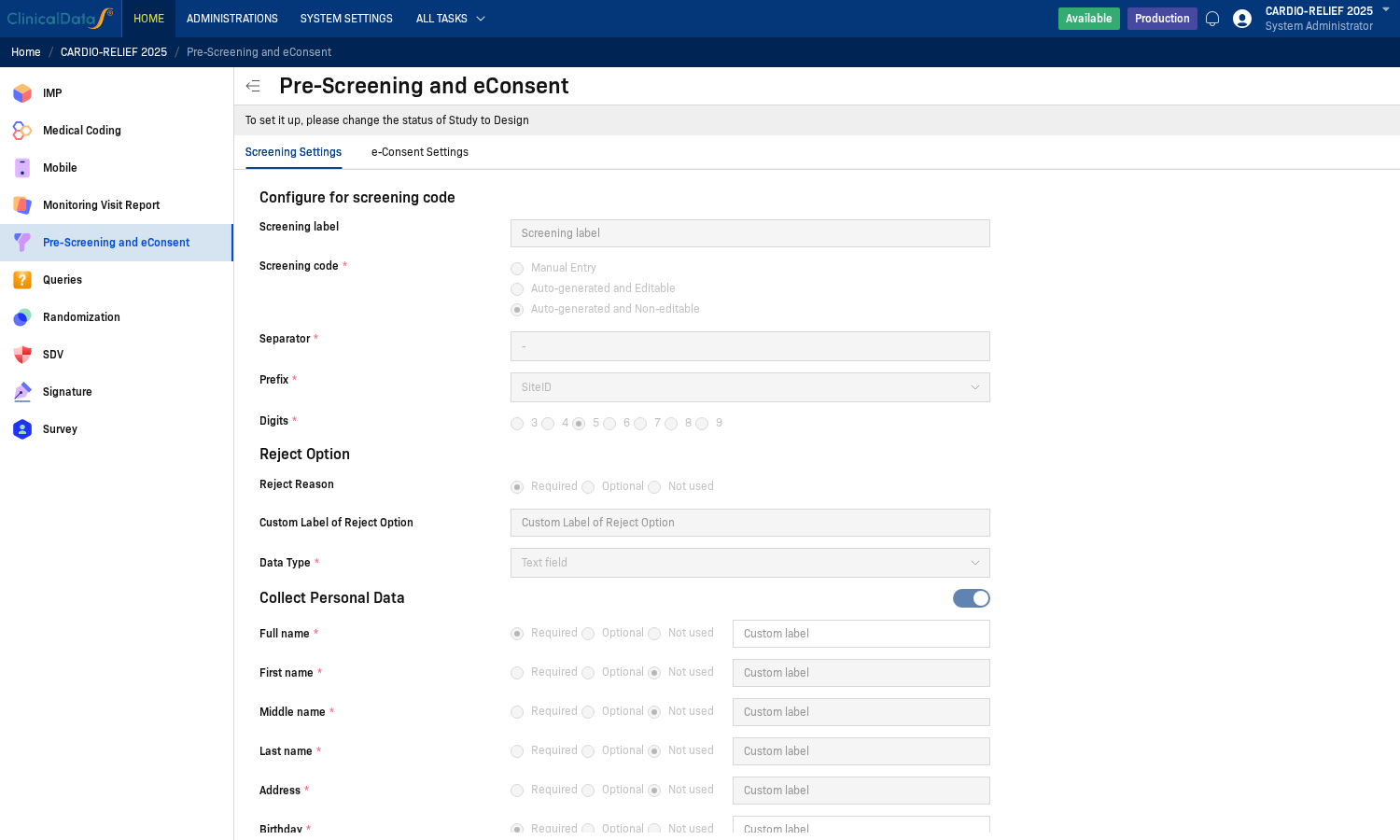
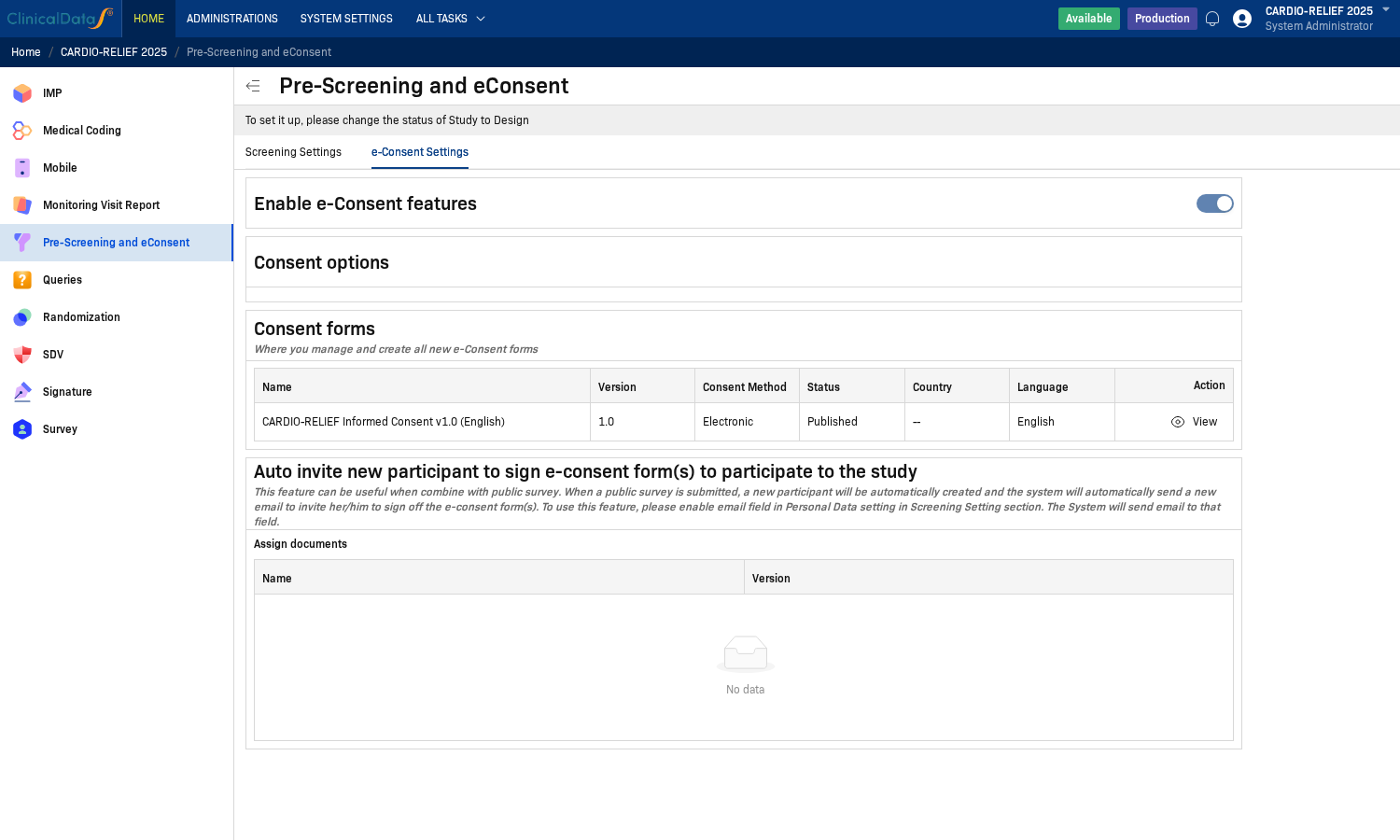
- Review e-Consent Setup (enable e-consent, consent forms, auto invite).
note
In the captured environment, configuration is read-only unless the study is in Design status (banner: To set it up, please change the status of Study to Design).
Related documentation
- Screening Setup — Screening code format, personal data, attachments
- e-Consent Setup — Consent forms, auto invite
- User Guide — Add participant, send invitation, sign consent, enroll