For the business definition of Randomization, see Randomization in Getting Started. For setup, see Randomization Configuration.
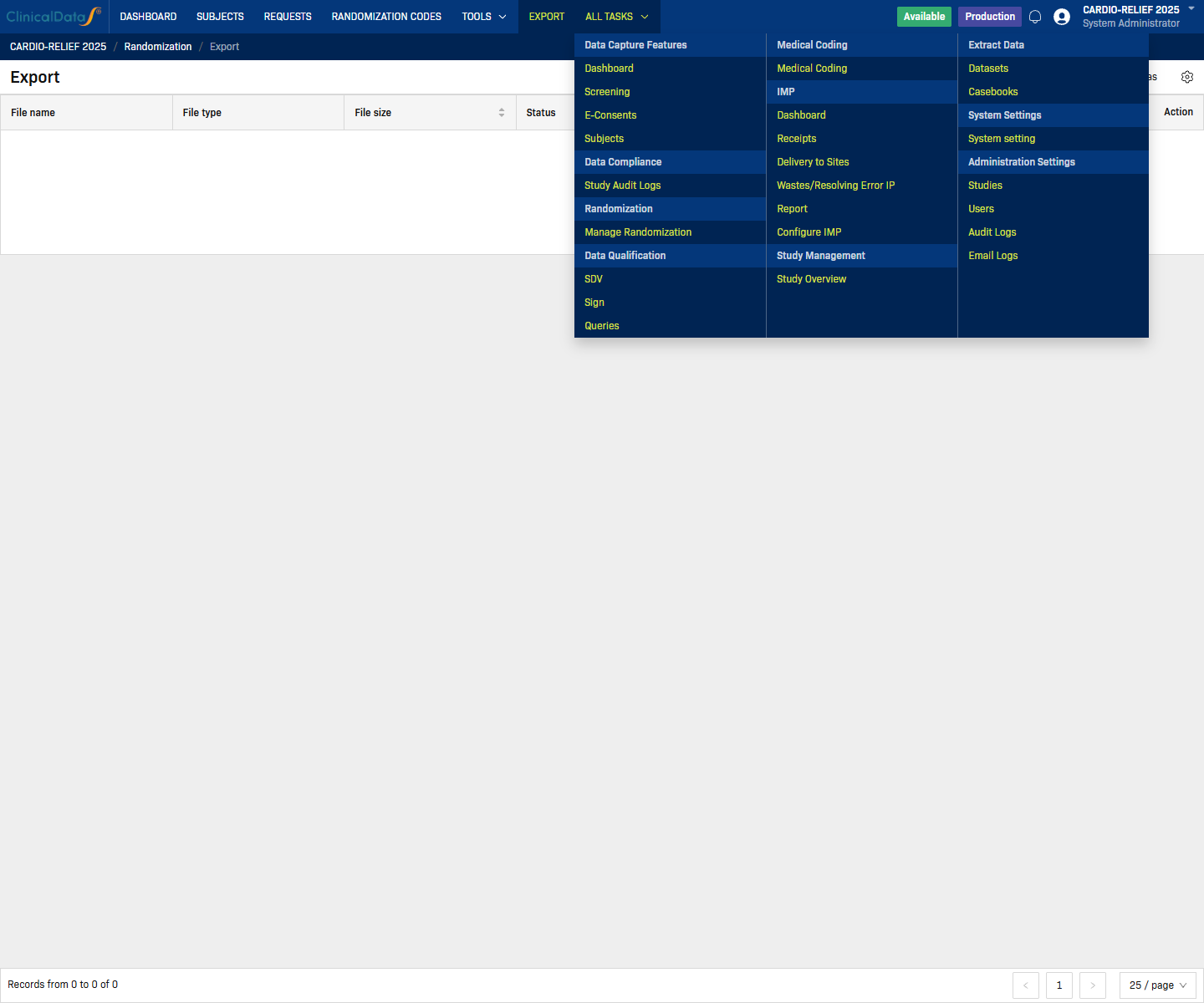
After opening Randomization from the study workspace, the top navigation bar exposes all functional areas:
Dashboard · Subjects · Requests · Randomization Codes · Tools · Export · All Tasks
Dashboard
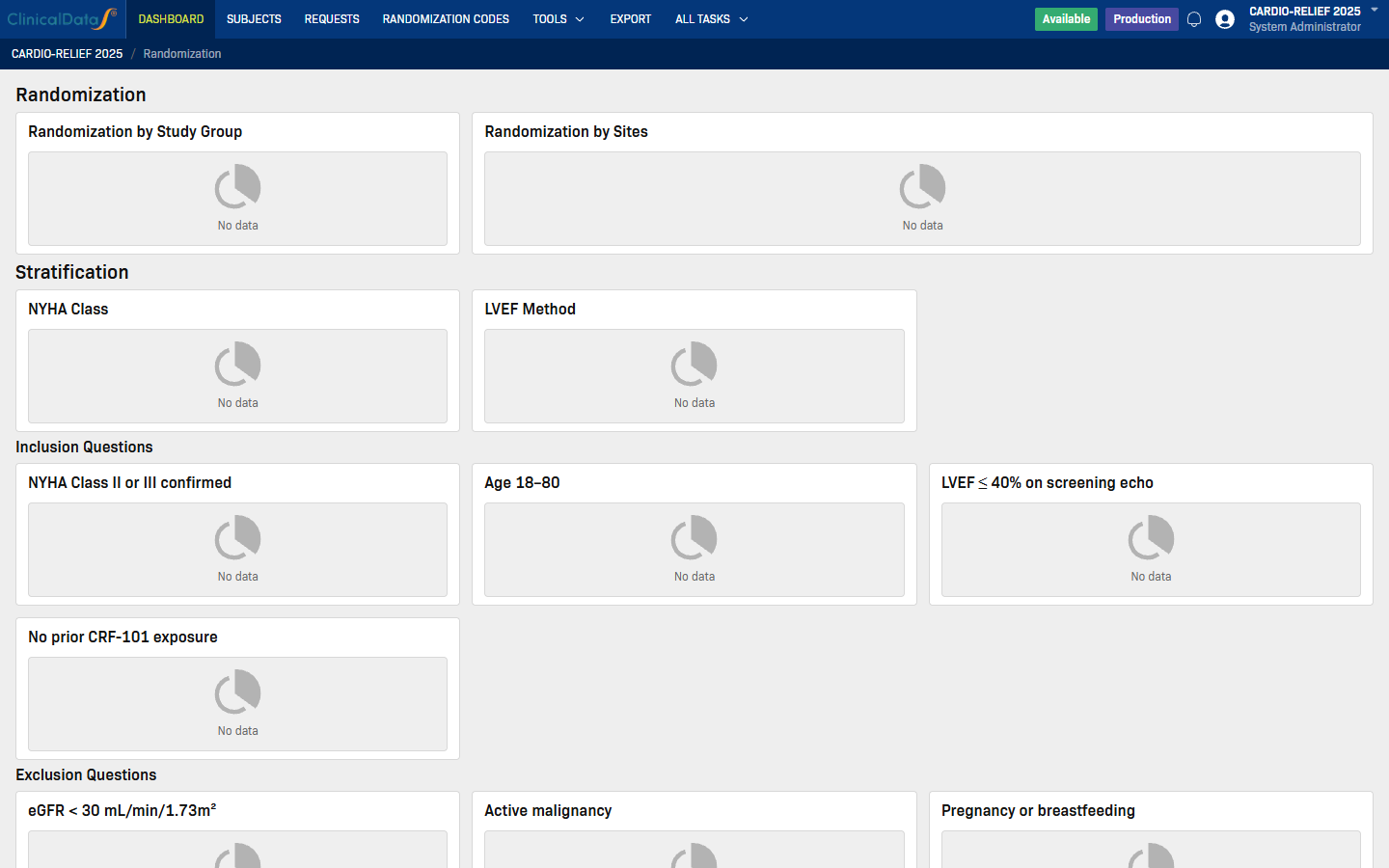
The Dashboard tab gives a high-level view of enrollment and randomization progress across sites and treatment arms.
Subjects
The Subjects tab is the main worklist. It lists every subject that has been randomized or is pending randomization, with columns for Subject ID, Randomization Code, Site name, Randomized On, Randomized By, Study Group, and Status.
Use Search to filter by subject or site. Use Export as to download the list.
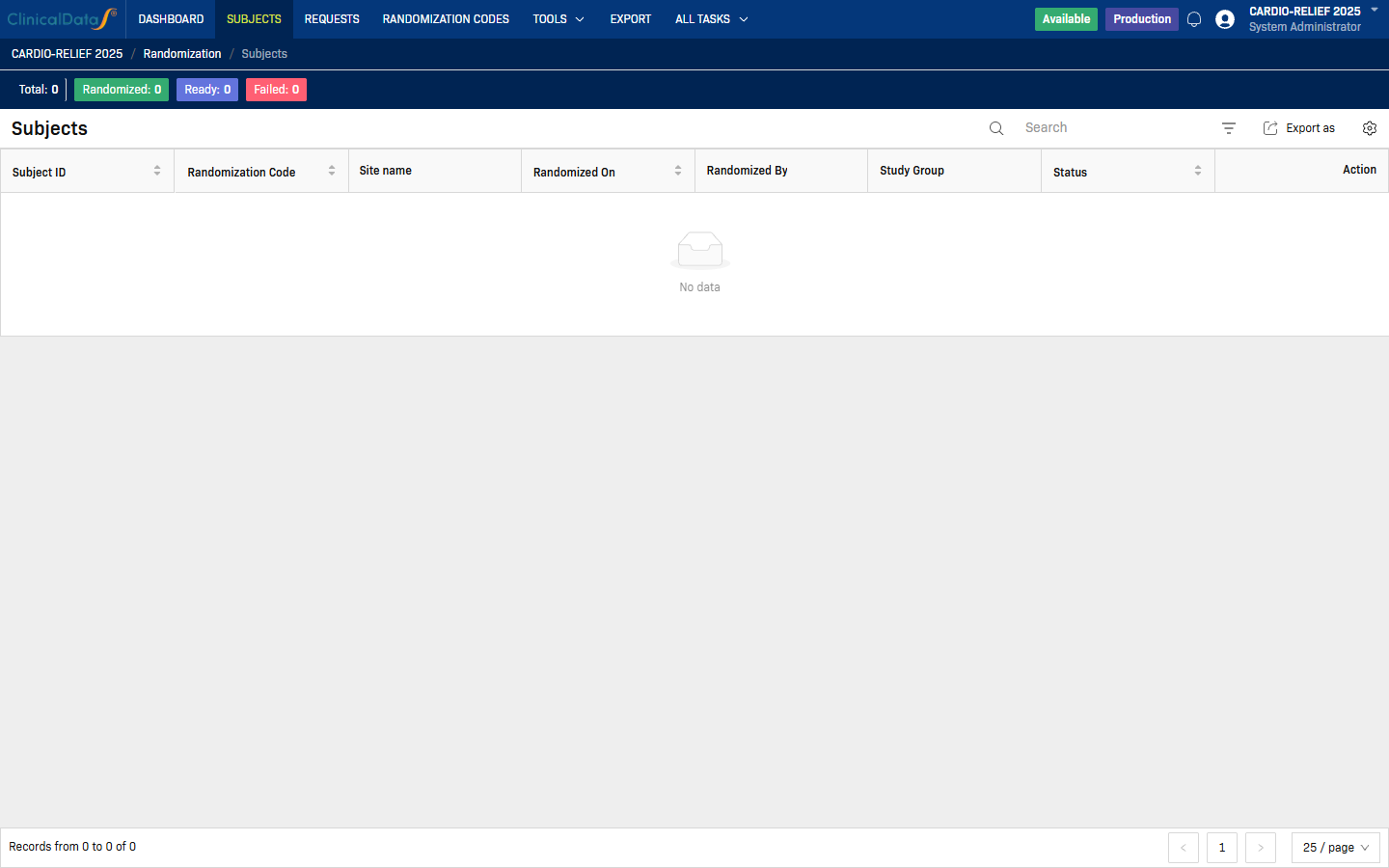
Top counters show:
- Total — all subjects in scope
- Randomized — successfully assigned to a treatment arm
- Ready — passed eligibility checks, awaiting randomization
- Failed — failed one or more eligibility checks
Requests
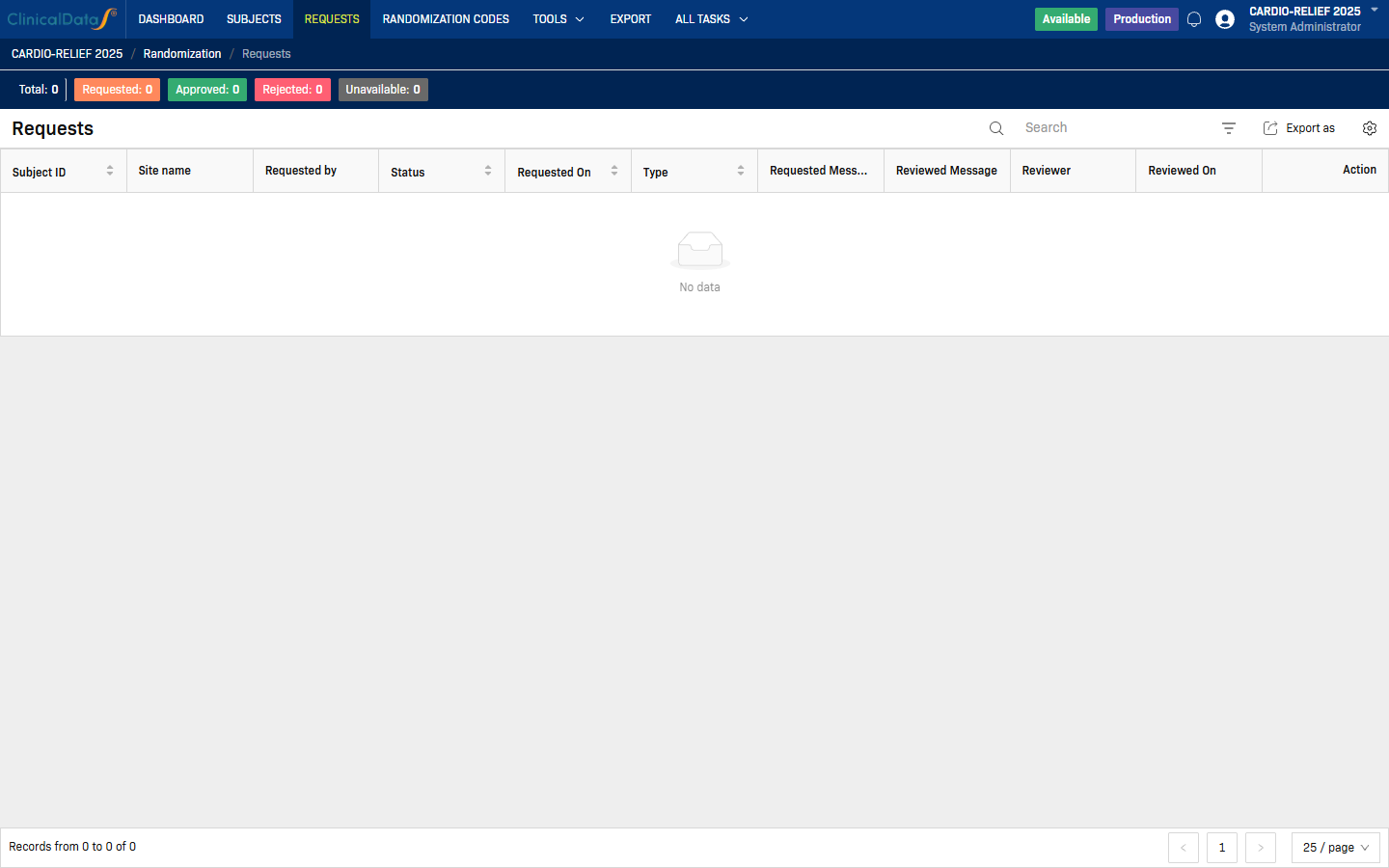
The Requests tab tracks pending and completed randomization requests — useful when requests require approval or are queued for processing.
Randomization Codes
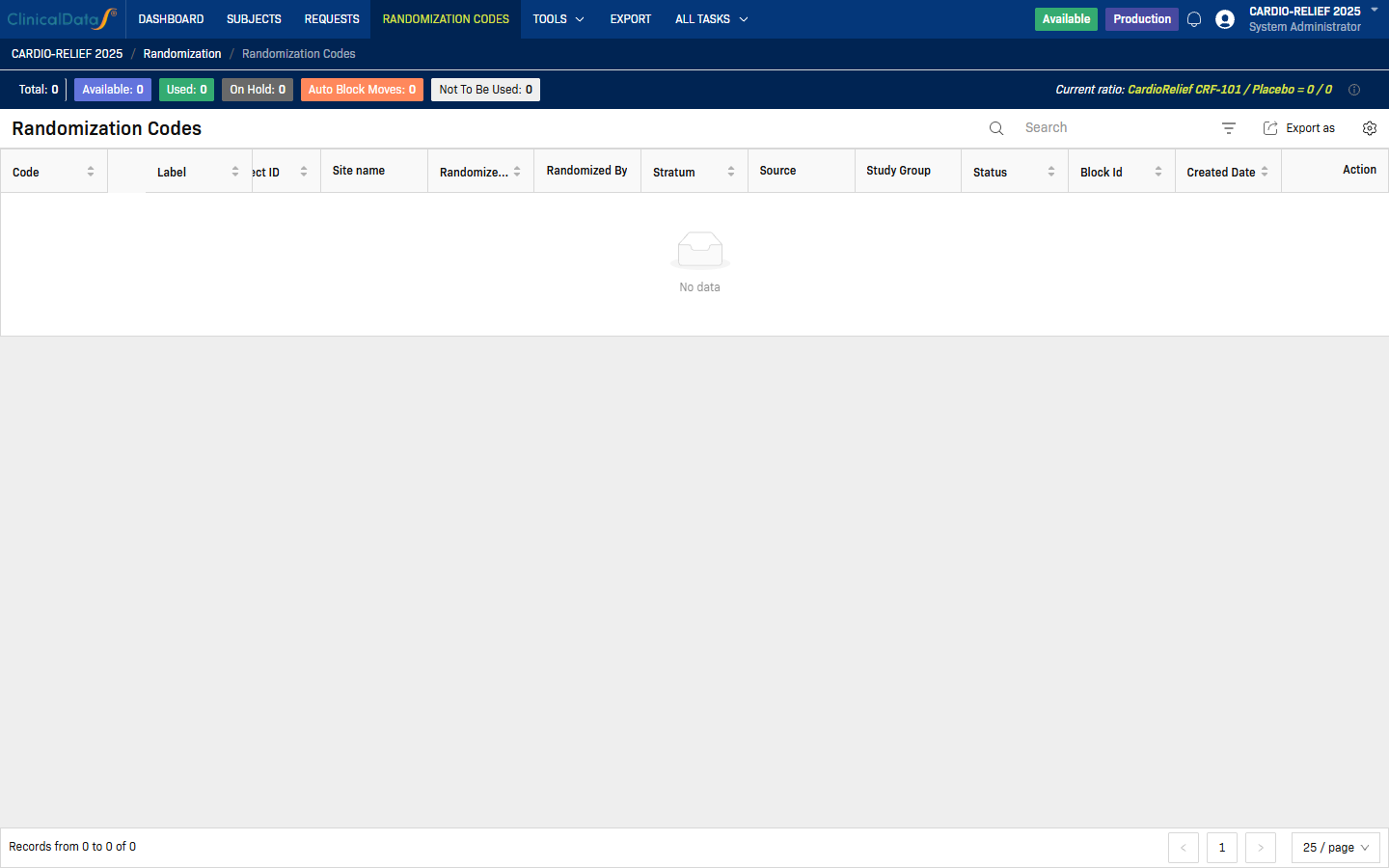
The Randomization Codes tab shows the pre-generated or real-time allocation list. Each row corresponds to a randomization code, its assigned treatment arm, and the subject it was allocated to (if any).
Tools
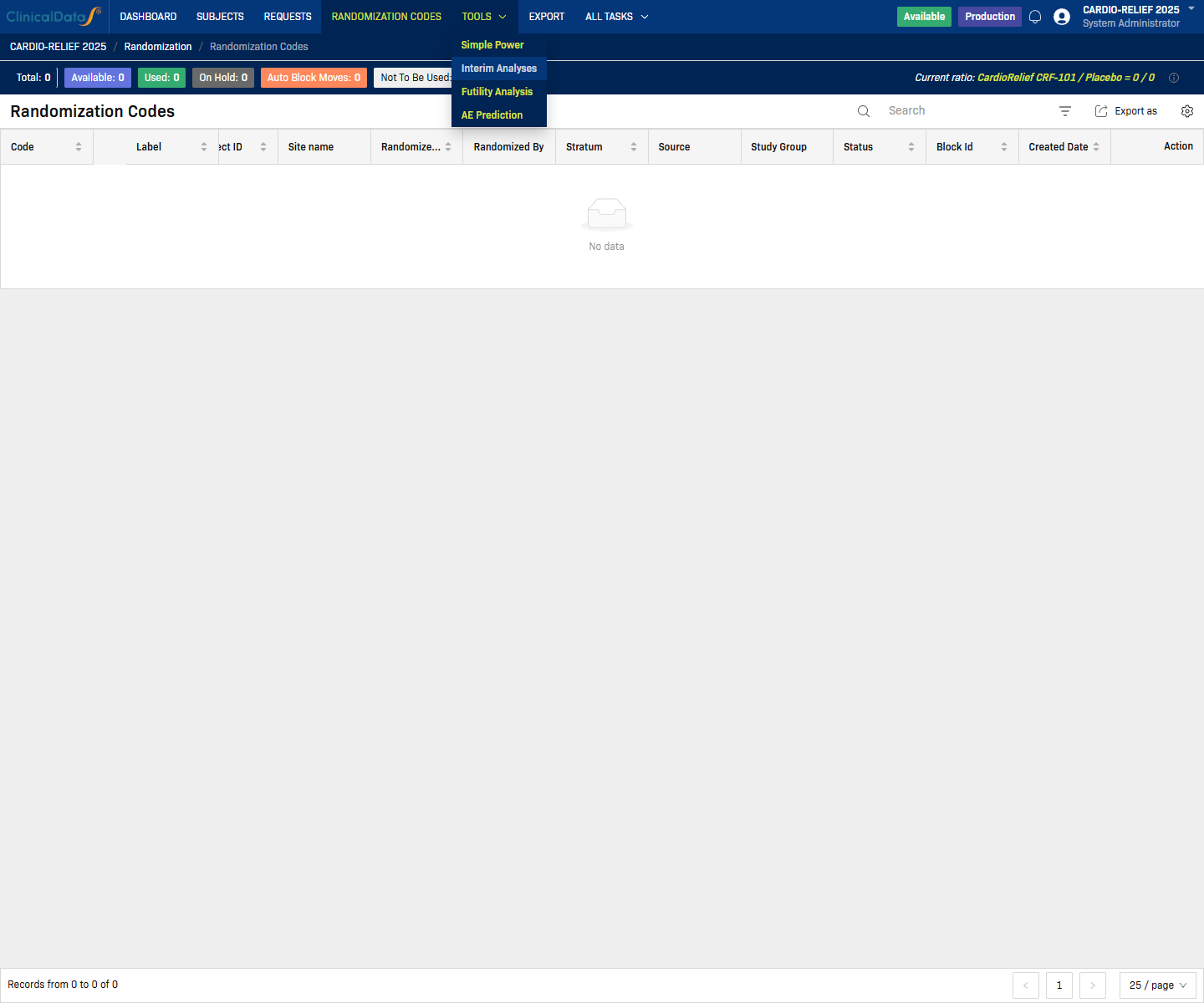
The Tools menu provides utility functions such as:
- Simple Power — sample size / power calculator
- Futility Analysis — interim stopping rules
- AE Prediction — adverse event modeling tools
Export
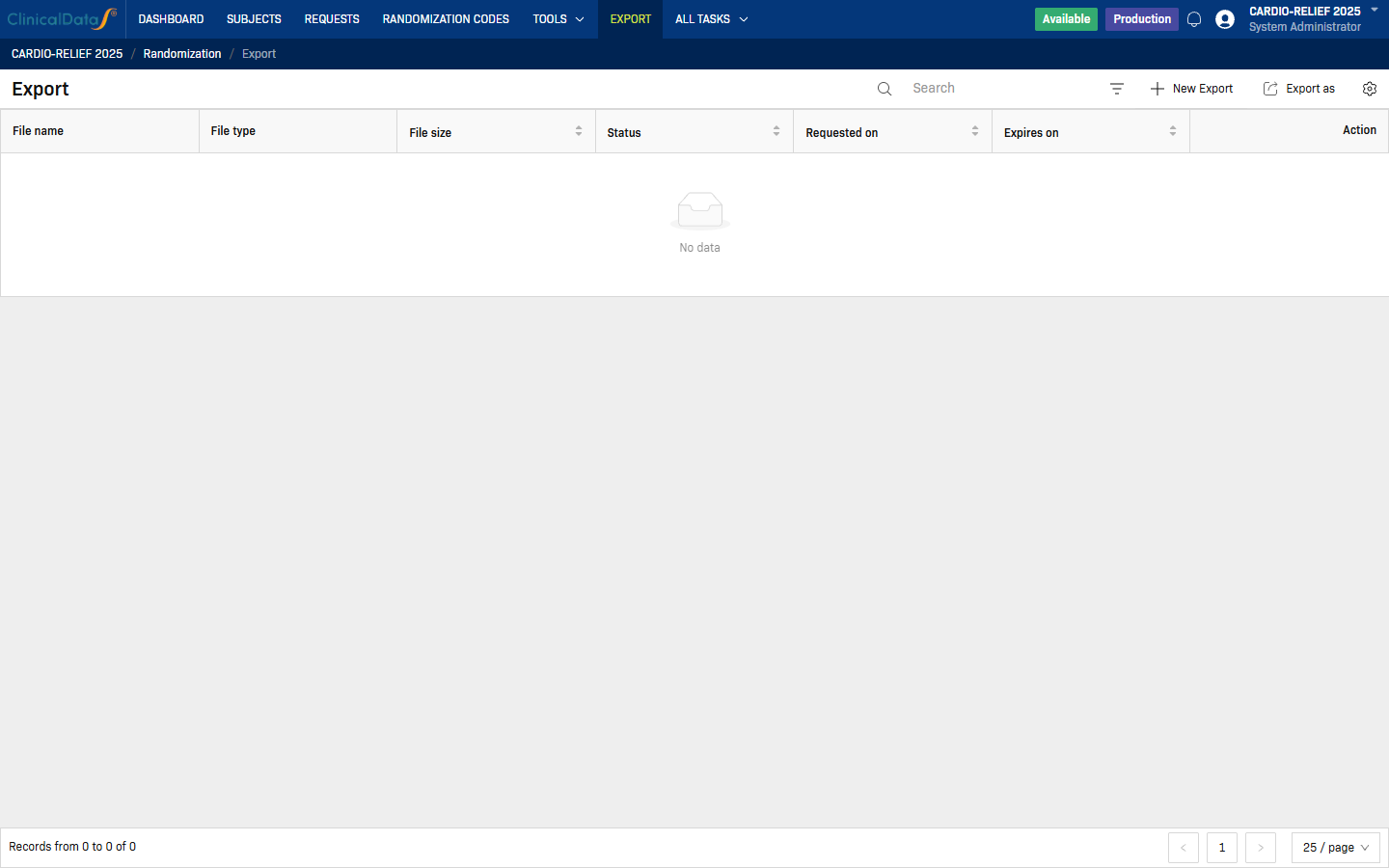
The Export tab lets you download randomization data in standard formats for reporting and audit purposes.
All Tasks
The All Tasks menu aggregates pending actions across the Randomization module, including tasks assigned to the current user or their role.