For the business definition of Medical Coding, see Medical Coding in Getting Started.
URL patterns: https://[instance]/study/[studyId]/apps/medical-coding and .../alias-management
Typical workflow
- Open the study and navigate to Medical Coding in the top navigation bar.
- Review the summary stats bar to understand the current coding status across all entries.
- Use the filter pills (
Total,Not Coded,Code Not Found) to focus on records that need attention. - For each unresolved row, click Search code to open the code search dialog, find the correct preferred term, and assign it.
- Use Auto code to automatically match all remaining unresolved terms against the configured dictionary.
- Optionally, navigate to Alias Management to review or create reusable verbatim-to-code mappings.
- To review source data verification alongside coding, use All Tasks → SDV in the top navigation to open the SDV workspace.
Accessing Medical Coding
From within the study, Medical Coding appears in the top navigation bar alongside other apps. You can also use the All Tasks dropdown (available in the top navigation bar) to jump to Medical Coding or to navigate to related features such as SDV.
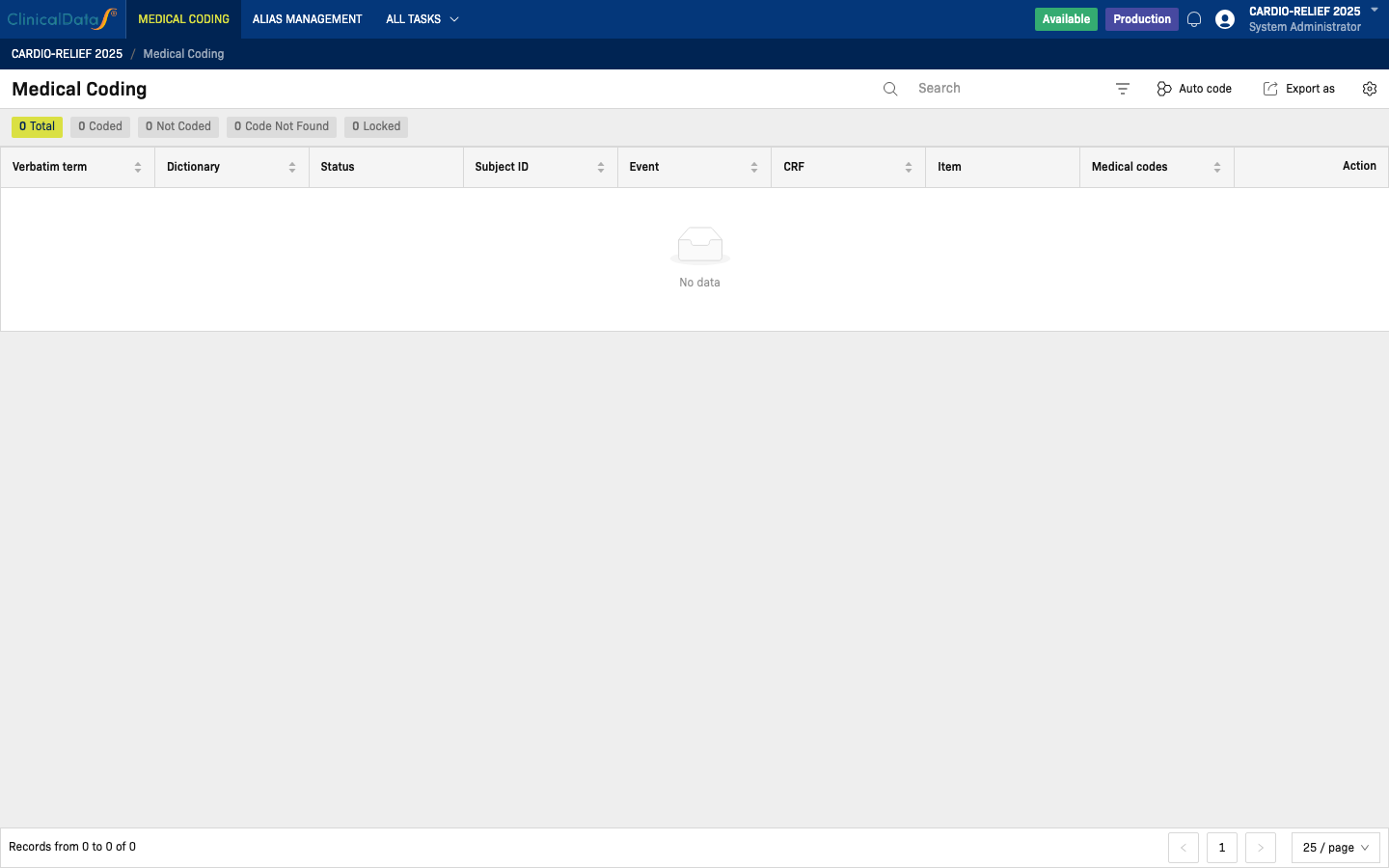
In the navigation bar:
- MEDICAL CODING — Main verbatim coding workspace (active tab shown above)
- ALIAS MANAGEMENT — Reusable verbatim-to-code mapping store
- ALL TASKS — Dropdown showing all study app areas; SDV is listed under Data Compliance
Medical Coding workspace (observed)
Summary stats and filter pills
At the top of the Medical Coding page, a row of filter pills shows the current coding status across all entries. Each pill is clickable and filters the table to that status.

| Pill | Description |
|---|---|
| Total | All verbatim terms in the study (active/selected by default) |
| Coded | Terms that have been successfully assigned a medical code |
| Not Coded | Terms that have not yet been coded |
| Code Not Found | Terms where a search was performed but no matching code was found |
| Locked | Terms that are locked and cannot be edited |
Top-level controls visible on the screen:
- Search — Filter the table by verbatim term, subject ID, event, CRF, or item name
- Auto code — Automatically attempt to match all unresolved terms against the configured dictionary
- Export as — Download the coding data including all verbatim terms and their current coding status
Coding table
The main table lists all verbatim terms submitted across subjects. In the observed study, the table shows the following columns:

| Column | Description |
|---|---|
| Verbatim term | The raw text entered by the data entry user on the CRF |
| Dictionary | The medical dictionary used for coding (e.g., MedDRA) |
| Status | Current coding status: Not Coded, Coded, Code Not Found, or Locked |
| Subject ID | The ID of the subject who submitted the term (clickable) |
| Event | The study event associated with the CRF entry |
| CRF | The name of the CRF form where the term was entered |
| Item | The specific CRF item (field) that captured the term |
| Medical codes | The assigned medical code(s), once coded |
| Action | Available row-level actions (see below) |
Row actions
| Action | Available when | Description |
|---|---|---|
| Search code | Status is Not Coded or Code Not Found | Opens the code search dialog to find and assign a medical code |
| View in CRF | Always | Opens the source CRF entry for the subject to view the data in context |
Search Code dialog
Clicking Search code on a row opens a dialog where you can:
- Search by keyword — the verbatim term is pre-filled in the search box
- Browse the Preferred Name results returned from the configured dictionary
- Select a result to assign it as the medical code for the term
Auto code
Click Auto code in the toolbar to automatically attempt to match all unresolved verbatim terms against the configured dictionary. Terms with exact or high-confidence matches are coded automatically. Terms that cannot be matched are marked as Code Not Found.
All Tasks — navigating to SDV
The All Tasks dropdown in the top navigation bar provides access to all study workspaces from within Medical Coding, including the SDV app.
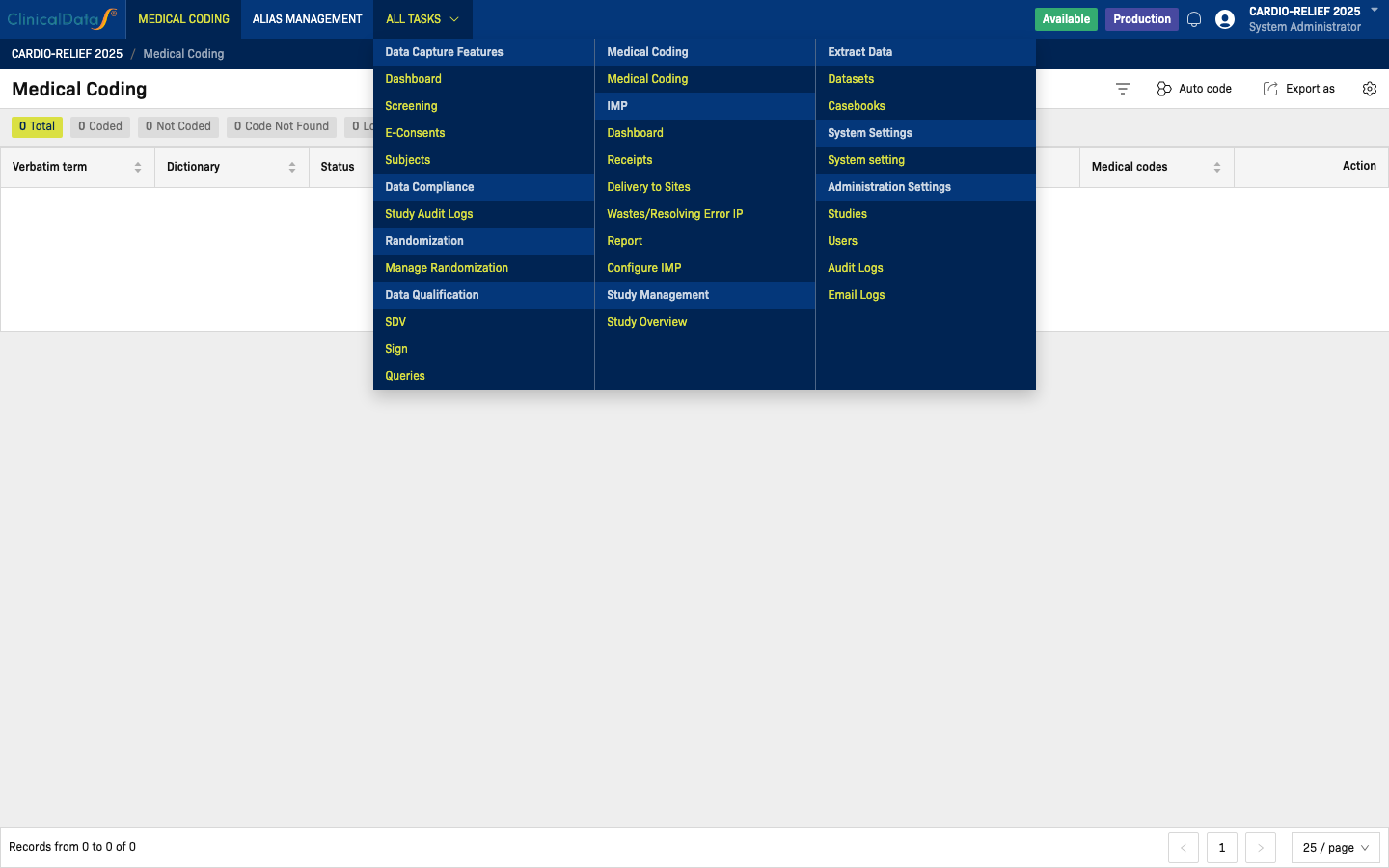
To navigate to SDV from Medical Coding:
- Click All Tasks in the top navigation bar.
- Under Data Compliance, click SDV.
- The SDV workspace opens, showing View by CRF and View by Subject tabs.
SDV and Medical Coding work together — verbatim terms coded in Medical Coding are often linked to CRFs that are also subject to source data verification.
Alias Management workspace (observed)
Click Alias Management in the top navigation bar to open the alias store.
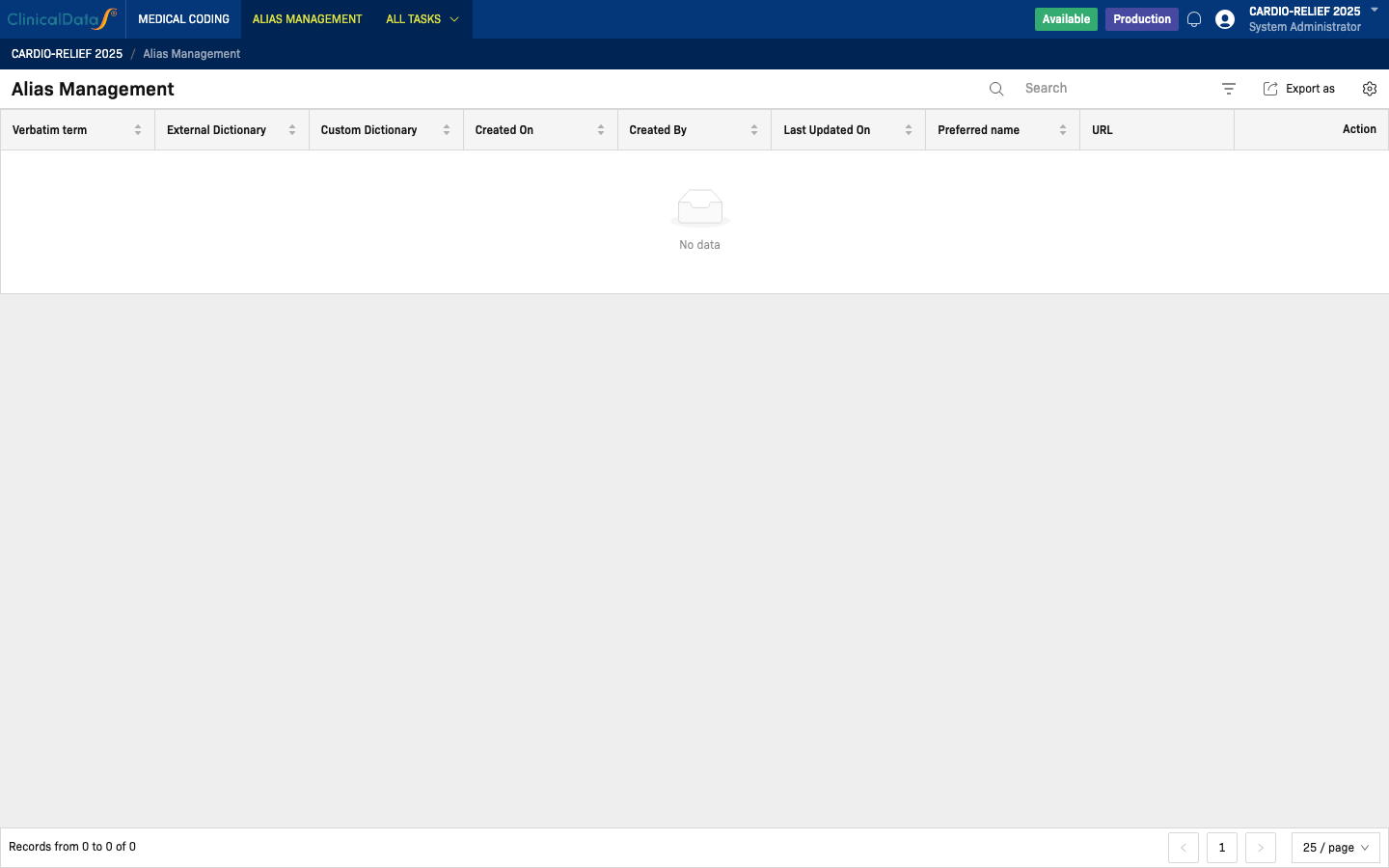
Alias Management stores mappings between verbatim terms and their preferred medical codes. Once an alias is created, future occurrences of the same verbatim term can be auto-coded using the saved mapping.
The alias table shows the following columns:
| Column | Description |
|---|---|
| Verbatim term | The raw term as entered in the CRF |
| External Dictionary | The external medical dictionary the alias maps to (e.g., MedDRA) |
| Custom Dictionary | A custom/internal dictionary mapping, if applicable |
| Created On | Date the alias was created |
| Created By | User who created the alias |
| Last Updated On | Date the alias was last modified |
| Preferred name | The standardized preferred term assigned to this verbatim term |
| URL | Reference URL for the assigned code in the dictionary |
| Action | Edit or delete the alias |
Top-level controls on the Alias Management page:
- Search — Filter aliases by verbatim term or preferred name
- Export as — Download the full alias list
Note: Auto code is not available on the Alias Management page. Use it from the main Medical Coding workspace.
Relationship to configuration
What dictionaries are available, how auto-coding behaves, and which study accounts are linked are all driven by settings under Medical Coding configuration. If expected dictionaries do not appear or auto-code does not produce results, verify that the dictionary and account are configured correctly.
Related topics
- Medical Coding configuration — Dictionary setup, auto-code settings, and account configuration
- SDV Events — Source data verification organized by study event; accessible from Medical Coding via All Tasks → SDV