For the business definition, see Medical Coding in Getting Started.
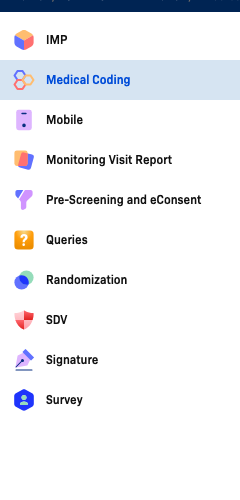
Configure from Home → select your study → Medical Coding (left sidebar).
Configuration URL: https://[instance]/home/study/[studyId]/apps/medical-coding
Replace [instance] with your environment host (for example, test-2025.clinicaldatas.net) and [studyId] with the study identifier.
Who uses this screen
Study administrators who need to connect the study to BioPortal and set up dictionary behaviour before coding can begin. If you cannot save settings, check that the study is in Design status (see note below).
Accessing Medical Coding Configuration
Open your study, then click Medical Coding in the left sidebar. The configuration form loads immediately.
Setup on this page is read-only when the study is in Available or Production status. A banner at the top of the page reads "To set it up, please change the status of Study to Design". Change the study status to Design before making any edits.
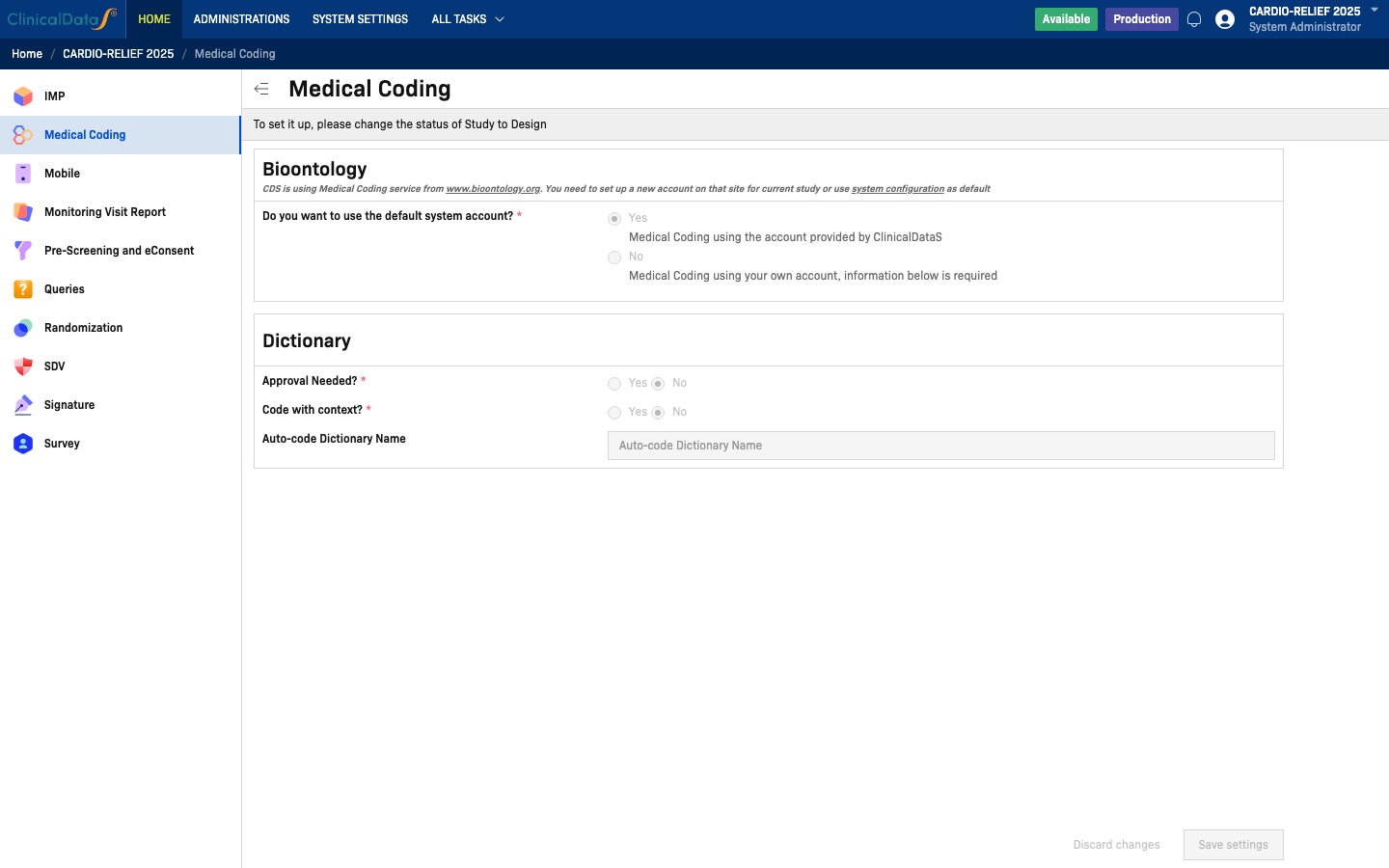
Configuration layout (observed)
Bioontology section
The Bioontology section appears at the top of the configuration form.
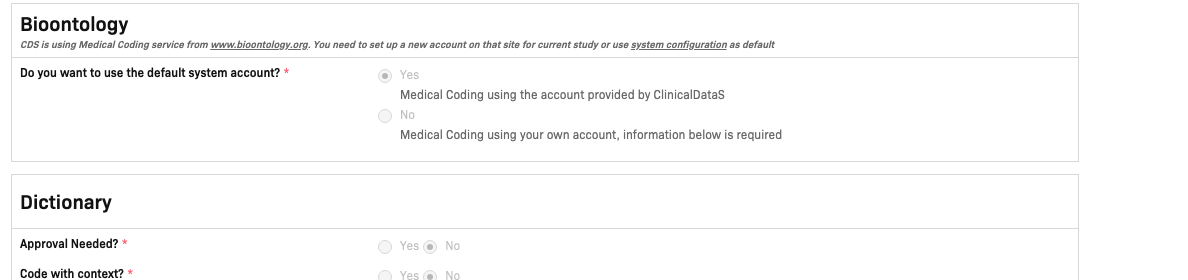
The section description reads:
CDS is using Medical Coding service from www.bioontology.org. You need to set up a new account on that site for current study or use system configuration as default.
Do you want to use the default system account? (required)
| Option | Label in UI | Description |
|---|---|---|
| Yes | Medical Coding using the account provided by ClinicalDataS | Uses the shared BioPortal account managed by ClinicalDataS. No additional credentials required. |
| No | Medical Coding using your own account, information below is required | Reveals additional credential fields below the radio buttons so you can enter your own BioPortal account details. |
Select Yes if you do not have a separate BioPortal account for this study. Select No and fill in the additional fields that appear if your organisation maintains its own BioPortal account.
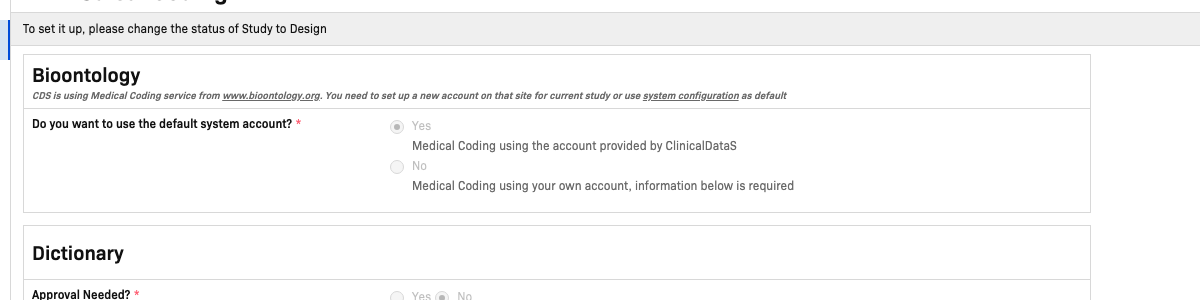
Dictionary section
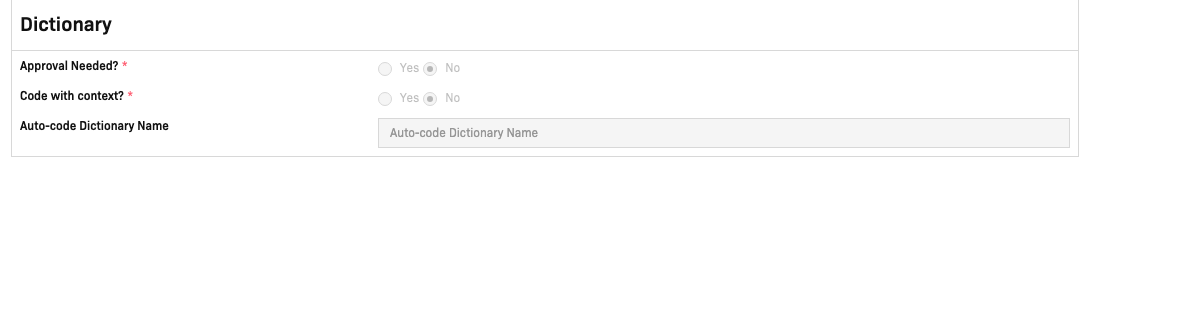
The Dictionary section configures how auto-coding behaves when matching verbatim terms.
| Field | Options | Required | Description |
|---|---|---|---|
| Approval Needed? | Yes / No | Yes | When set to Yes, each auto-code assignment must be reviewed and approved before it is considered final. |
| Code with context? | Yes / No | Yes | When set to Yes, the auto-coder considers surrounding contextual data (event, CRF, item) when matching terms. |
| Auto-code Dictionary Name | Free text | No | Name of the dictionary used for auto-coding (for example, MEDDRA or WHODrug). Leave blank to use the default dictionary configured in the system. |
Saving changes
After updating any setting, click Save settings (bottom-right corner). To revert all unsaved edits, click Discard changes.

| Button | Description |
|---|---|
| Save settings | Persist all configuration changes |
| Discard changes | Revert all unsaved edits to last saved |
Both buttons are disabled while the study is not in Design status.
Related topics
- Medical Coding workspace — Verbatim term coding and alias management
- System Settings → Configuration — Set the default BioPortal account used across all studies