For the business definition, see e-Signature in Getting Started.
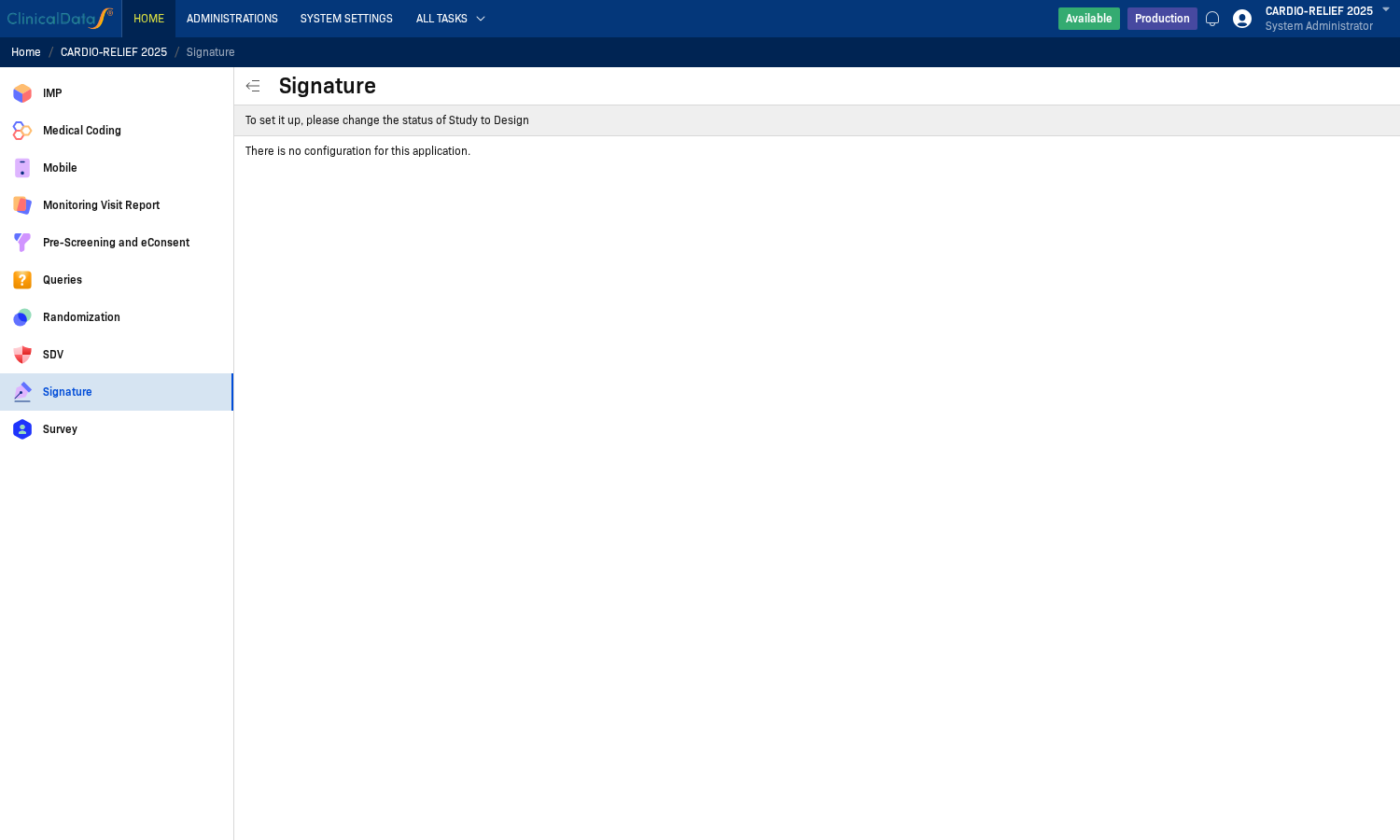
The Signature setup page is available from the study-level app setup area. In this environment, the page may display informational messages without editable options.
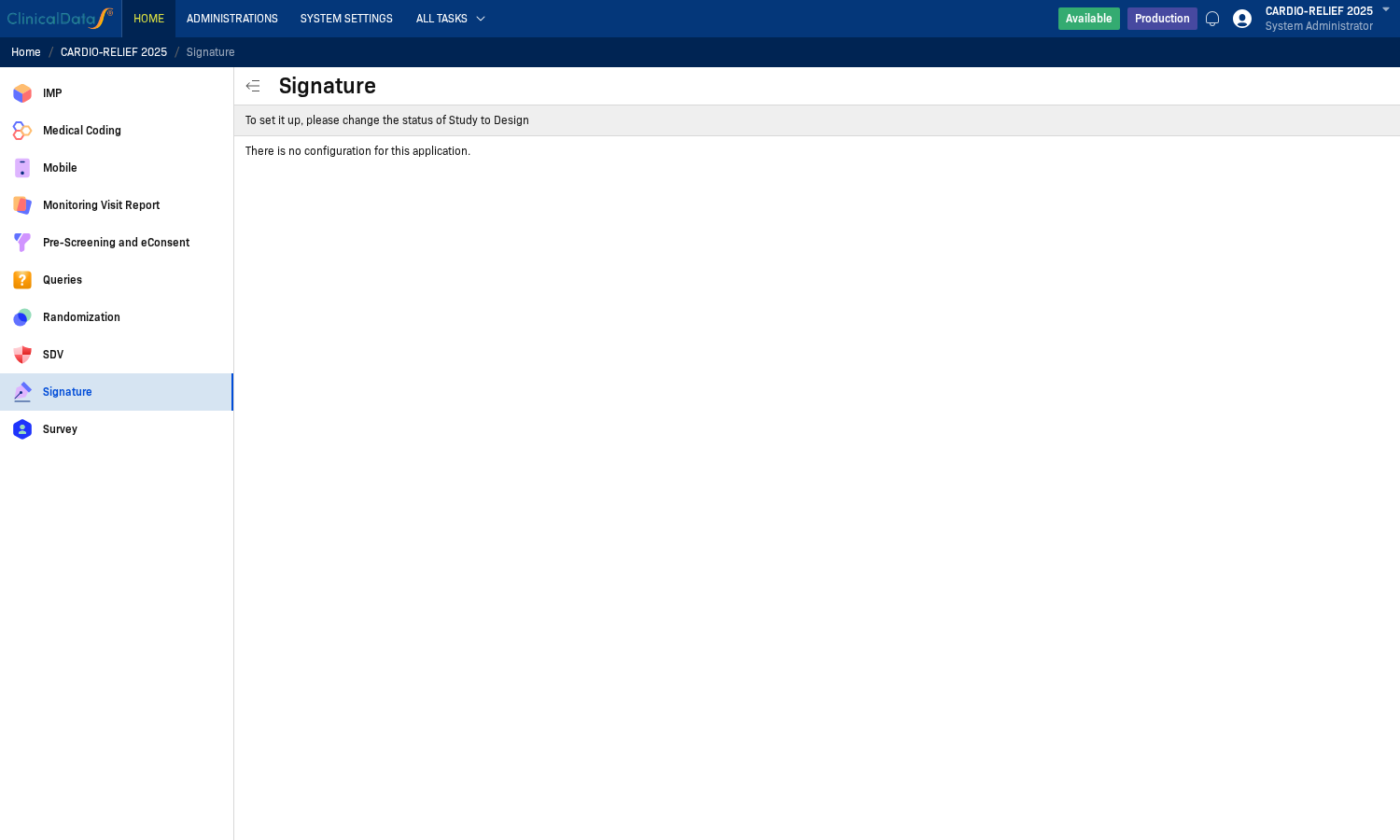
Live UI messages shown on the page:
- "To set it up, please change the status of Study to Design"
- "There is no configuration for this application."
These messages indicate that Signature setup is controlled by study status and application availability rather than a dedicated setup form.
Access Path
Step 1: Open My Page
Log in and open My Page.
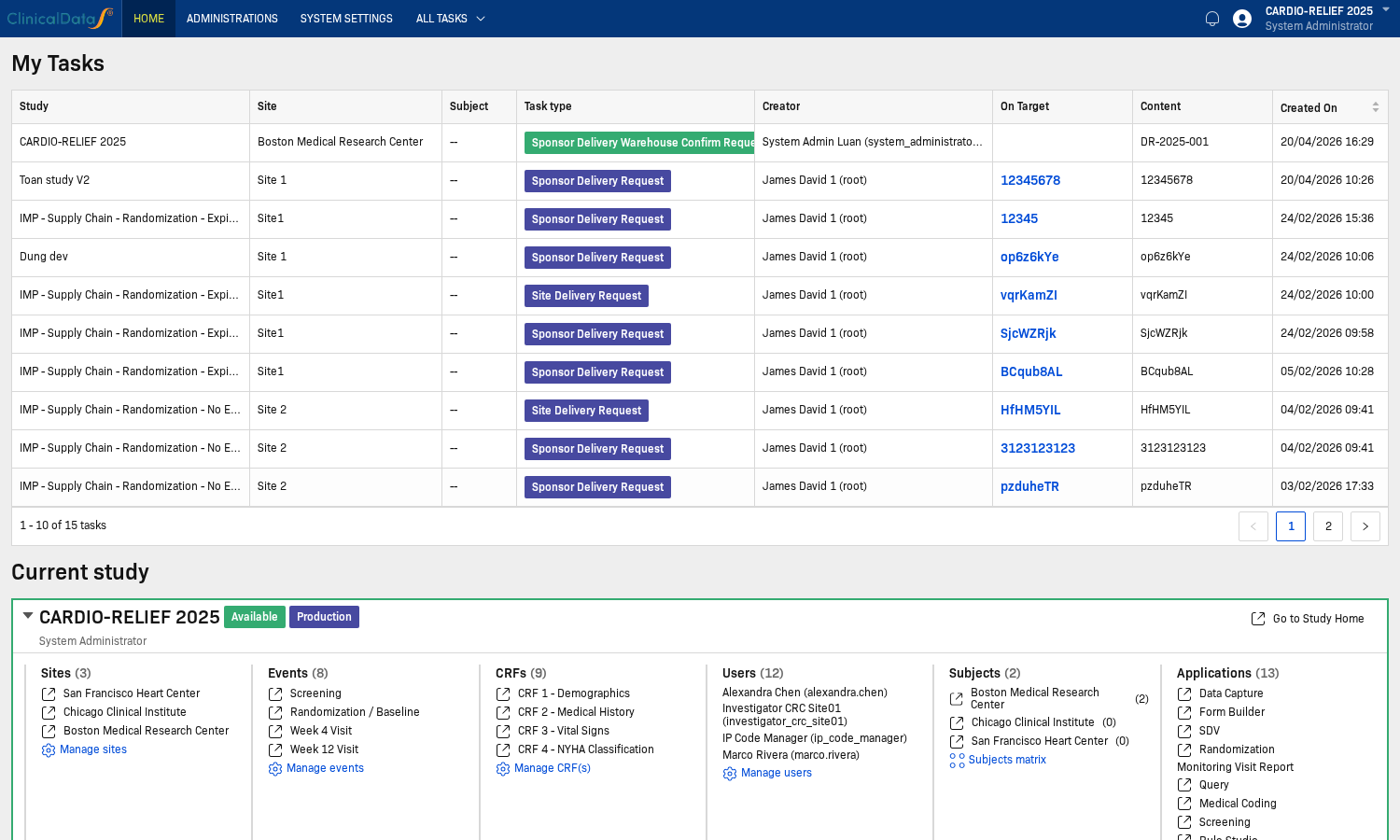
Step 2: Open Study Home
In Current study, click Go to Study Home.
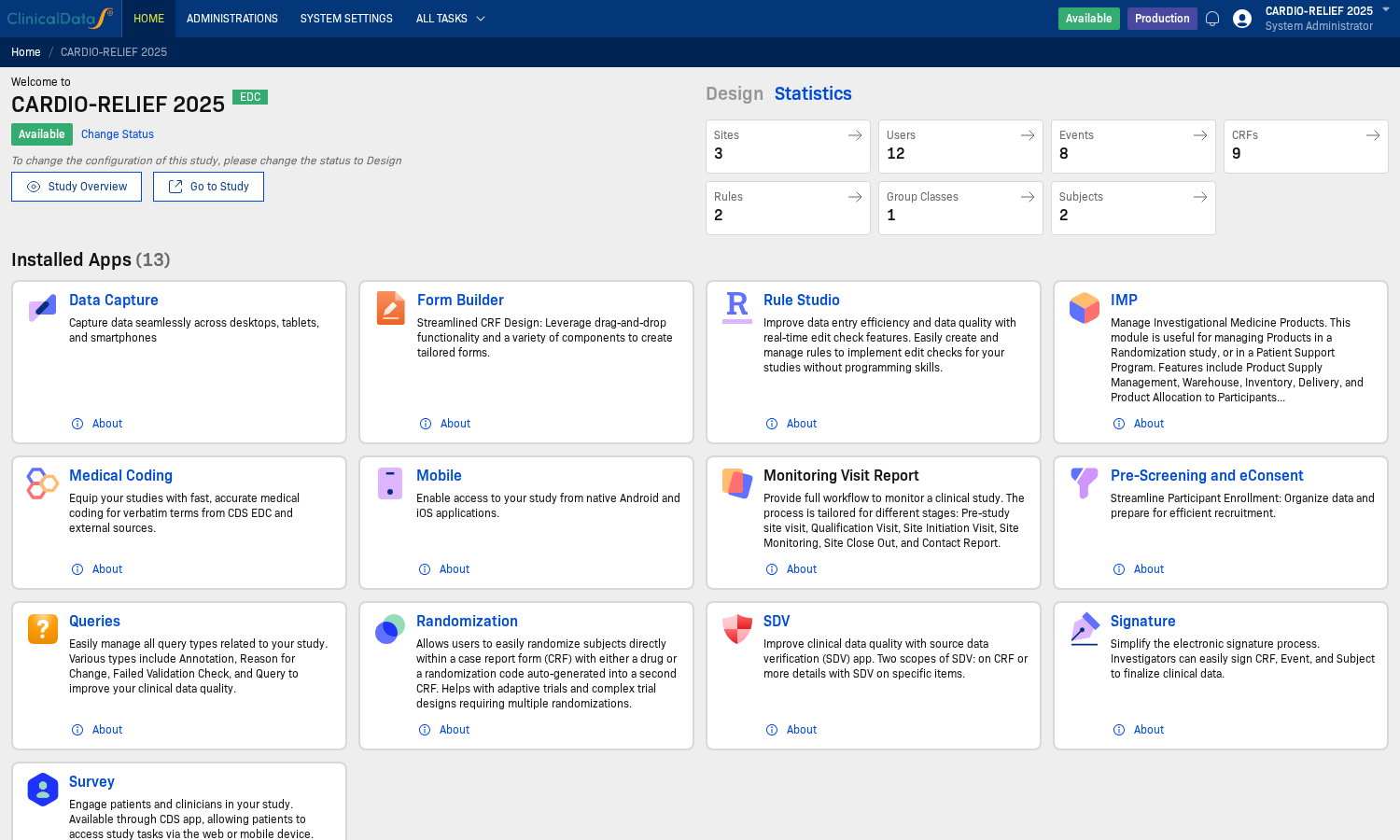
Step 3: Open Signature configuration page
From study home, open the app configuration route for Signature.
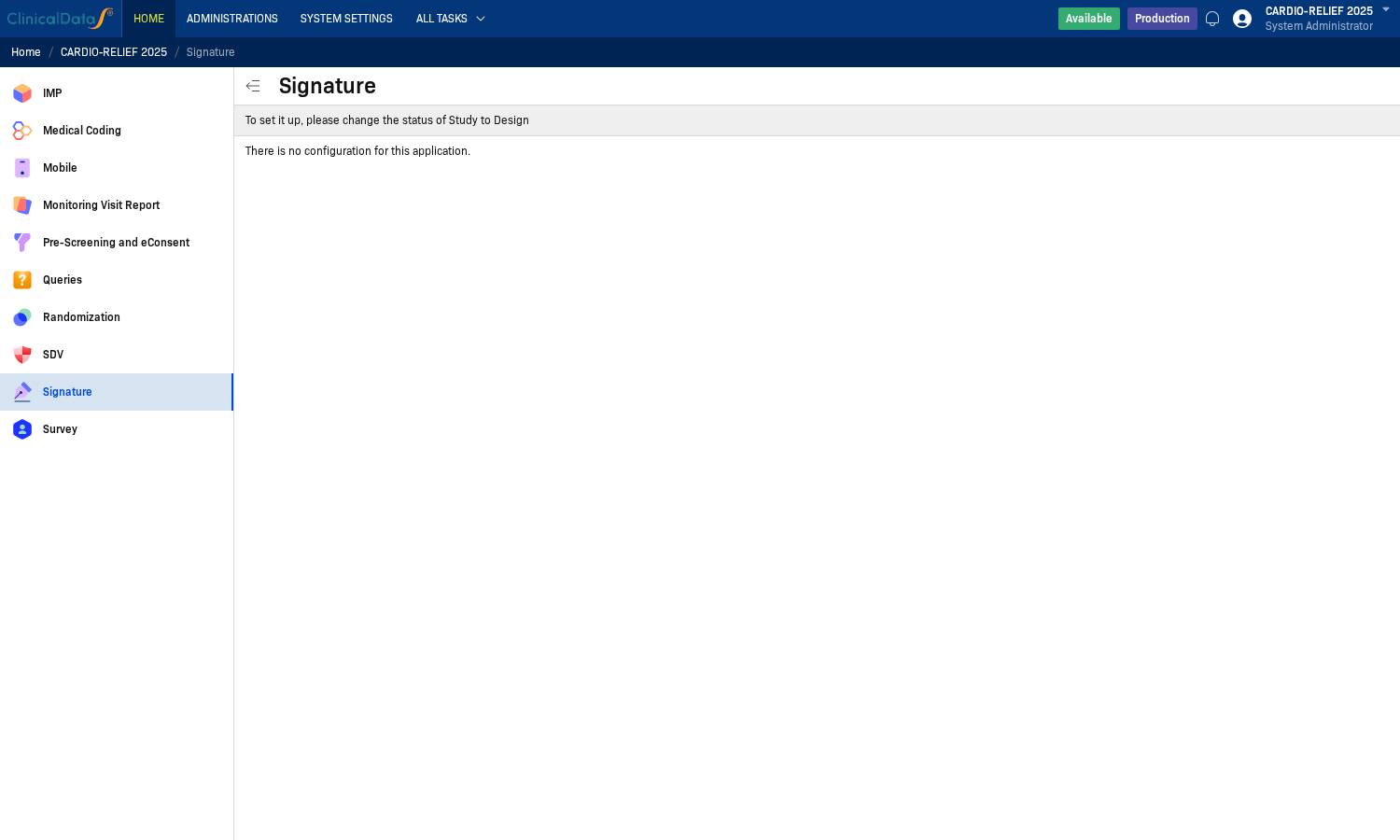
Step 4: Review current configuration behavior
The page currently shows a status note and no editable controls.
What Can Be Configured Here?
Based on the live page in this study:
- No form fields are available
- No save/discard action buttons are shown
- Configuration is effectively read-only/informational at this level
If your environment has additional Signature controls, document them according to your tenant configuration and study status policy.
Relation to Signing Workflow
Even when no setup options are available on this page, users can still work in the operational Signature workspace (top navigation Signature) to sign eligible records.
For the full signing flow, see e-Signature workspace.
Access Requirements
Signature behavior depends on user role, study status, and record eligibility.
- Users must have permission to access Signature workspace actions
- Sign actions require credential confirmation (username + password)
- Signature actions are audit-trailed with timestamp and user identity