For the business definition of Randomization, see Randomization in Getting Started.
Configuration URL: https://[instance]/home/study/[studyId]/apps/randomization
If you cannot open the Randomization app or the Edit buttons are greyed out, verify that the study is in Design status. Configuration changes are not permitted while the study is in Production.
Opening Randomization
- Sign in to your ClinicalDataS instance (for example
https://test-2025.clinicaldatas.net). - Open the study you work on.
- In the left sidebar under Installed Apps, select Randomization.
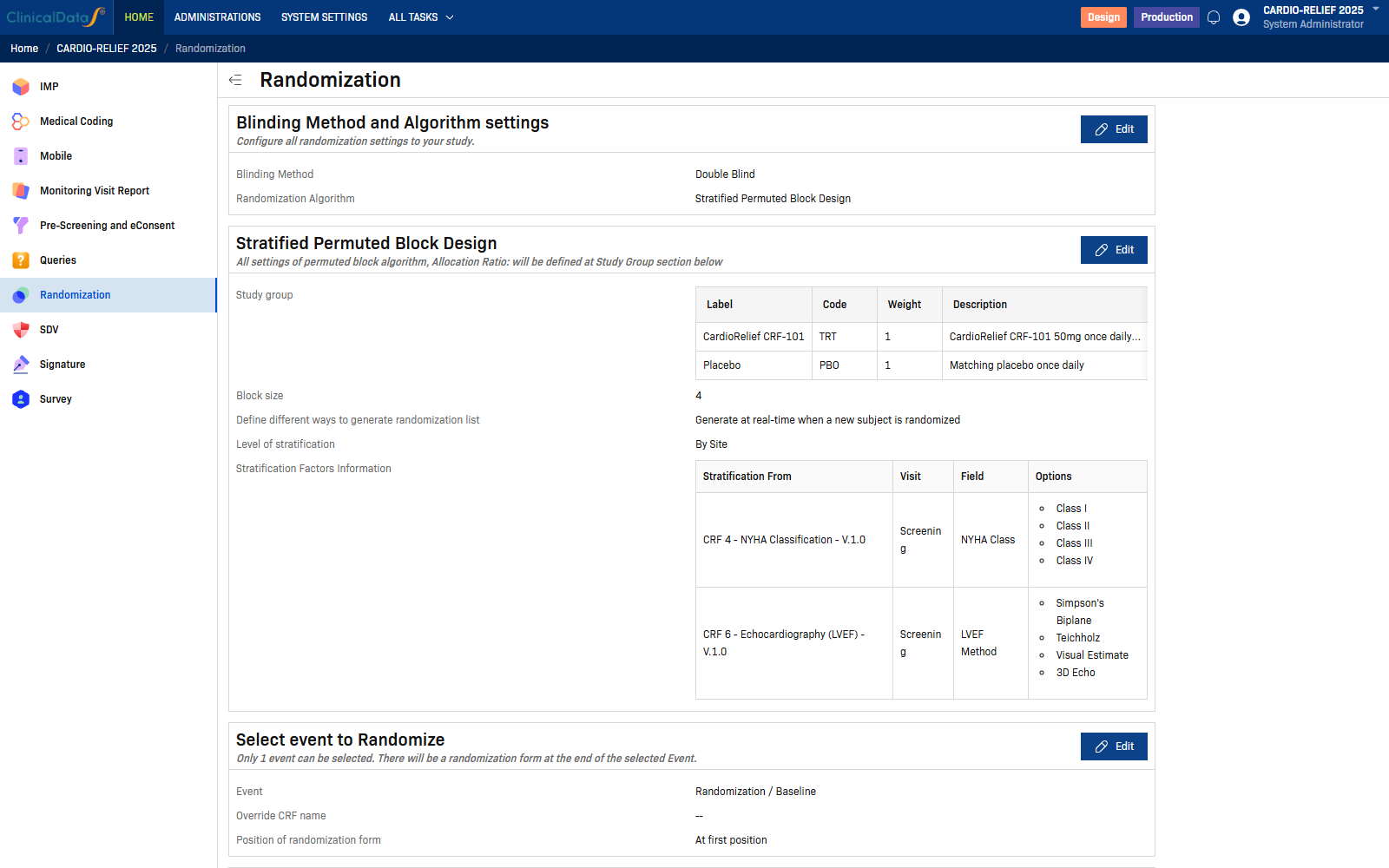
The Randomization configuration page opens, showing all setup sections.
Note: If the study is in Production status, a banner appears: "To set it up, please change the status of Study to Design." The Edit buttons are disabled until the study is switched back to Design.
Main screen layout (observed)
The Randomization page is organized into configuration cards, each covering one aspect of the setup. The cards appear in this order:
| Card | Description |
|---|---|
| Blinding Method and Algorithm settings | Configure all randomization settings including blinding method and algorithm type |
| [Algorithm-specific settings] | Appears after saving an algorithm — the card title matches the selected algorithm (e.g., Stratified Permuted Block Design) |
| Select event to Randomize | Select which study event triggers randomization |
| Sample Size | Optional power calculator for determining required enrollment numbers |
| Additional data before Randomization | Define inclusion, exclusion, and open-ended questions subjects must answer before being randomized |
| Email Notification | Configure who receives email alerts when a subject is randomized |
Each card has an Edit button (pencil icon) in the top-right corner. In Production status, Edit buttons are disabled.
Blinding Method and Algorithm settings
Select Edit to open the dialog. Choose the Blinding Method and Randomization Algorithm.
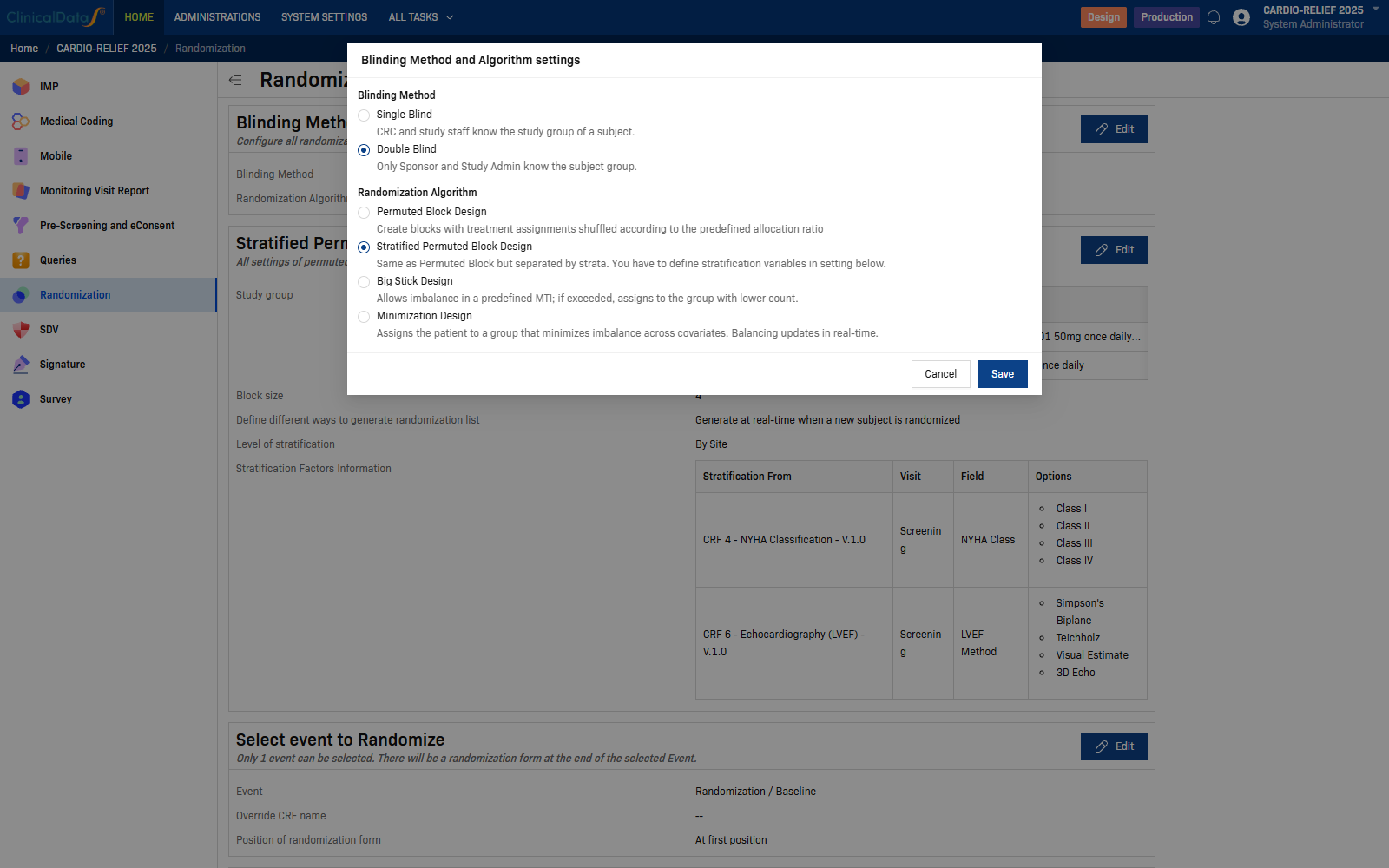
Blinding Method:
| Option | Description |
|---|---|
| Single Blind | CRC and study staff know the study group of a subject. |
| Double Blind | Only Sponsor and Study Admin know the subject group. |
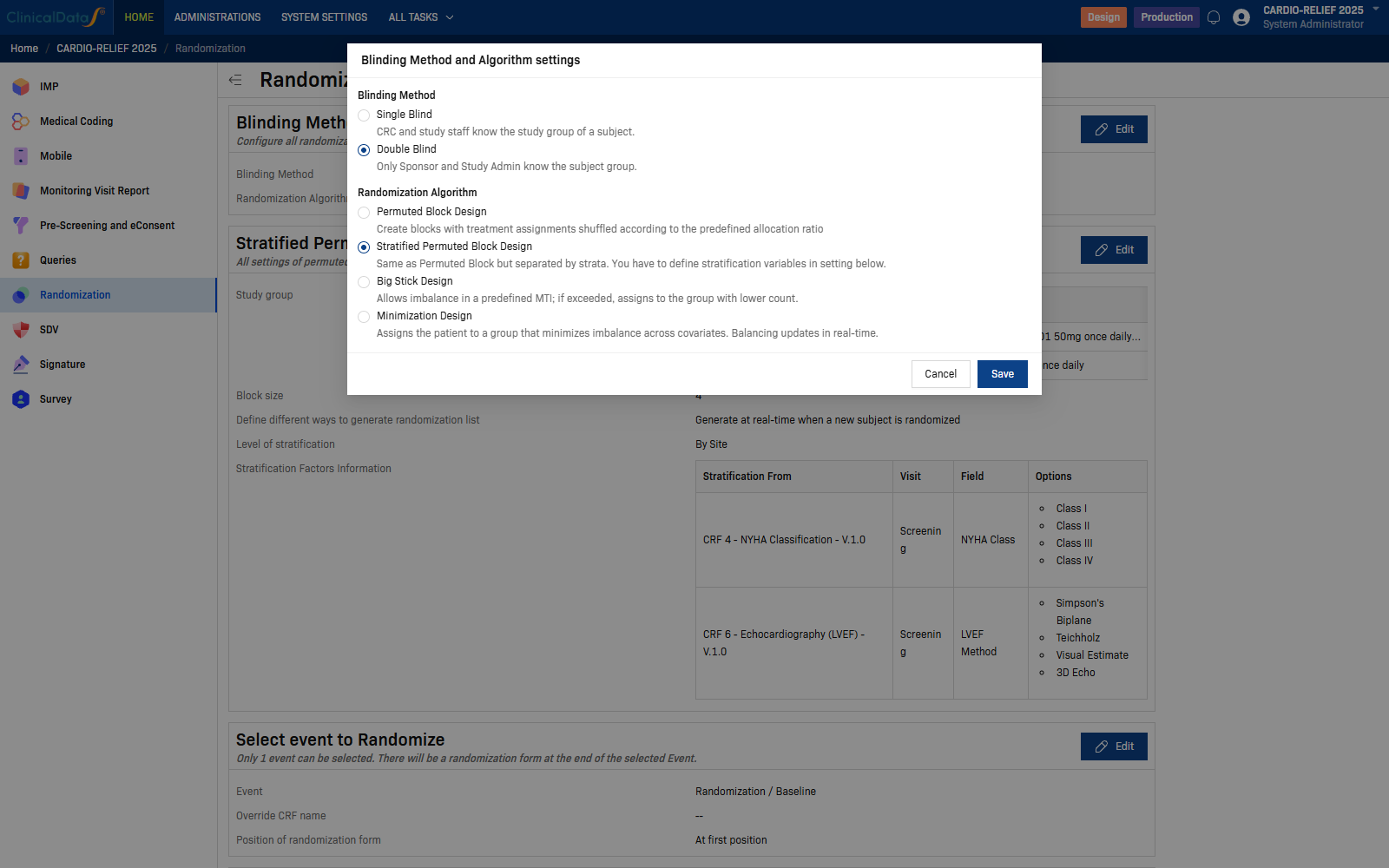
Randomization Algorithm:
| Algorithm | Description |
|---|---|
| Permuted Block Design | Create blocks with treatment assignments shuffled according to the predefined allocation ratio |
| Stratified Permuted Block Design | Same as Permuted Block but separated by strata. You have to define stratification variables in setting below. |
| Big Stick Design | Allows imbalance in a predefined MTI; if exceeded, assigns to the group with lower count. |
| Minimization Design | Assigns the patient to a group that minimizes imbalance across covariates. Balancing updates in real-time. |
Select Save to confirm. The algorithm-specific settings card will appear below.
Algorithm-specific settings
After saving an algorithm, a new card appears for its specific settings. The card title matches the selected algorithm name (for example, Stratified Permuted Block Design).
Common settings across algorithms:
- Study group — A table with columns: Label, Code, Weight, Description. Add one row per treatment arm.
- Block size — Number of subjects per block.
- Define different ways to generate randomization list — Generate at real-time when a new subject is randomized, or pre-generate.
- Level of stratification (Stratified Permuted Block only) — By Site or By Study.
- Stratification Factors Information (Stratified Permuted Block only) — Table linking CRF fields to stratification variables.
See Configuration for full algorithm-specific setup details.
Select event to Randomize
Select Edit to open the dialog.
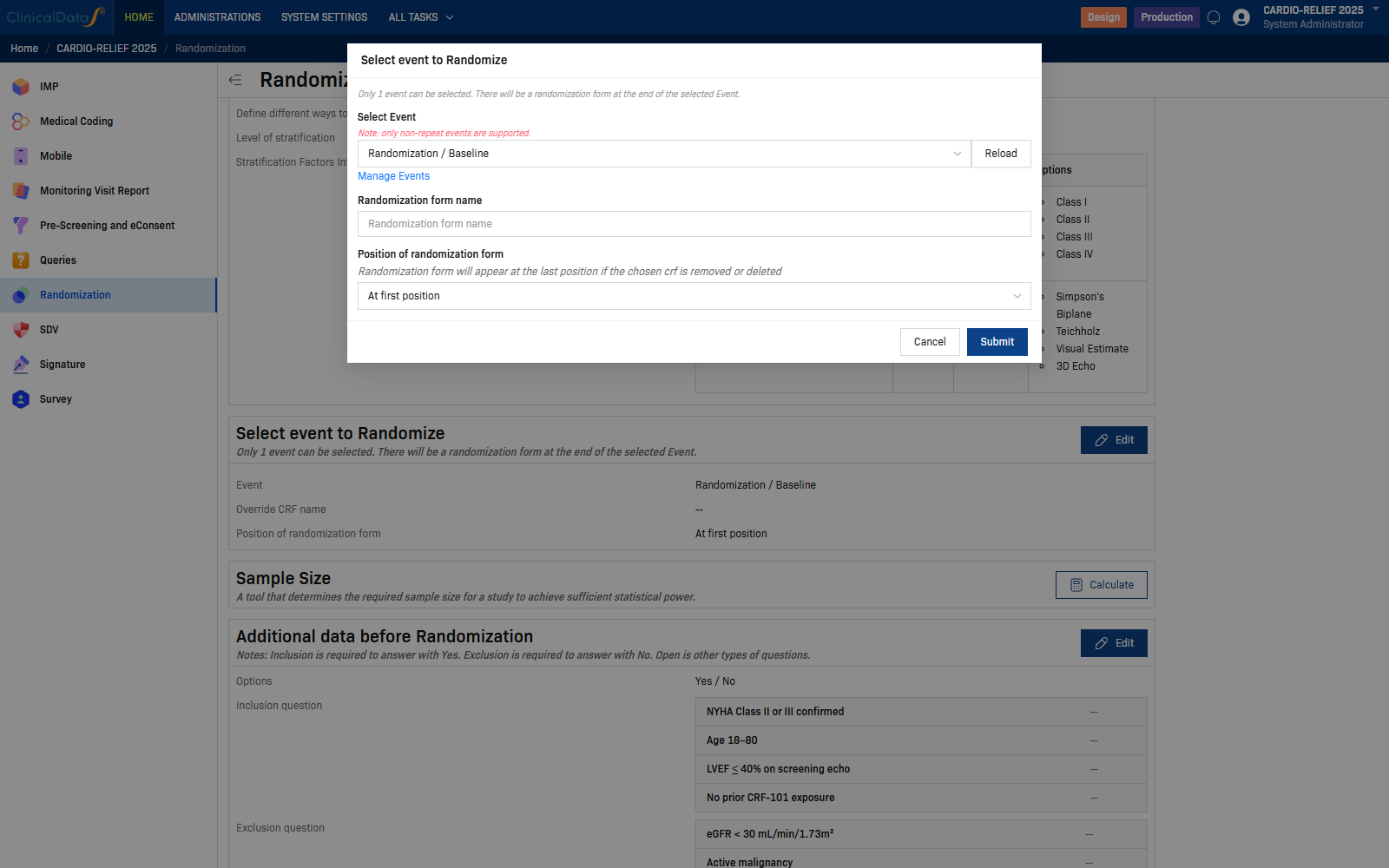
Only 1 event can be selected. There will be a randomization form at the end of the selected Event.
| Field | Description |
|---|---|
| Select Event | Dropdown to choose the study event where randomization takes place. Use Reload to refresh the event list. A Manage Events link is available to navigate to event management. |
| Randomization form name | Optional name for the auto-generated randomization form added to the selected event. |
| Position of randomization form | Where the form is inserted within the event (for example, "At first position"). |
Select Submit to save.
Sample Size
Select Calculate to open the Calculate Simple Power dialog.
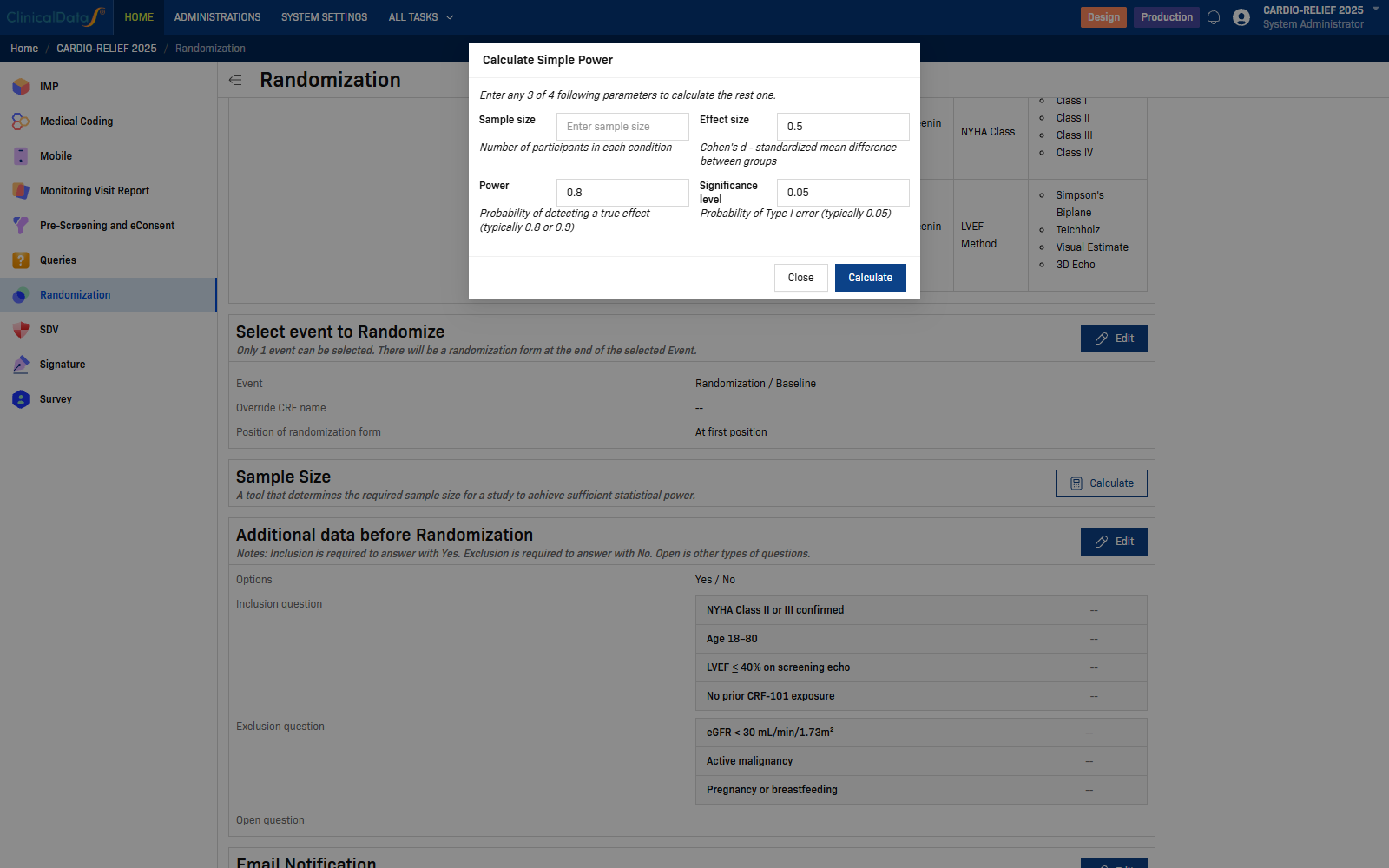
Enter any 3 of 4 following parameters to calculate the rest one.
| Parameter | Description |
|---|---|
| Sample size | Number of participants in each condition |
| Effect size | Cohen's d — standardized mean difference between groups |
| Power | Probability of detecting a true effect (default: 0.8) |
| Significance level | Probability of Type I error (default: 0.05) |
Enter three of the four values and select Calculate to compute the remaining parameter.
Additional data before Randomization
Select Edit to open the dialog.
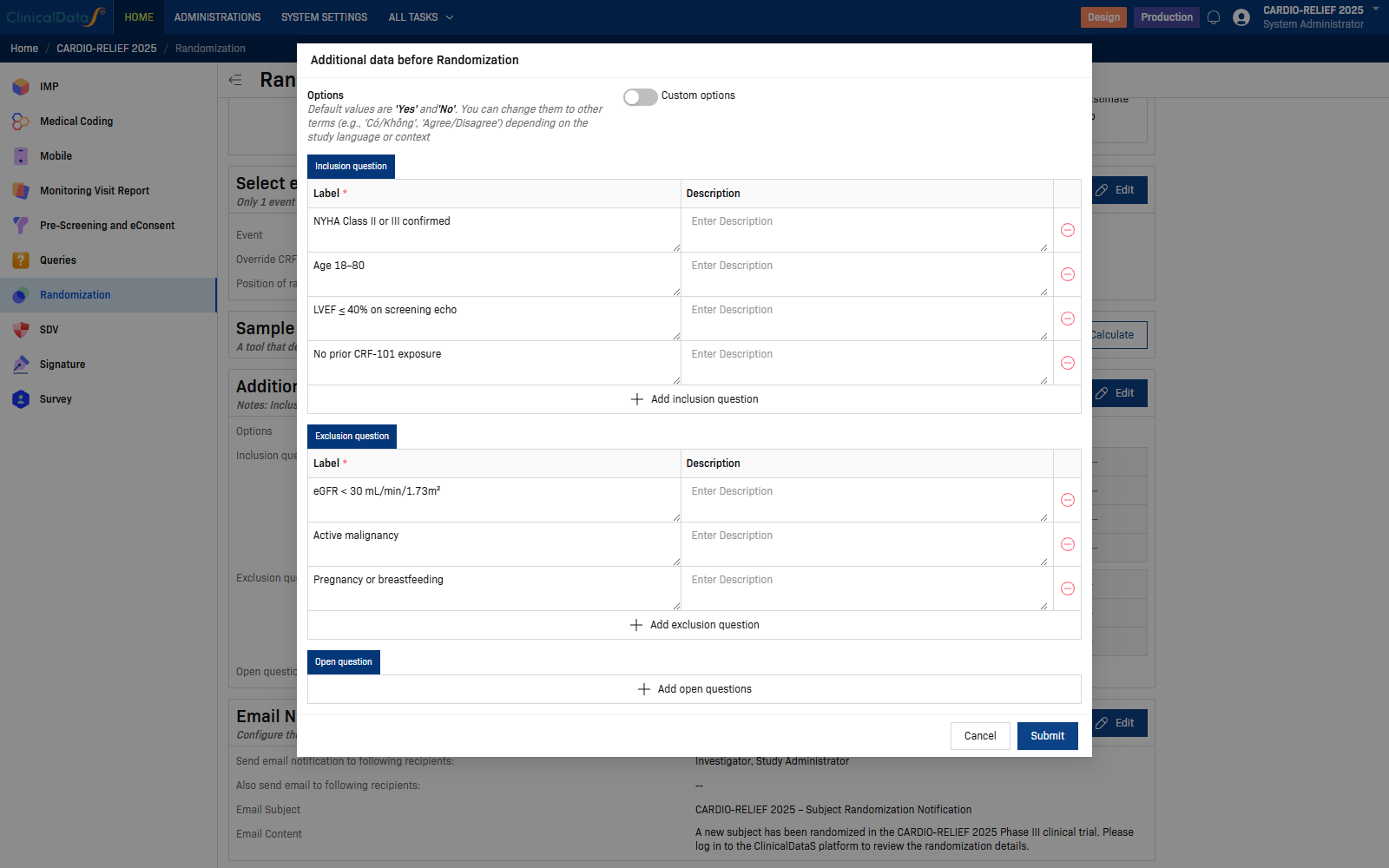
Notes: Inclusion is required to answer with Yes. Exclusion is required to answer with No. Open is other types of questions.
| Setting | Description |
|---|---|
| Options | Default answer labels — defaults to Yes / No. Enable Custom options to use alternative terms (for example, "Agree / Disagree" or localized labels for a different study language). |
| Inclusion question tab | Add criteria that subjects must answer Yes to in order to proceed with randomization. Each row has a Label (required) and optional Description. |
| Exclusion question tab | Add criteria that subjects must answer No to in order to proceed with randomization. |
| Open question tab | Free-entry questions that do not gate randomization. |
Select Submit to save.
Email Notification
Select Edit to open the dialog.
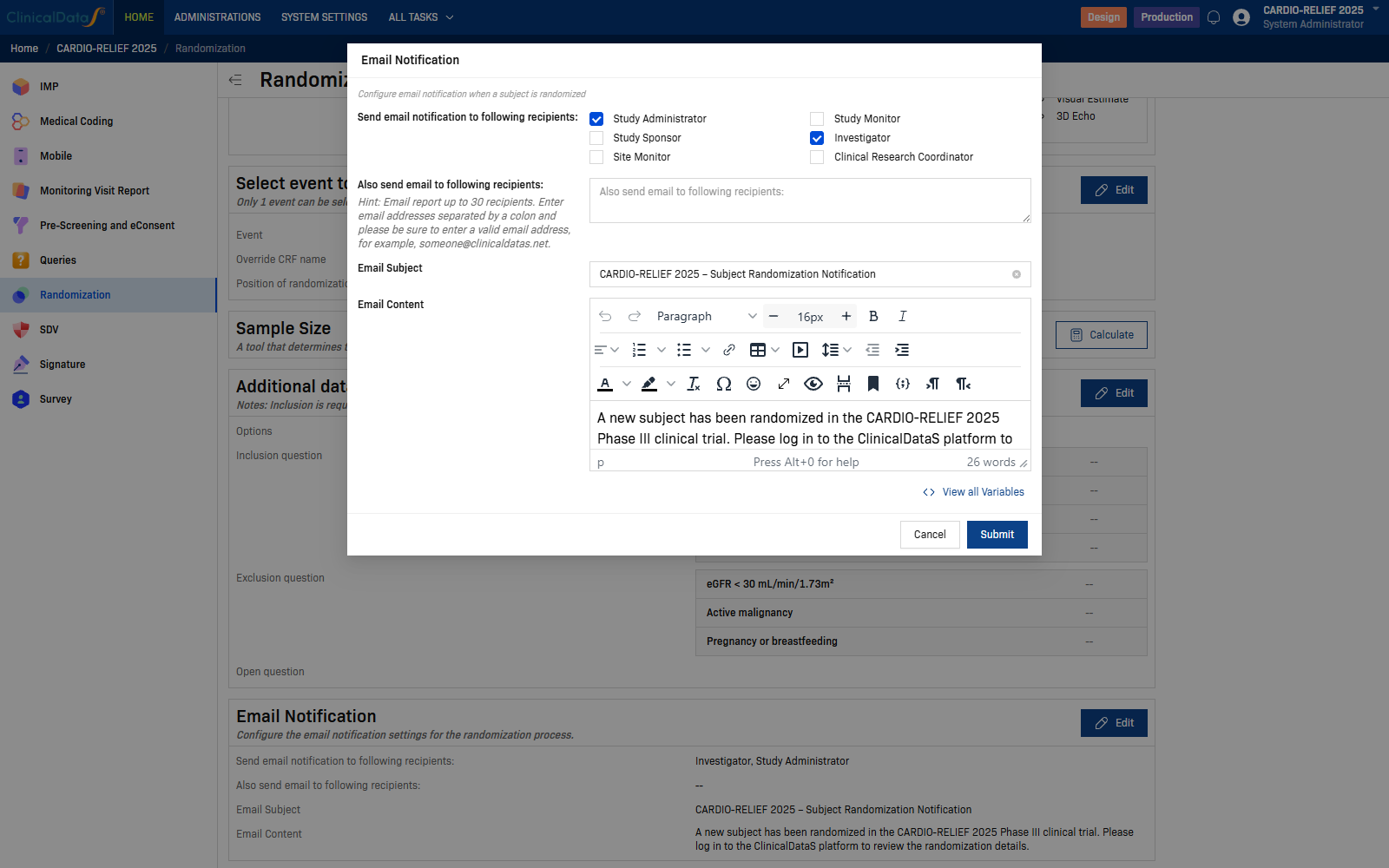
Configure email notification when a subject is randomized.
| Setting | Description |
|---|---|
| Send email notification to following recipients | Check each role that should receive a notification: Study Administrator, Study Monitor, Study Sponsor, Investigator, Site Monitor, Clinical Research Coordinator |
| Also send email to following recipients | Additional individual email addresses (up to 30 recipients) |
Select Submit to save.
Typical workflow
- Install the Randomization app on the study (study must be in Design status).
- Before configuring Randomization, create the Subject Group Class with treatment arm codes in study setup — the algorithm reads arm codes from there.
- Open Randomization and configure each card in order:
- Blinding Method and Algorithm settings — choose blinding and algorithm, then Save.
- Algorithm settings — configure study groups, block size, and stratification factors.
- Select event to Randomize — choose the event and form name.
- Sample Size — optional; use the power calculator if needed.
- Additional data before Randomization — define eligibility questions.
- Email Notification — select recipients and customize the message.
- Go Live — switch the study to Production. Subjects can then be randomized at the designated event visit by site staff.
Algorithms
| Algorithm | Description |
|---|---|
| Permuted Block Design | Create blocks with treatment assignments shuffled according to the predefined allocation ratio |
| Stratified Permuted Block Design | Same as Permuted Block but separated by strata. Define stratification variables in algorithm settings. |
| Big Stick Design | Allows imbalance in a predefined MTI; if exceeded, assigns to the group with lower count. |
| Minimization Design | Assigns the patient to a group that minimizes imbalance across covariates. Balancing updates in real-time. |
Related topics
- Randomization — Business definition and key capabilities
- Randomization Workspace — Dashboard, Subjects, Requests, and other operational tabs
- Install an App — How to install or open any CDS module on a study