Overview
Big Stick Design (BSD) is an adaptive randomization procedure that allows treatment allocation to drift away from perfect balance up to a predefined Maximum Tolerated Imbalance (MTI). Once the imbalance reaches the MTI, the next subject is deterministically assigned to the under-represented arm. Otherwise, each assignment is made with equal probability (or a configurable soft-randomization probability).
BSD provides better allocation concealment than Permuted Block Design because assignments are less predictable — the "forced" balance point depends on the running imbalance rather than a fixed block boundary.
How it works
Let D = (number of subjects in Arm A) − (number of subjects in Arm B).
- If |D| < MTI → assign each arm with equal probability (or the configured soft-randomization probability).
- If D = +MTI → force assignment to Arm B (restore balance).
- If D = −MTI → force assignment to Arm A (restore balance).
Example — MTI = 3, 1:1 allocation:
| Subject | Random draw | Assignment | Running D |
|---|---|---|---|
| 1 | 0.71 | TRT | +1 |
| 2 | 0.33 | PBO | 0 |
| 3 | 0.88 | TRT | +1 |
| 4 | 0.62 | TRT | +2 |
| 5 | 0.41 | PBO | +1 |
| 6 | 0.91 | TRT | +2 |
| 7 | 0.55 | TRT | +3 — MTI reached |
| 8 | forced | PBO | +2 |
The imbalance never exceeds 3 at any point.
When to use
Use Big Stick Design when:
- You want stronger allocation concealment than Permuted Block provides.
- The trial is single-site and does not require stratification by subject characteristics.
- You are willing to accept slight final imbalance in exchange for better masking.
For multi-site trials or subject-level stratification, use Stratified Permuted Block Design instead.
Who uses this screen
The Randomization configuration screen is used by the Study Administrator to set up and manage the algorithm, study groups, eligibility questions, and notifications. Site staff (Investigators, CRCs) interact with randomization through the subject data capture workflow at the designated randomization event — they do not access this configuration page directly.
If you cannot open the Randomization app or the Edit buttons are greyed out, verify that the study is in Design status. Configuration changes are not permitted while the study is in Available, Locked, or Frozen status.
Typical workflow
- Open the study and navigate to Randomization in the left sidebar.
- Open the Blinding Method and Algorithm settings card and select Big Stick Design.
- Save the algorithm selection — the Big Stick Design settings card appears.
- Open Big Stick Design settings and configure study groups, MTI value, and imbalance rules.
- Configure Select event to Randomize — choose which study event triggers randomization.
- (Optional) Configure Additional data before Randomization — add eligibility questions.
- Configure Email Notification — choose which roles receive alerts on randomization.
Step-by-step configuration
Step 1 — Open the Randomization app
Sign in to your ClinicalDataS instance, open the study, and select Randomization from the left sidebar under Installed Apps.
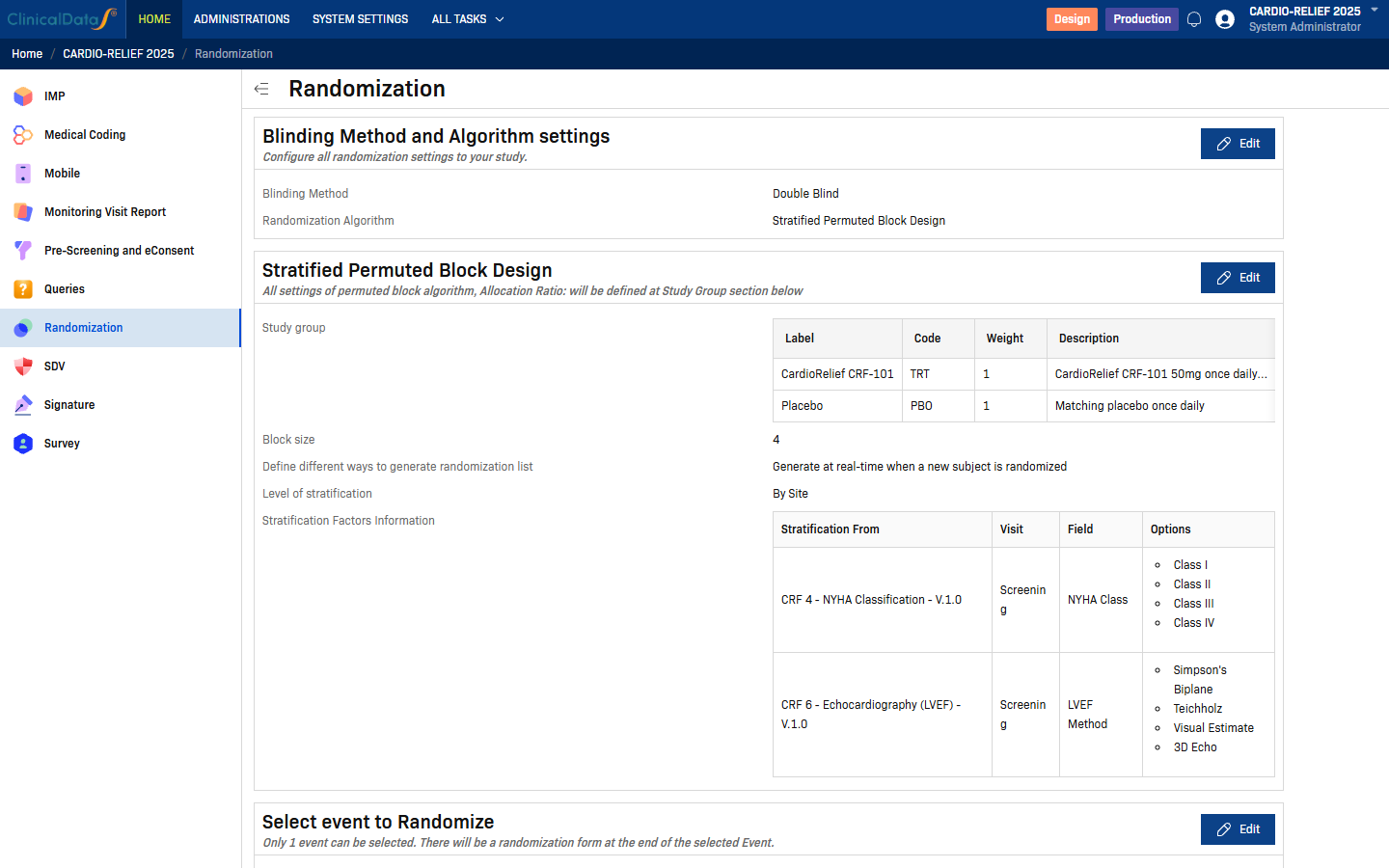
The Randomization page lists all configuration cards. If the study is in a non-Design status, most Edit buttons are disabled. To enable editing, change the study status to Design via the Change Status button on the study home page.
Step 2 — Select the Big Stick Design algorithm
Click Edit on the Blinding Method and Algorithm settings card.
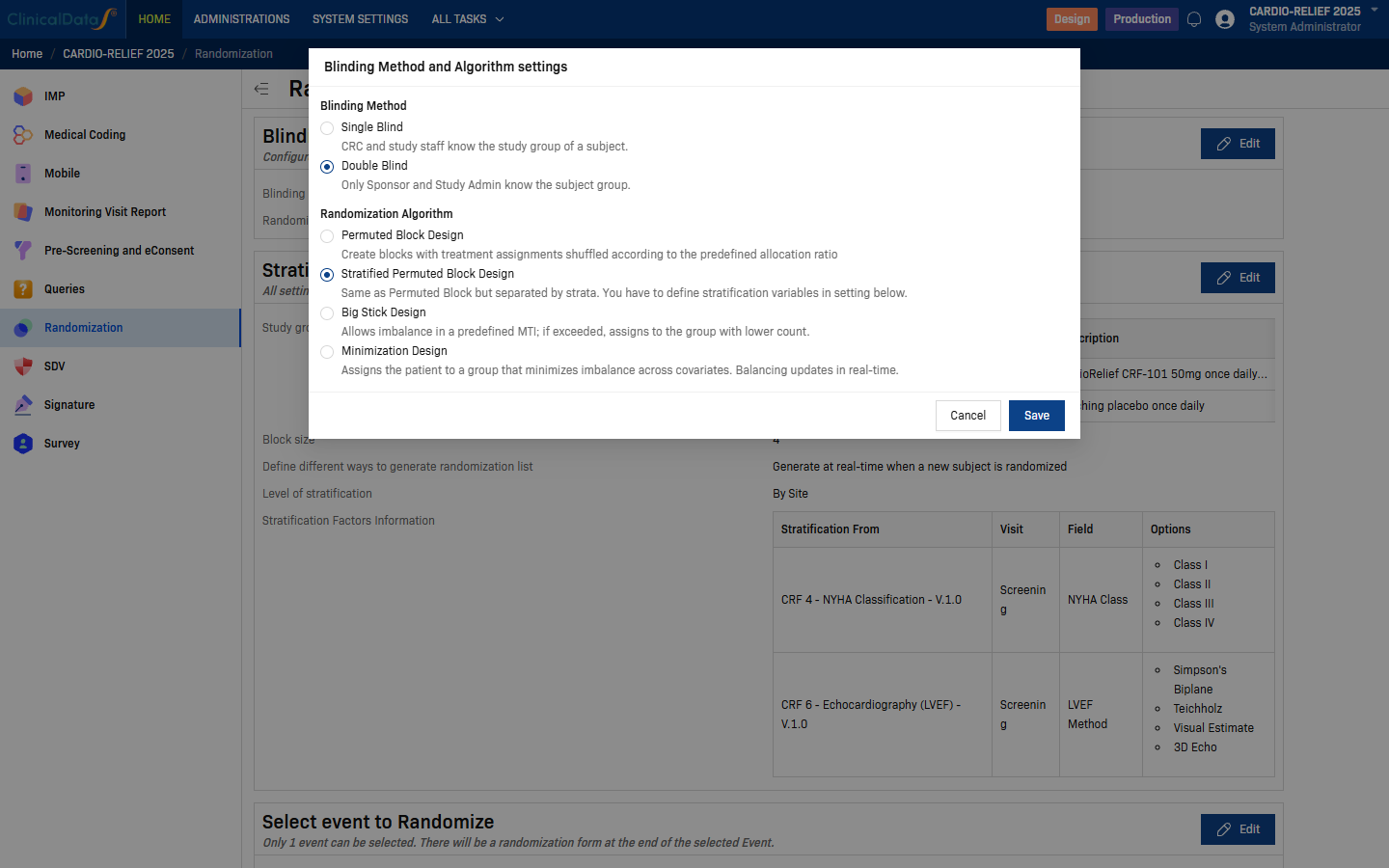
| Field | Options | Description |
|---|---|---|
| Blinding Method | Single Blind | CRC and study staff can see the subject's study group. |
| Double Blind | Only Sponsor and Study Administrator know the subject group. | |
| Randomization Algorithm | Permuted Block Design | Single-list randomization using balanced permuted blocks. |
| Stratified Permuted Block Design | Separate lists per site/stratum combination. | |
| Big Stick Design | Allows imbalance up to a predefined MTI before forcing balance. | |
| Minimization Design | Covariate-adaptive allocation minimizing group imbalance. |
Select Big Stick Design, then click Save.
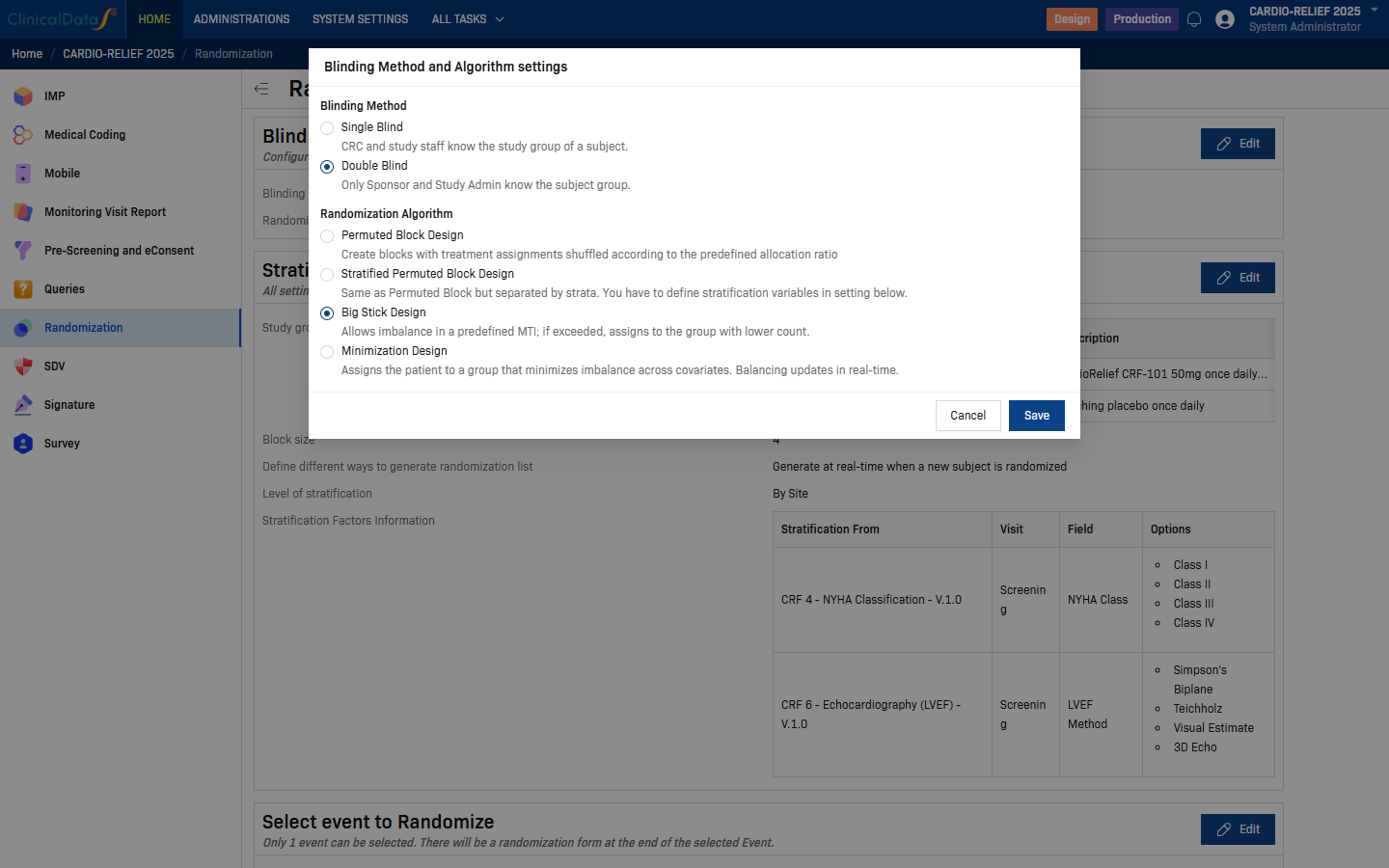
The page reloads and the Big Stick Design settings card appears below Blinding Method and Algorithm settings.
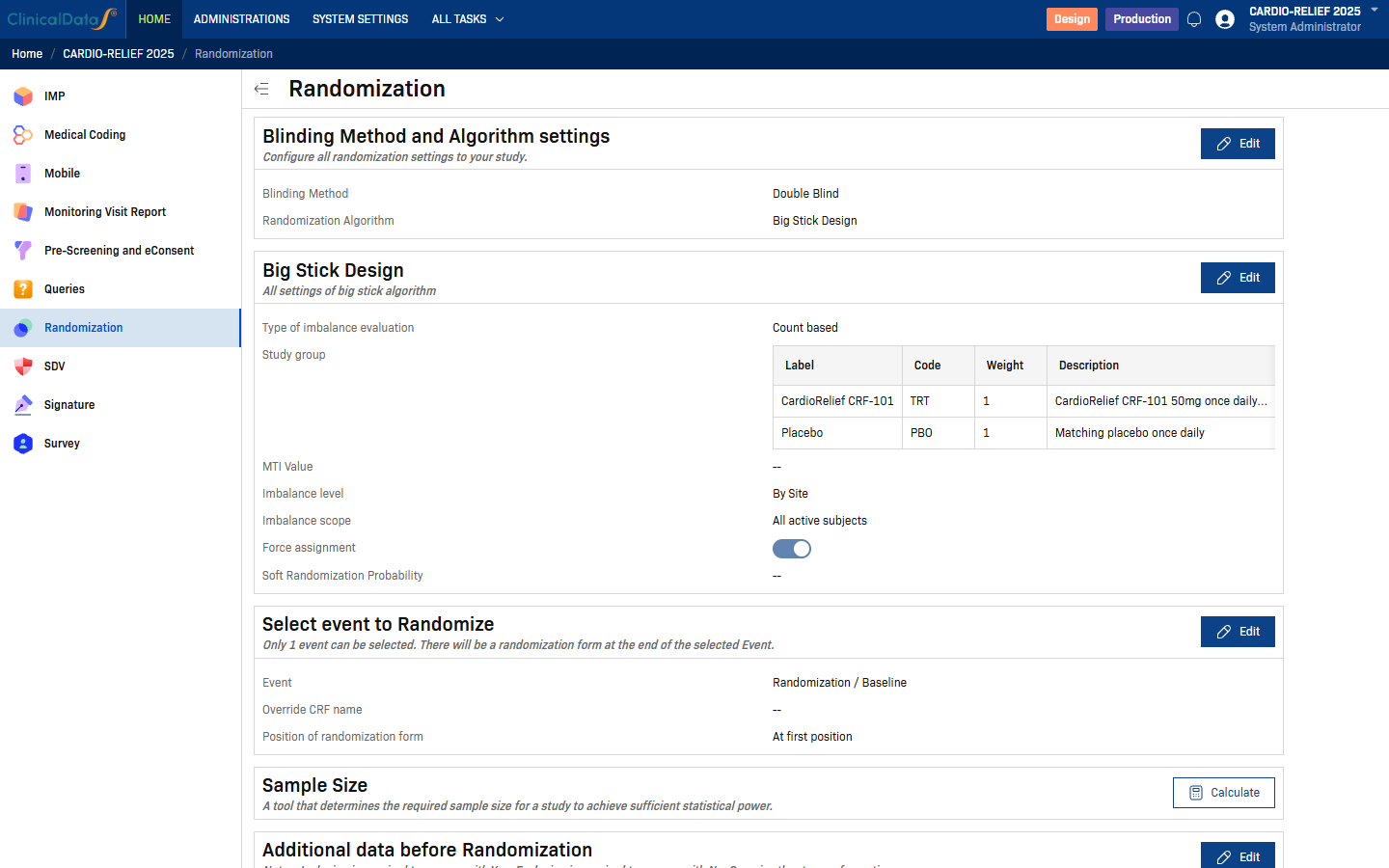
Step 3 — Configure Big Stick Design settings
Click Edit on the Big Stick Design card.
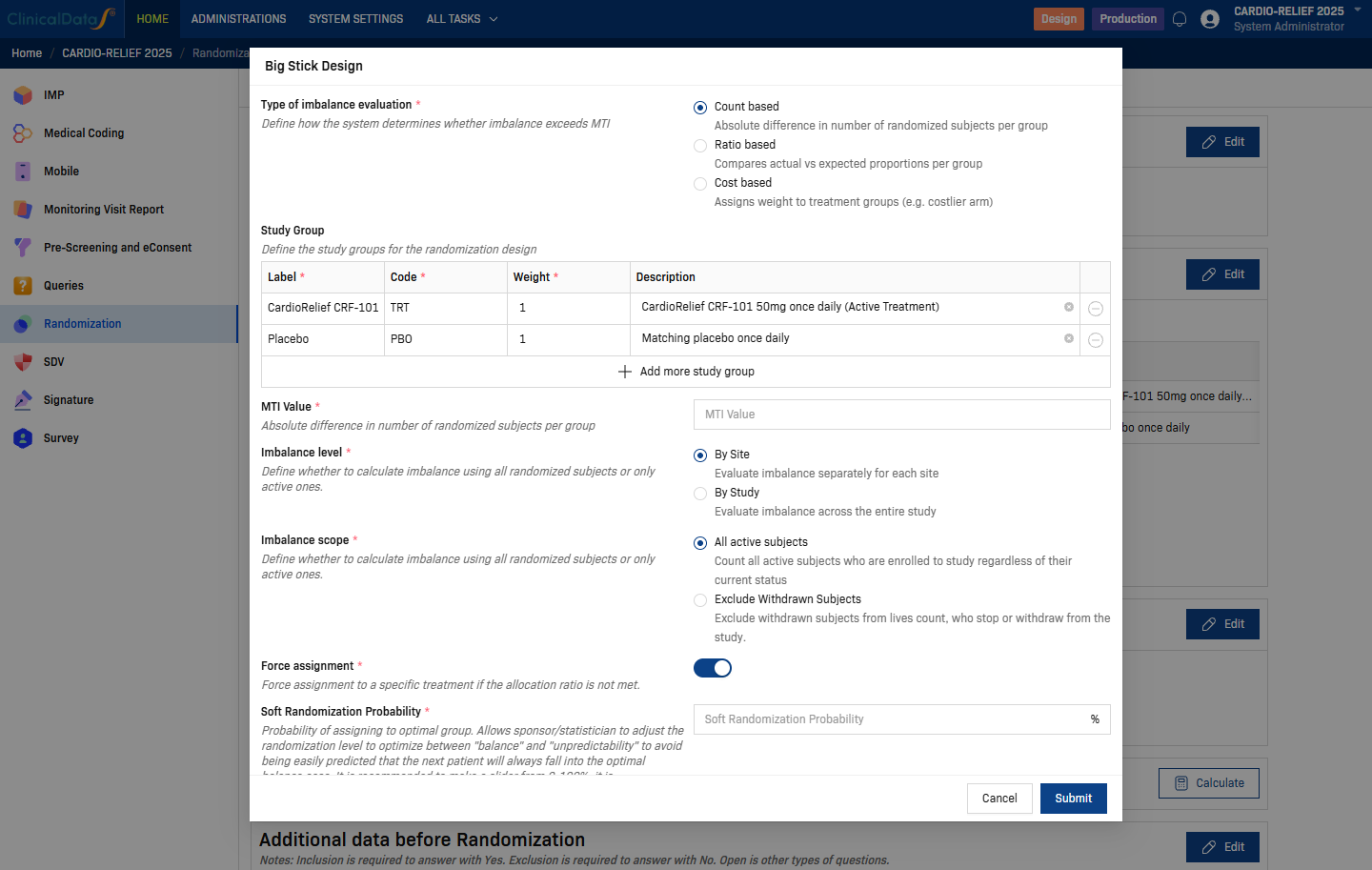
| Setting | Description |
|---|---|
| Type of imbalance evaluation | Count based — absolute difference in number of subjects per group. Ratio based — compares actual vs expected proportions. Cost based — assigns weight to treatment groups. |
| Study Groups | One row per treatment arm. Each row requires: Label (display name), Code (short identifier, e.g. TRT, PBO), Weight (allocation ratio weight), Description (optional). Use + Add more study group to add arms. |
| MTI Value | Maximum Tolerated Imbalance — the maximum allowed imbalance between arms. For count-based evaluation: 2–4 is typical for a 1:1 trial. |
| Imbalance level | By Site — evaluate imbalance separately for each site. By Study — evaluate imbalance across the entire study. |
| Imbalance scope | All active subjects — count all enrolled subjects. Exclude Withdrawn Subjects — exclude subjects who have withdrawn from the study. |
| Force assignment | Toggle — when enabled, forces assignment to the under-represented arm when the MTI is reached. |
| Soft Randomization Probability | Probability (0–100%) of assigning to the optimal (balancing) arm. Recommended 70–90% for large studies, 100% for small studies. Higher values improve balance but reduce unpredictability. |
MTI guidance
| Trial size | Typical MTI | Notes |
|---|---|---|
| < 50 subjects | 2–3 | Tight control; slight loss of concealment |
| 50–200 subjects | 3–5 | Good balance between concealment and balance |
| > 200 subjects | 5–8 | Large trials tolerate larger imbalance without meaningful impact on power |
Tip: Setting MTI too low (e.g., 1) approaches deterministic assignment and reduces allocation concealment. Setting it too high (e.g., equal to sample size) approaches simple randomization with no balance guarantee.
Click Submit to save the settings.
Step 4 — Select event to Randomize
Click Edit on the Select event to Randomize card.
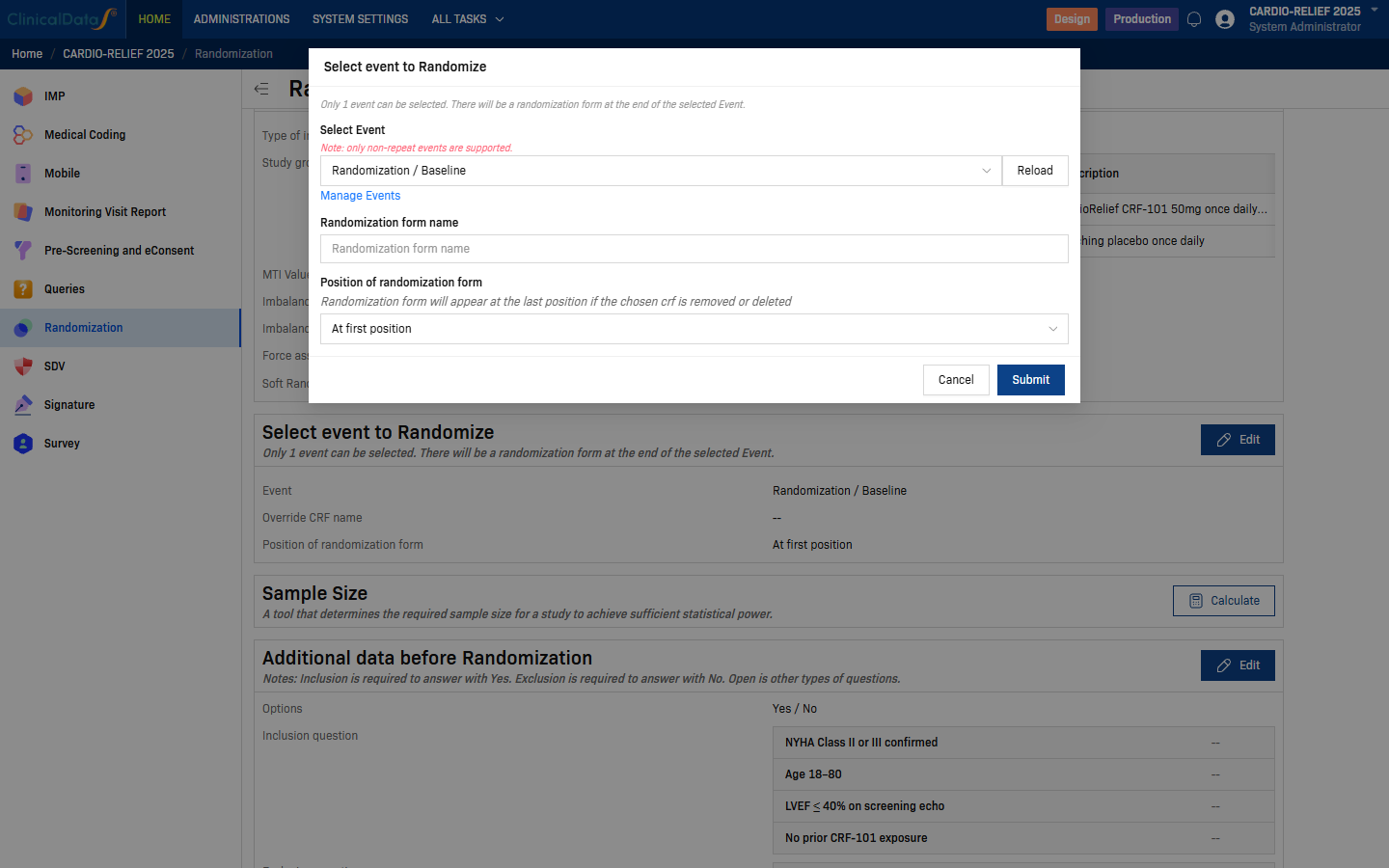
| Field | Description |
|---|---|
| Select Event | Choose the study event at which randomization takes place. Only non-repeat events are supported. Use Reload to refresh the list if you recently added events. Click Manage Events to navigate to the event setup page. |
| Randomization form name | Optional. Override the default name of the randomization CRF. Leave blank to use the system default. |
| Position of randomization form | Where the randomization form appears within the selected event. Default: At first position. |
Click Submit to save.
Step 5 — Additional data before Randomization (optional)
Click Edit on the Additional data before Randomization card to define eligibility questions that site staff must answer before a subject can be randomized.
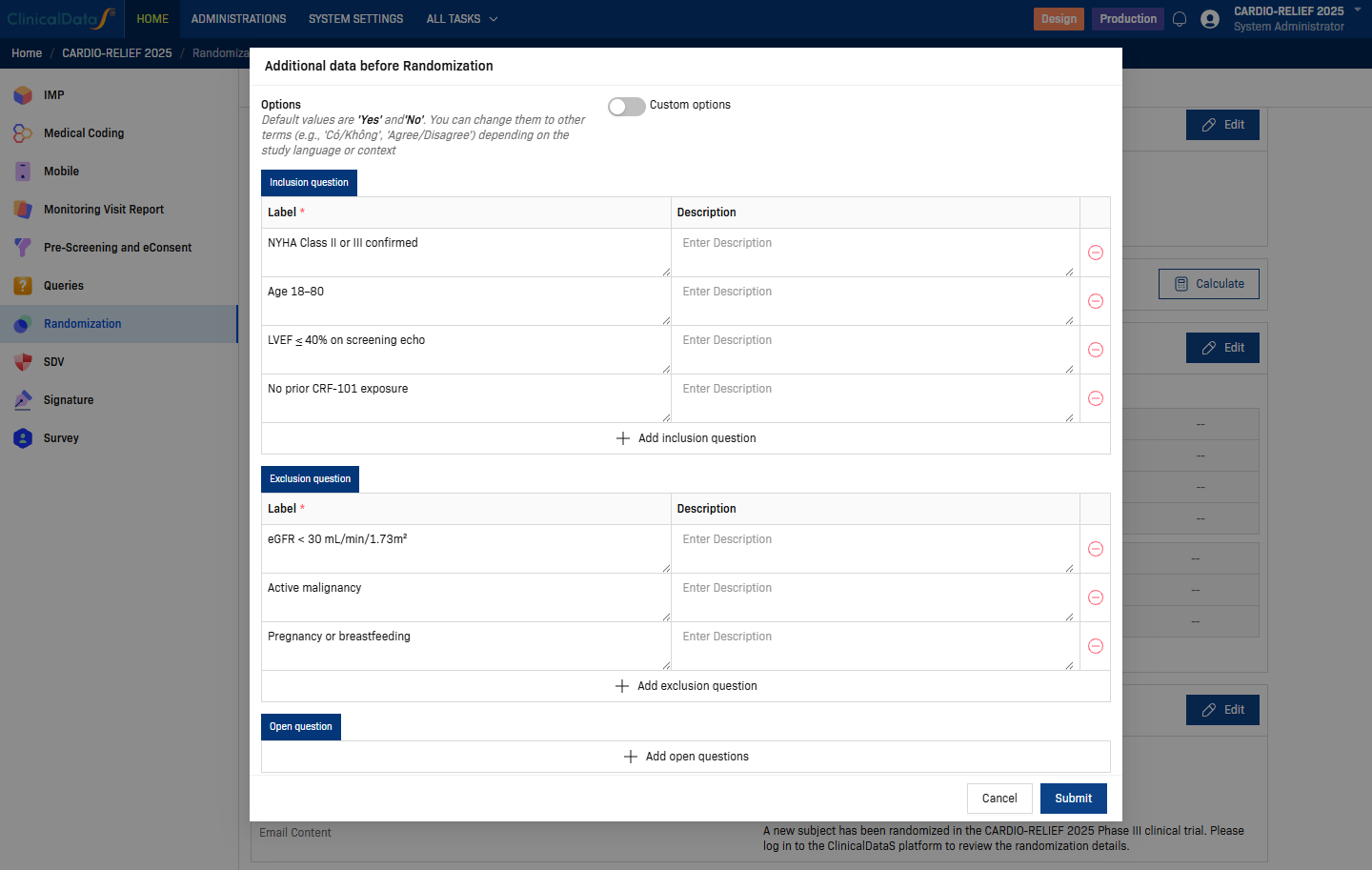
Three question types are supported:
| Section | Behaviour | Example |
|---|---|---|
| Inclusion question | Must be answered Yes to proceed. | "NYHA Class II or III confirmed" |
| Exclusion question | Must be answered No to proceed. | "Active malignancy" |
| Open question | Free-text or other answer type; no pass/fail logic. | Any additional data collection |
The Options toggle lets you replace the default Yes/No labels with custom text (e.g. Có/Không, Agree/Disagree) for studies in other languages.
Use + Add inclusion question / + Add exclusion question / + Add open questions to add rows. Click Submit to save.
Step 6 — Email Notification
Click Edit on the Email Notification card to configure which roles receive an automated email when a subject is randomized.
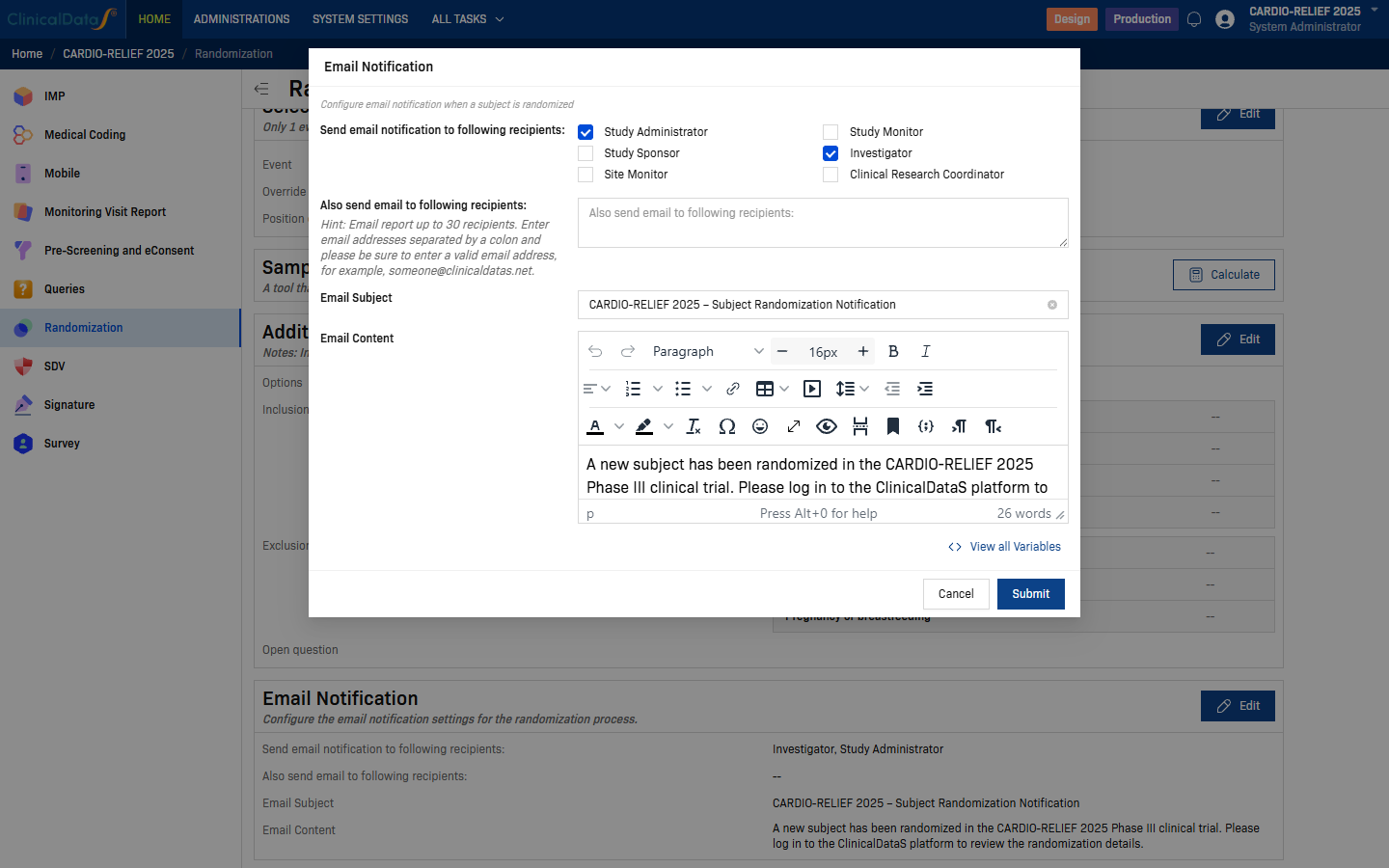
| Field | Description |
|---|---|
| Send email notification to following recipients | Check one or more roles: Study Administrator, Study Sponsor, Site Monitor, Study Monitor, Investigator, Clinical Research Coordinator. |
| Also send email to following recipients | Enter individual email addresses (up to 30), separated by colons. Useful for external stakeholders not in the system. |
| Email Subject | Subject line of the notification email. |
| Email Content | Rich-text body of the notification email. Click View all Variables to insert dynamic placeholders (e.g. subject ID, randomization date). |
Click Submit to save.
Comparison with Permuted Block
| Property | Permuted Block | Big Stick Design |
|---|---|---|
| Allocation concealment | Weaker at block end | Stronger — harder to predict |
| Maximum imbalance | Block size / 2 | MTI |
| Predictability | Higher (especially small blocks) | Lower |
| Simplicity | Simple | Slightly more complex |
| Pre-generatable | Yes | Not meaningfully |
Regulatory acceptance
Big Stick Design is described in Soares & Wu (1983) and is recognized in the randomization literature, though less commonly used than Permuted Block. Document the MTI value and procedure in the randomization SOP and protocol. Discuss with your biostatistician before selecting BSD for a confirmatory trial.
Related topics
- Randomization Configuration — all configuration cards and blinding options
- Permuted Block Design — simple balanced blocks, most widely used
- Stratified Permuted Block Design — adds site and covariate stratification
- Minimization Design — covariate-adaptive allocation